Certificates
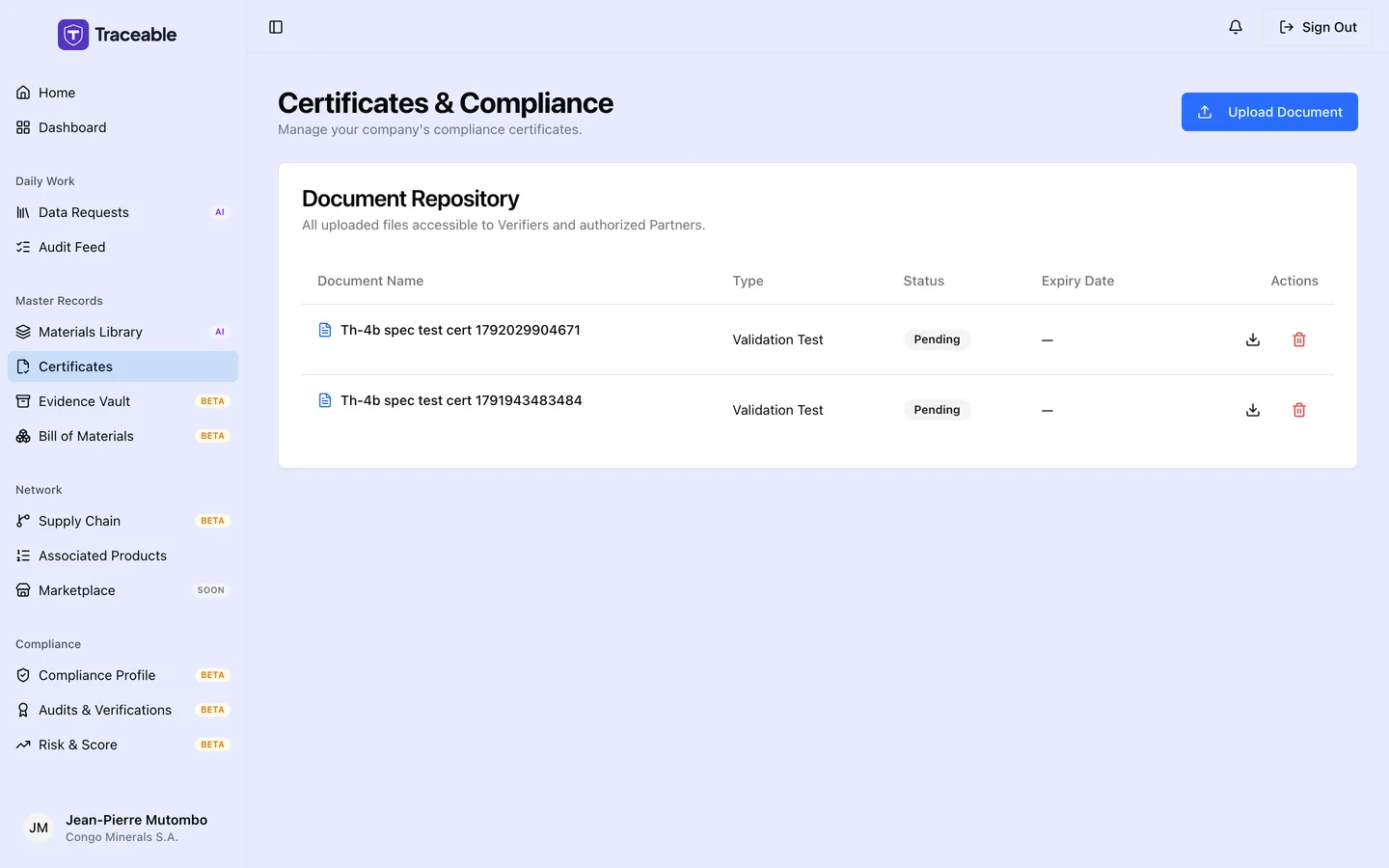
Certificates.
Company-Level Versus Material-Level Certificates
Traceable supports two scopes of certificate:
| Scope | What it covers | Where to manage |
|---|---|---|
| Company certificate | Your business broadly, quality management systems, environmental systems, conflict minerals policy, general regulatory registrations | Certificates in the sidebar (this page) |
| Material certificate | A specific material in your library, e.g., a REACH compliance certificate for a particular cathode active material | Materials → select material → Certificates tab. See Certificates for Materials |
This page covers company-level certificates.
How to Upload a Company Certificate
- Select Certificates in the left sidebar. The page is titled "Certificates & Compliance".
- Select Upload Document. The Upload Certificate dialog opens.
- Choose a file, then enter a Document name and a Document type, and optionally an Expiry date.
- Select Upload. The document is saved to your evidence catalogue.
A new document is private to you. To choose which customers can see it, open Evidence Vault and use the Share button on the document in the Evidence sharing section. Sharing is per customer and reversible, and the document itself is never duplicated. See Evidence Vault for the full share workflow.
Certificate Fields
| Field | Required | Notes |
|---|---|---|
| File | Yes | PDF, DOCX, PNG, JPEG or WEBP, up to 10 MB |
| Document name | Yes | Up to 200 characters |
| Document type | Yes | Free text, up to 100 characters, for example ISO 14001 |
| Expiry date | No | If set, the platform can show how long the document remains valid |
Document types
Document type is free text. Types customers commonly ask for include:
- ISO 9001
- ISO 14001
- IATF 16949
- REACH registration
- RoHS compliance
- RMAP / RMI audit
- UN 38.3
Upload these proactively if you hold them, so they are in Traceable before a data request arrives.
Expiry
Expiry is shown in the Expiry Date column here and in the Evidence Vault, which groups documents as Expired, Expiring soon (under 90 days) and Valid. Home lists documents expiring in under 60 days. Traceable does not currently send expiry reminder emails for supplier certificates.
Renewing a Certificate
To record a renewed certificate, upload the new document with Upload Document and its new Expiry date. Supersession (marking an older certificate as replaced by a newer one) is not available yet.
Each row has a download button and a delete button. Deleting removes the document immediately, with no confirmation step, so keep older certificates unless you no longer need them.
How Customers See Your Certificates
Sharing records which customers are allowed to see a document. Customers you have not shared a document with are not allowed to see it, and a document you share only with one customer is not shared with another.
The upload dialog
Upload Document opens Upload Certificate, which adds the file to your evidence catalogue. You can choose which customers can see it afterwards, in the Evidence Vault.
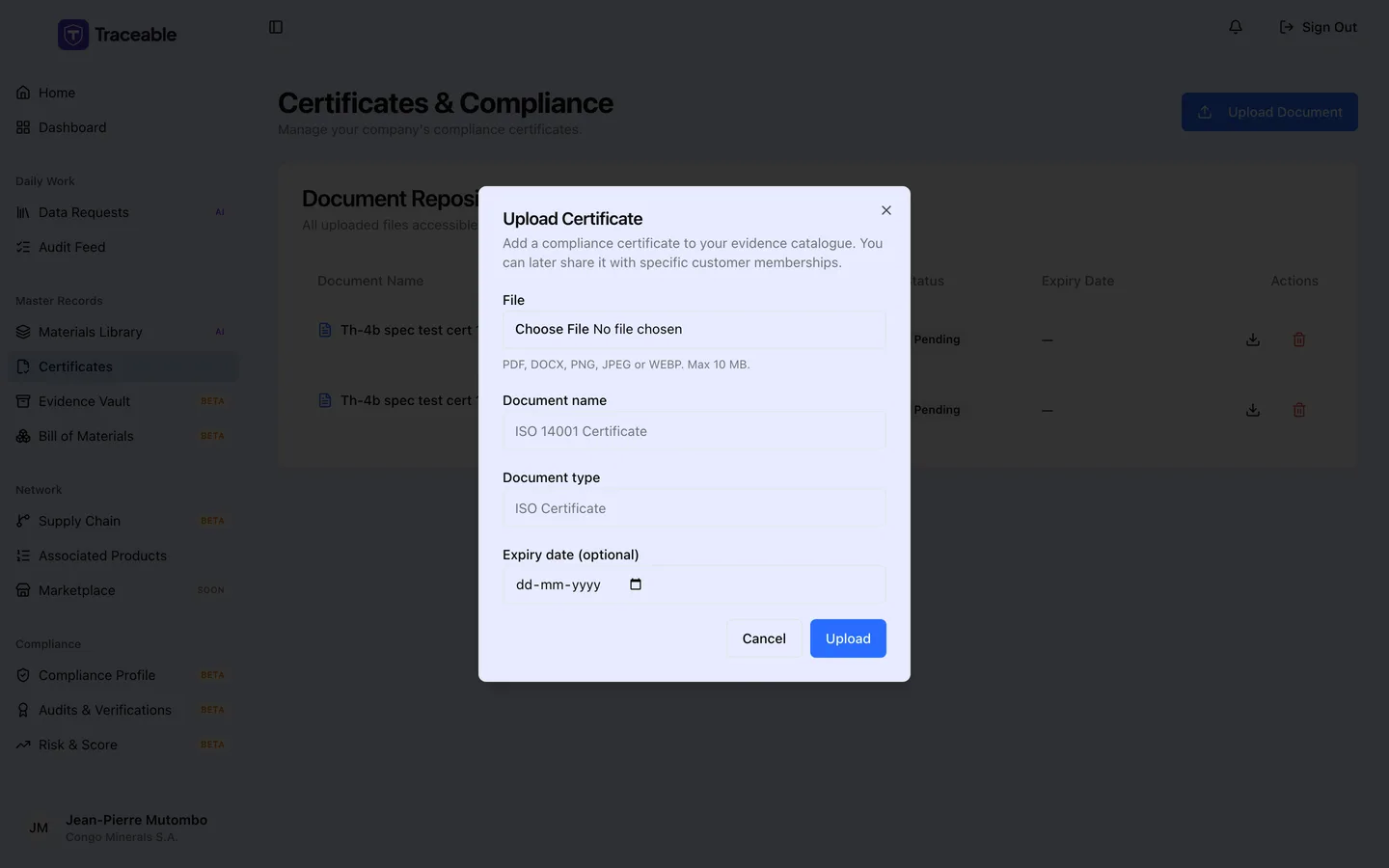
Accepted formats are PDF, DOCX, PNG, JPEG and WEBP, up to 10 MB. The expiry date is optional, but setting it lets the platform show how long the document remains valid.