Evidence Vault
Evidence Vault is currently in Beta. The view is live and pulls real data from your account, you can use it today to monitor certificate health. Planned additions are described at the bottom of this page.
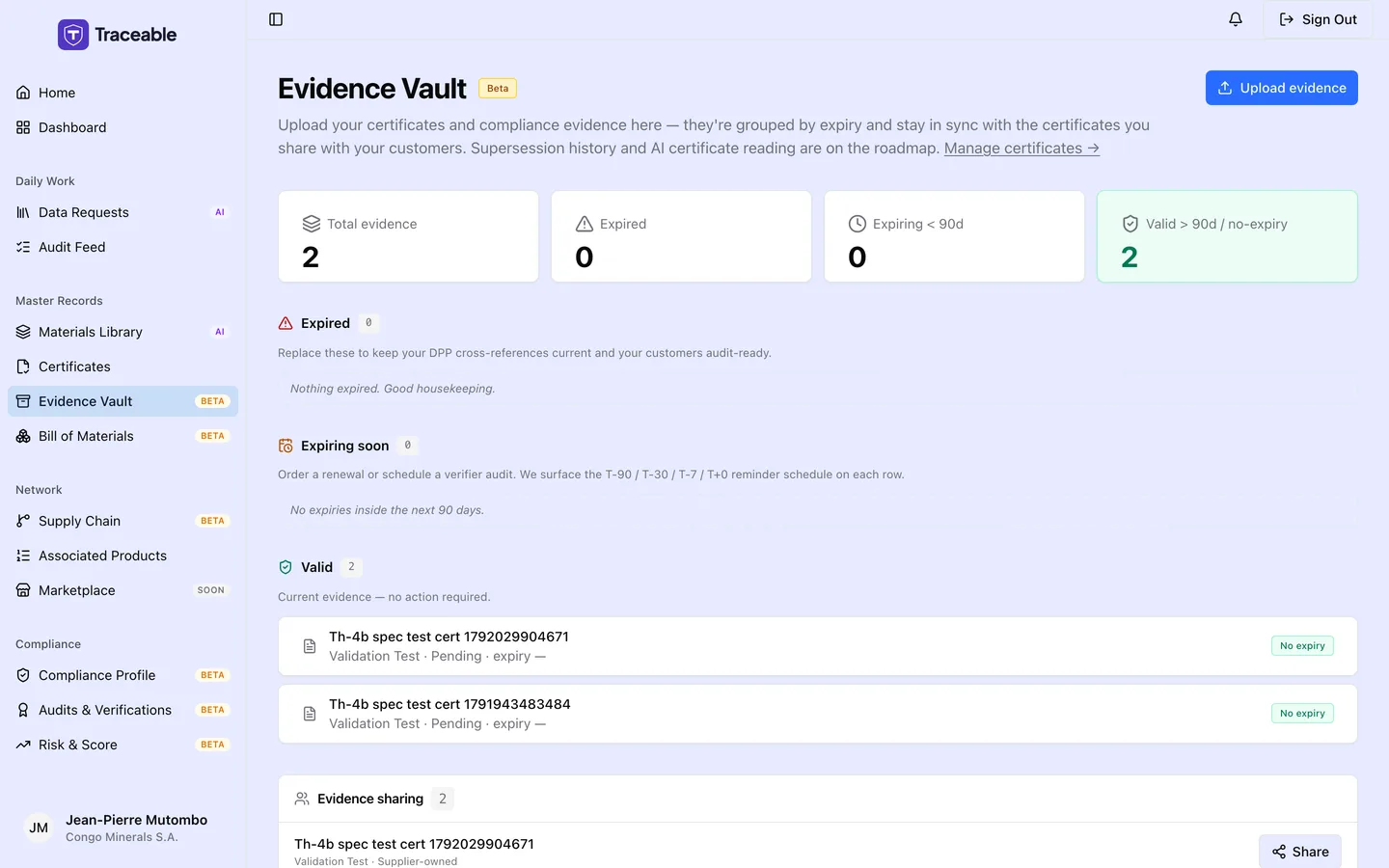
The evidence vault.
What Evidence Vault Is
Evidence Vault groups your documents by expiry status and lets you upload evidence and choose who can see each document. Select Upload evidence (top right) to add a document. It opens the same Upload Certificate dialog as the Certificates page. To download or delete a document, use the Certificates page.
Use Evidence Vault to check expiry health at a glance and to set the share scope.
Navigate to Evidence Vault in the left sidebar to open the dashboard.
Summary Cards
At the top of the page, four cards summarise your evidence health:
| Card | What it shows |
|---|---|
| Total evidence | The total number of compliance documents in your account |
| Expired | Documents that have passed their expiry date |
| Expiring < 90d | Documents expiring within the next 90 days |
| Valid > 90d / no-expiry | Documents with more than 90 days remaining, or documents with no expiry date set |
The Expired, Expiring and Valid cards turn red, amber and green when their count is above zero.
Expiry Tier Grouping
Below the summary cards, your documents are grouped into three sections based on their expiry status:
Expired
Documents that have already passed their expiry date. These should be replaced with renewed versions as soon as possible.
Each row shows the document name, type, status, and expiry date, alongside a badge indicating how long ago the document expired.
Expiring Soon
Documents expiring within the next 90 days. The badge on each row shows how many days remain. This section captures three urgency levels:
- Under 7 days: critical; renewal should be initiated immediately
- 7 to 29 days: attention required; order a renewal or schedule a verifier audit
- 30 to 89 days: plan ahead; note the renewal timeline in your calendar
Valid
Documents with more than 90 days remaining, or documents with no expiry date. These require no immediate action.
Managing Evidence
Evidence Vault lets you upload a document and control who each document is shared with (see Sharing Documents With Customers below).
- Upload a new document: Select Upload evidence at the top right of this page.
- Download or delete a document: Use the buttons on each row of the Certificates page.
Sharing Documents With Customers
You control which of your customers can see each evidence document through a per-customer share scope. Sharing is per customer, reversible, and never duplicates the document: one document can be shared with many customers, and you can change the list at any time.
In the Evidence sharing section, each document has a Share button. It reads "Shared · 2" when the document is shared with two customers. The button opens the Share evidence dialog, where you tick the customers who may see the document and select Save sharing. When no customer is ticked, the document is private to you.
If you do not yet have any active customer relationships, the dialog says: "You don't have any active customer relationships to share with yet. Once a customer onboards you, they'll appear here."
Coming in a Future Release
Evidence Vault is planned to gain the following capabilities:
- AI certificate extraction: automatically extract issued date, expiry date, scope, and issuing body from uploaded PDFs.
- Supersession history: replace an expiring certificate with its renewal in one click, with old DPP references rolling forward automatically.
Related
- Certificates: upload and manage your compliance documents
- Data Requests: responding to customer requests that include evidence requirements