Verification queue
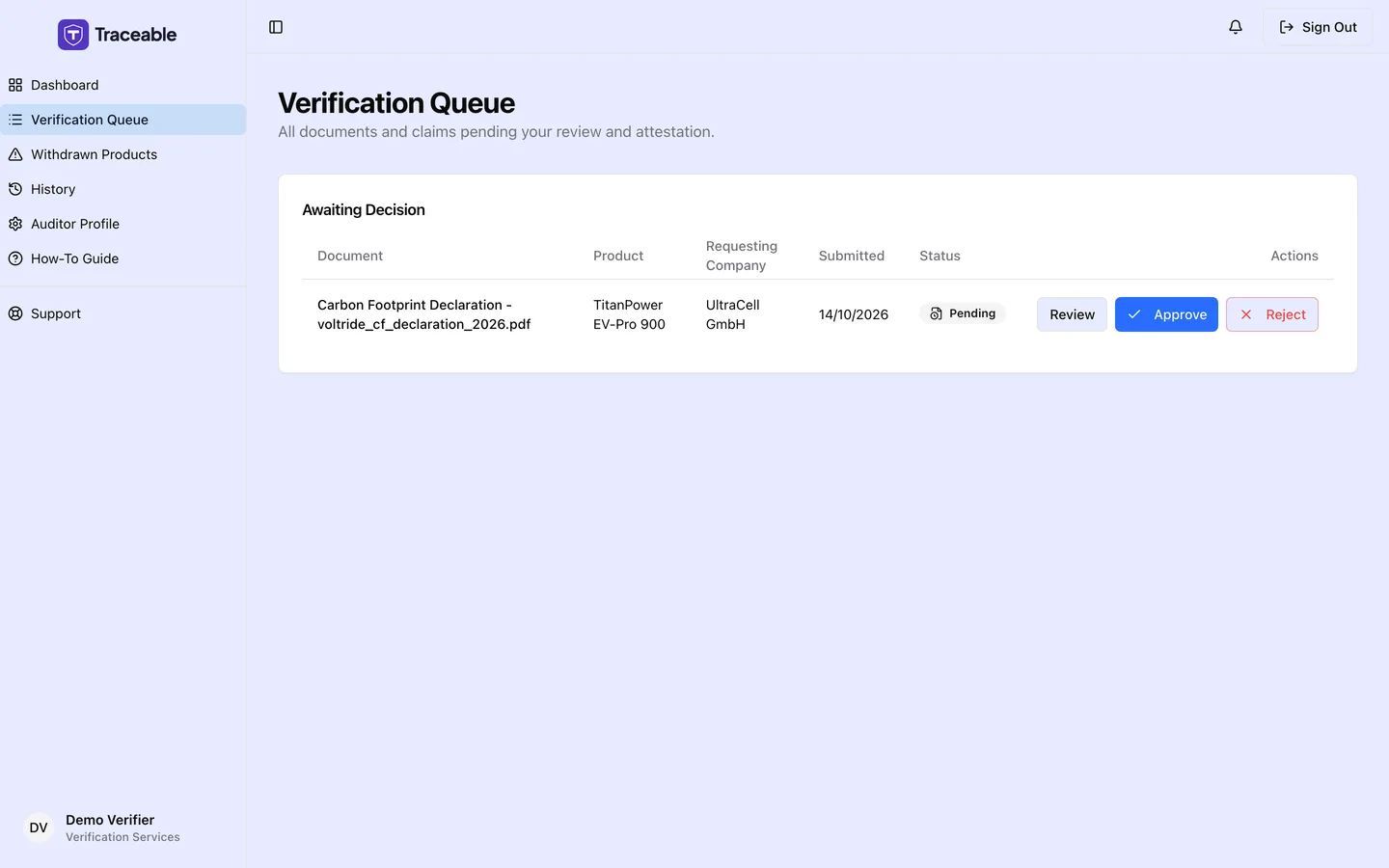
The verification queue.
The Queue View
Select Verification Queue in the left sidebar. The page is headed "Verification Queue", with the line "All documents and claims pending your review and attestation."
Tasks are listed newest first, by the date each task was created. Each row is one document or product submission.
What Each Task Row Shows
The Awaiting Decision table has these columns:
| Column | Description |
|---|---|
| Document | The name of the document submitted for review |
| Product | The battery product or DPP this document relates to |
| Requesting Company | The operator company the task came from |
| Submitted | The date the task was created |
| Status | The current status of the task |
| Actions | Review opens the task page. Pending tasks also show Approve and Reject buttons |
Approve and Reject open the same decision dialogs without opening the task. See Approve or Reject.
Task Status Values
| Status | Meaning |
|---|---|
| Pending | Awaiting a decision. Created automatically, not yet sent to a particular verifier |
| In Review | Awaiting a decision. The operator sent it to a named verifier |
Approved and Rejected tasks leave the queue. Find them in Verification History.
How Tasks Reach You
Tasks reach your queue in two ways:
- A task is created automatically when an operator submits a product or uploads a document, where the Verification module is enabled for that operator. It has status Pending and is visible to every verifier on that operator's roster.
- An operator can also send a document to you from the product's documents page. The task then has status In Review and is assigned to you.
The portal does not send you an email when a task is assigned. Pending tasks count in Pending Queue and assigned ones in Currently In Review on your dashboard.
If you believe a task is not yours to review, contact the operator directly to discuss it before you decide.
When the Queue Is Empty
If you expected tasks from an operator but your queue is empty, confirm that the operator has added you to its verifier roster (an operator team admin does this on its Verifiers page) and that its Verification module is enabled. With no tasks the page shows "No documents pending verification" and the line "When companies upload compliance documents, they will appear here for your review." Tasks of Withdrawn, Revoked or Deprecated products are hidden.
When the Queue Has Too Many Tasks
If you have more tasks than you can complete in a reasonable timeframe, communicate directly with the operators, do not rush reviews or miss decisions without explanation.
Contact the relevant operator directly. Explain your capacity constraint and propose a revised timeline.
Do not reject tasks to clear your queue, every decision you make is final and is written to the product's audit trail.
Related
- Review a Task: how to work through a task
- Approve or Reject: submitting your decision
- Verification History: your complete decision record