Materials overview
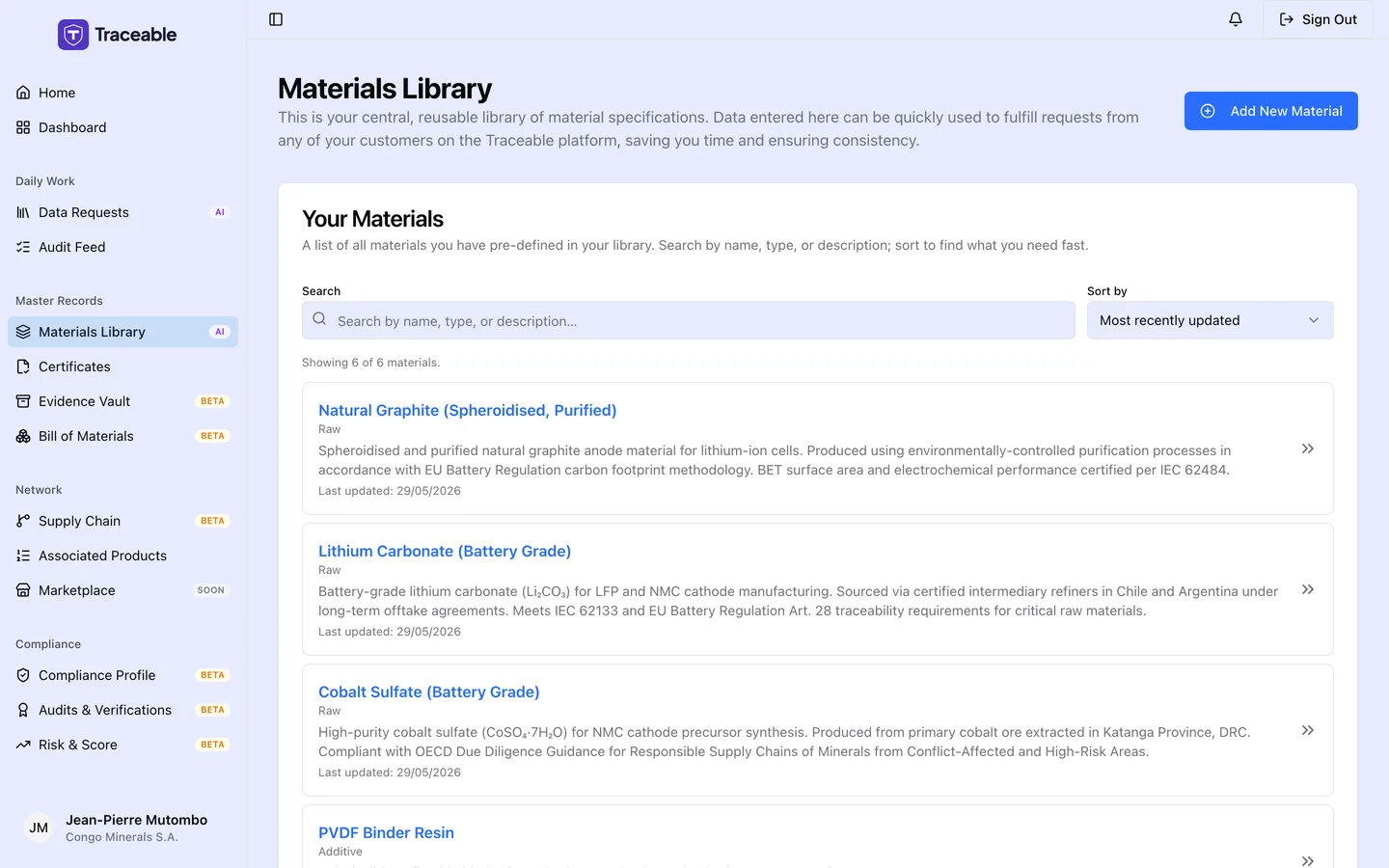
The materials library.
What Is the Material Library?
Your material library is a list of the materials you supply. Each entry has a name, an optional code, a type, a description and a list of specifications you define as name and value pairs.
Your material library belongs to your supplier account.
How Materials Relate to Data Requests
There is no link between the library and a data request today. You can open the library in another tab and copy values by hand.
Material Library Fields
Today a material stores a Material Name, a Material Code / SKU (optional), a Material Type, a Description, and Technical Specifications (name and value pairs).
| Field | Description |
|---|---|
| Material Name | Required, at least 3 characters |
| Material Code / SKU | Optional, up to 50 characters |
| Material Type | One of: Raw, Subcomponent, Assembly, Additive, Component |
| Description | Required, at least 10 characters |
CAS numbers, country of origin and a composition breakdown are not available as fields today. Record them as Technical Specifications.
Compliance Documents
The material page shows a Compliance Documents table (Document Name, Type, Expiry) that is read only. There is no control to add a document to a material today. See Certificates for Materials.
Recording Regulation Declarations for a Material
Open a material. The Regulation declarations card has a Declare status button.
- In the Declare regulation status dialog, choose a Regulation: REACH (SVHC), RoHS 3, CMRT / EMRT, CBAM, EUDR, or EU Battery Reg.
- Choose a Status: Compliant, Action required, Pending, or Not applicable.
- Add an optional Note (up to 1,000 characters).
- Click Save declaration. You see "Declaration saved".
Declaring the same regulation again updates the existing declaration.
This card records the status of a single material. It is separate from the company-level regulation declarations on your Compliance Profile, which describe your organisation's overall regulation posture. Use the Compliance Profile for your company position; use this card for a specific material.
Searching and Sorting Your Materials List
Go to Materials Library in the sidebar to see your library.
Search: type in the Search box ("Search by name, type, or description..."). It filters as you type and matches the name, description and type.
Sort by: choose Most recently updated (default), Least recently updated, Name (A to Z), Name (Z to A), or Type (A to Z).
The list shows up to 200 materials.
Next Steps
- Create a Material to add a new material to your library
- Certificates for Materials for what exists today