Products overview
The Products section contains your complete product catalogue. Every product you create in Traceable is one product model with its own Digital Product Passport.
Traceable supports Digital Product Passports across multiple product categories and regulations:
- Batteries (EV, LMT, Industrial, SLI, Portable): EU Battery Regulation 2023/1542
- Textiles and footwear: ESPR Regulation 2024/1781 (delegated act in progress; templates available on request)
- Tyres: ESPR Regulation 2024/1781 (delegated act in progress; templates available on request)
- Electronics: ESPR Regulation 2024/1781 (delegated act in progress)
If you are creating passports for textiles, tyres, or electronics, contact support@traceable.digital for product category template availability. The user interface and workflow described in this guide is consistent across all product types; field content varies by regulation and category. See the Compliance section for category-specific regulatory guidance.
The documentation below focuses on the products list interface, which is the same for all product types.
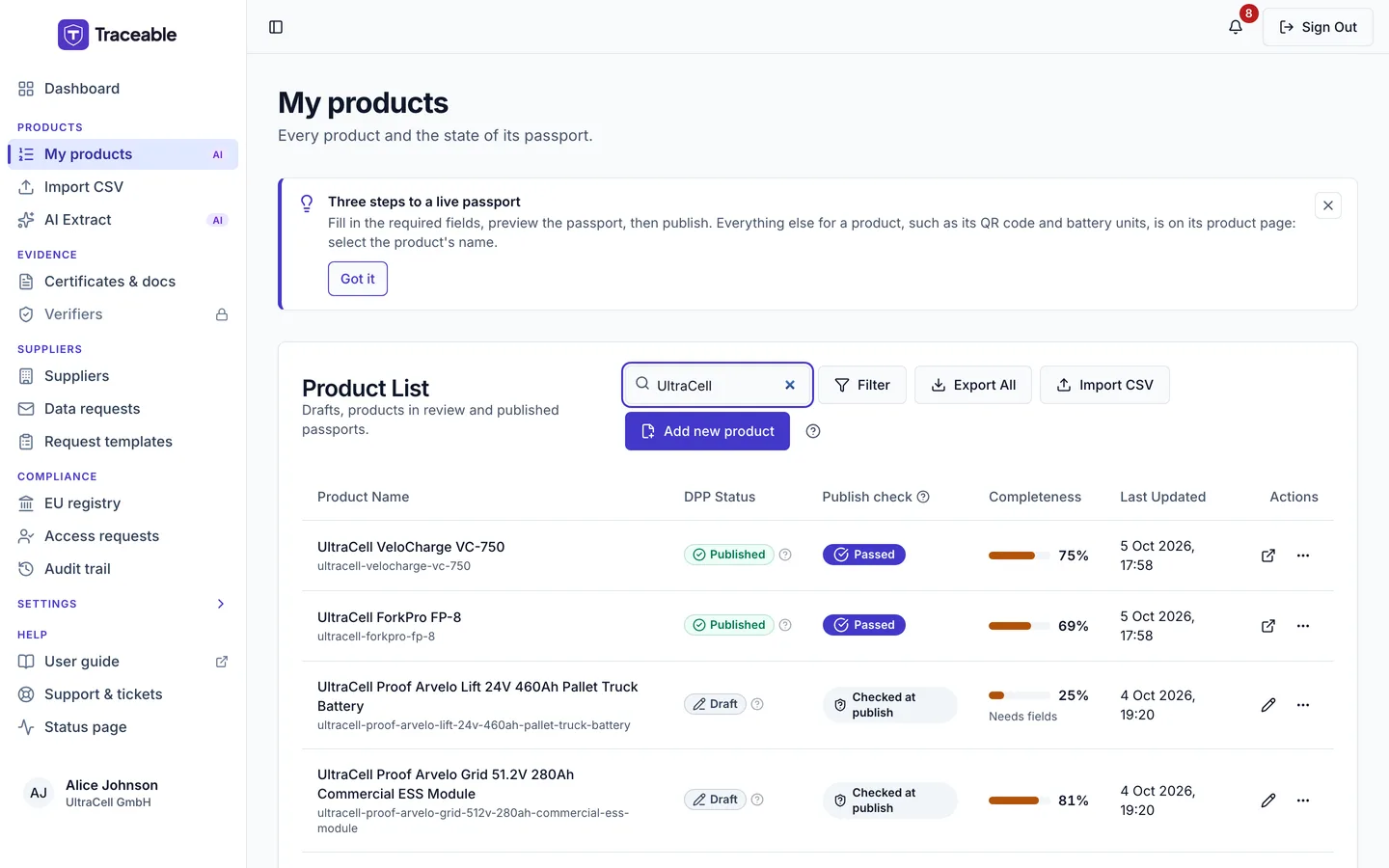
The product list.
Products List View
When you open My products under Products in the sidebar, you arrive at the list view, headed "My products" with a card titled "Product List". This is the central workspace for managing your product catalogue. It shows your products in a paginated table, 10 rows per page by default. Use Rows per page to choose 10, 20, 50 or 100.
Columns Explained
| Column | Description |
|---|---|
| Product Name | The product name plus the product's URL slug. Select it to open the product's own page; see The product page. |
| DPP Status | The status chip, with a help icon that explains the status (see below for all values). |
| Publish check | Passed, Missing data, Document expired, Needs fixes, or Checked at publish. This is the result of the platform's own checks when the product was last saved or published, not a third-party verification. |
| Completeness | A bar and a percentage. Completeness is the share of the category's required fields that are filled in. It is calculated from the product's form data only. Click it to open "Completeness Score Breakdown", which also lists separate Traceability and Sustainability sub-scores that do not change the headline percentage. A score under 50 also shows "Needs fields". |
| Last Updated | The date and time the product record was last saved, for example "5 Oct 2026, 17:58", in your own time zone. |
| Actions | An icon button and a short row menu (the three dots). |
There is no Category column.
Product Status Values
The chip shows the stored status, with one exception: a live Approved passport reads Published.
| Status | Meaning |
|---|---|
| Draft | Being edited, not submitted for review. |
| Submitted | Awaiting review by a company admin or approver. |
| Published | The chip of an Approved product in a live account. The passport is public. The stored status is still Approved. |
| Approved | The chip of an Approved product in a test (sandbox) account, which is never shown publicly. |
| Deprecated | The model is no longer produced. The public passport stays online, read-only, with a notice. |
| Withdrawn | Withdrawn or recalled by the manufacturer. The public passport stays online, read-only, under a withdrawal notice. This is reversible with Reopen, then Publish again. |
| Revoked | Revoked by a market surveillance authority. The public passport is not available. This cannot be reversed from the operator portal. |
There is no Unpublished, Archived or Draft (Revision) status.
Searching the Product List
The Search products... box filters the list as you type. It matches text inside the product name or the status. Search is not case-sensitive and partial matches work.
Filtering
Select Filter to open a panel with three drop-downs, each taking one value or All:
- Status: Draft, Submitted, Approved, Withdrawn, Deprecated, plus any other status present in your data. The filter uses the stored words, so live passports that show Published in the list are found under Approved.
- Category: only the categories you have products in.
- Publish check: Passed or Needs action.
Filters combine with the search box. Active filters show as removable chips such as "Status: Draft". Use the x on a chip to remove it, or Clear all. When nothing matches, the list says "No products match these filters." with a Clear filters button. There is no filter by score or by date.
Actions on the list
The toolbar has:
- Export All: downloads a CSV of your products. The toast reads "Export ready". It is not shown in a support session.
- Import CSV.
- Add new product: shown if you have the Create New Products module and an Editor-or-above role.
Each row has an icon button (View passport, View or Edit) and a row menu (the three dots). The row menu has three items:
- Open: the product's own page.
- Preview passport.
- Duplicate: shown if you have the Create New Products module and an Editor-or-above role.
Everything else for a product is on its page: the publish, approve and edit buttons, the exports, delete, deprecate and withdraw, the QR codes and the battery units. See The product page.
There are no row checkboxes and no bulk archive, bulk delete or bulk QR download.
Creating vs Importing Products
There are two ways to add products to your catalogue:
Create Individually
Use Add new product. Best for adding one product at a time, especially for complex EV or Industrial battery products where the DPP form is detailed and requires careful field-by-field completion. See Create a Product for the full walkthrough.
Import via CSV
Use Import CSV. Best for adding or updating many products at once. Import can create new products and, on the Update existing passports tab, change passports that already exist. Rows are checked before anything is saved. See Import Products for format requirements and limitations.
For most operators, the typical workflow is to use CSV import for initial catalogue population and individual creation for new product additions thereafter.