The product page
Every product has its own page. It holds the product's status, its one main button, a More menu and five tabs. Everything you do with a product after you create it starts here.
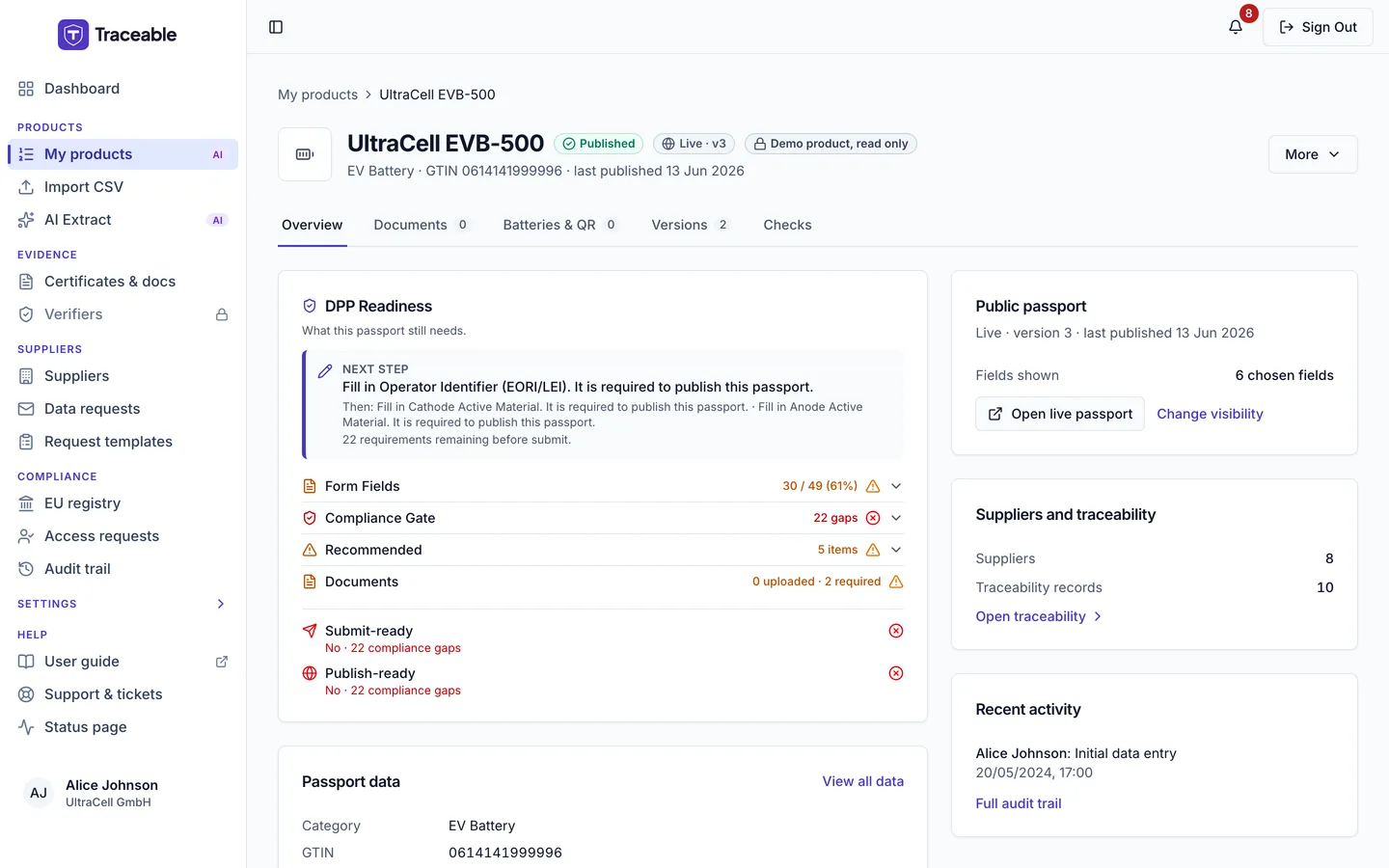
The product page, Overview tab.
Open it from My products by selecting the product's name. The three-dot menu on a row has only three items: Open (the product page), Preview passport and Duplicate. Duplicate needs the Create New Products module and an Editor-or-above role. The icon button beside the menu is unchanged: it opens the public passport of an Approved product, the data of a Deprecated or Withdrawn one, and the editor for the rest.
The Overview tab needs the View DPPs & Products module.
The header
The header shows:
- A breadcrumb, My products followed by the product name.
- The product name and its status chip.
- A line under the name with the category,
ModelandGTINwhen the product has them, and eitherlast published <date>for an Approved product orupdated <date>for any other. - The More menu and one main button.
Extra chips can appear beside the status:
| Chip | When |
|---|---|
| Live · v<N> | The product is Approved and live. N is the live version. |
| Demo product, read only | The product is a locked demonstration record. It has no main button and no destructive action. |
| Edit window open | An edit window is open on an Approved, Deprecated or Withdrawn product. |
The status chip
The chip shows the stored status, with one exception. An Approved product that is live reads Published. An Approved product in a test (sandbox) account is never public, so its chip still reads Approved. Every other status reads as stored: Draft, Submitted, Deprecated, Withdrawn or Revoked.
The main button
The header shows one main button. Which one depends on the status and on your role.
| Status | You are | Main button |
|---|---|---|
| Draft | An Approver or Admin with the Publish DPPs module | Check & publish. It runs the publish checks first, then publishes. |
| Draft | An Editor (or above) with the Publish DPPs module | Check & publish. It runs the same checks, and the last step reads Submit for approval. |
| Submitted | An Approver or Admin | Approve, with Send back to draft beside it |
| Submitted | Anyone else | Waiting for approval, disabled |
| Approved or Deprecated, no edit window | An Approver or Admin with the Publish DPPs module | Edit passport |
| Approved or Deprecated, edit window open | An Approver or Admin with the Publish DPPs module | Publish version N, where N is the live version plus one |
| Approved or Deprecated, edit window open | An Editor with the Edit Product Data module | Continue editing |
| Withdrawn, no edit window | An Approver or Admin with the Publish DPPs module | Reopen |
| Withdrawn, edit window open | An Approver or Admin with the Publish DPPs module | Publish again |
A Revoked product has no main button, and neither does a demo product or any product opened in a support session.
What each button does:
- Check & publish opens the pre-check before anything is published. If required items are missing, the dialog is titled "Can't publish yet" and lists them, each with a link to the field. If nothing is missing, it is titled "Publish <name>?". See Publish a DPP.
- Approve opens "Approve and publish?". Send back to draft asks for a reason of at least 5 characters.
- Edit passport and Reopen open the dialog "Re-open product for edits". See Edit a product.
- Publish version N opens "Publish a new version?". See Versions.
- Publish again republishes a withdrawn product that has an edit window open. The toast reads "Re-published".
The More menu
The More menu holds the other actions. The irreversible ones sit last, below a separator, and each asks you to confirm.
| Item | Shown for |
|---|---|
| Preview passport | Draft and Submitted products |
| Open live passport | Approved products. Opens the public passport in a new tab. |
| View product data | Approved, Deprecated and Withdrawn products |
| End of life | Approved, Deprecated and Withdrawn products. See End of life. |
| Duplicate | Anyone who can create products: the Create New Products module and an Editor-or-above role |
| Export for re-import (Excel) and Export for re-import (CSV) | Every product. Not available in a support session. |
| Delete draft… | Draft products, for anyone who can create products |
| Deprecate… | Approved products, with the Publish DPPs module and an Approver-or-above role |
| Withdraw… | Approved products, with the Publish DPPs module and an Approver-or-above role |
The three items below the separator are not offered on demo products. See Publish a DPP for Deprecate… and Withdraw….
The five tabs
| Tab | What it holds |
|---|---|
| Overview | Readiness, the passport data, the public passport, suppliers and traceability, and recent activity |
| Documents | The product's compliance documents. A count shows beside the tab name. See Product documents. |
| Batteries & QR | The serialised batteries of the model, their QR codes and label files. A count shows beside the tab name. See Batteries and QR. |
| Versions | The published versions and any open edit window. A count shows beside the tab name. See Versions. |
| Checks | The four AI checks. See Checks. |
The Overview tab
The Overview tab has these cards:
- Readiness: the same live check the editor shows, with a Fix link for each missing item. If it cannot load, the card says "The readiness check could not load. Reload the page to try again; the editor runs the same check."
- Passport data: category, model, GTIN, serial number, manufacturer and the last update. The link reads Edit in the editor for a Draft or Submitted product you can edit, and View all data otherwise.
- Public passport: a line saying where the passport stands, the number of fields shown, and a link to the public passport (Open live passport for a live product, Open public passport for a Withdrawn or Deprecated one) or to a Preview if the passport is not public. Change visibility opens the DPP visibility editor; a role that cannot edit sees See visibility.
- Suppliers and traceability: the number of suppliers and traceability records, and Open traceability. See Product traceability.
- Recent activity: the latest changes, and Full audit trail.
For a Submitted product, an Approver or Admin sees an approver view instead of the readiness card. It starts "Waiting for your approval", followed by the cards Before you approve and Sending it back?.
Traceability and visibility open inside the product page and keep the Overview tab selected.
If the product does not exist, or belongs to another company, the page reads "Product not found".