Product documents
The product's documents page is distinct from the global document library, Certificates & docs in the sidebar (Evidence group). Open the product page from My products and select its Documents tab, which shows the number of documents beside its name. The tab is headed "Compliance Documents for: <product>". Documents uploaded here are scoped exclusively to this product. They are linked to this specific battery model and are surfaced to verifiers, regulators, and other authorised parties when they review this product's Digital Product Passport.
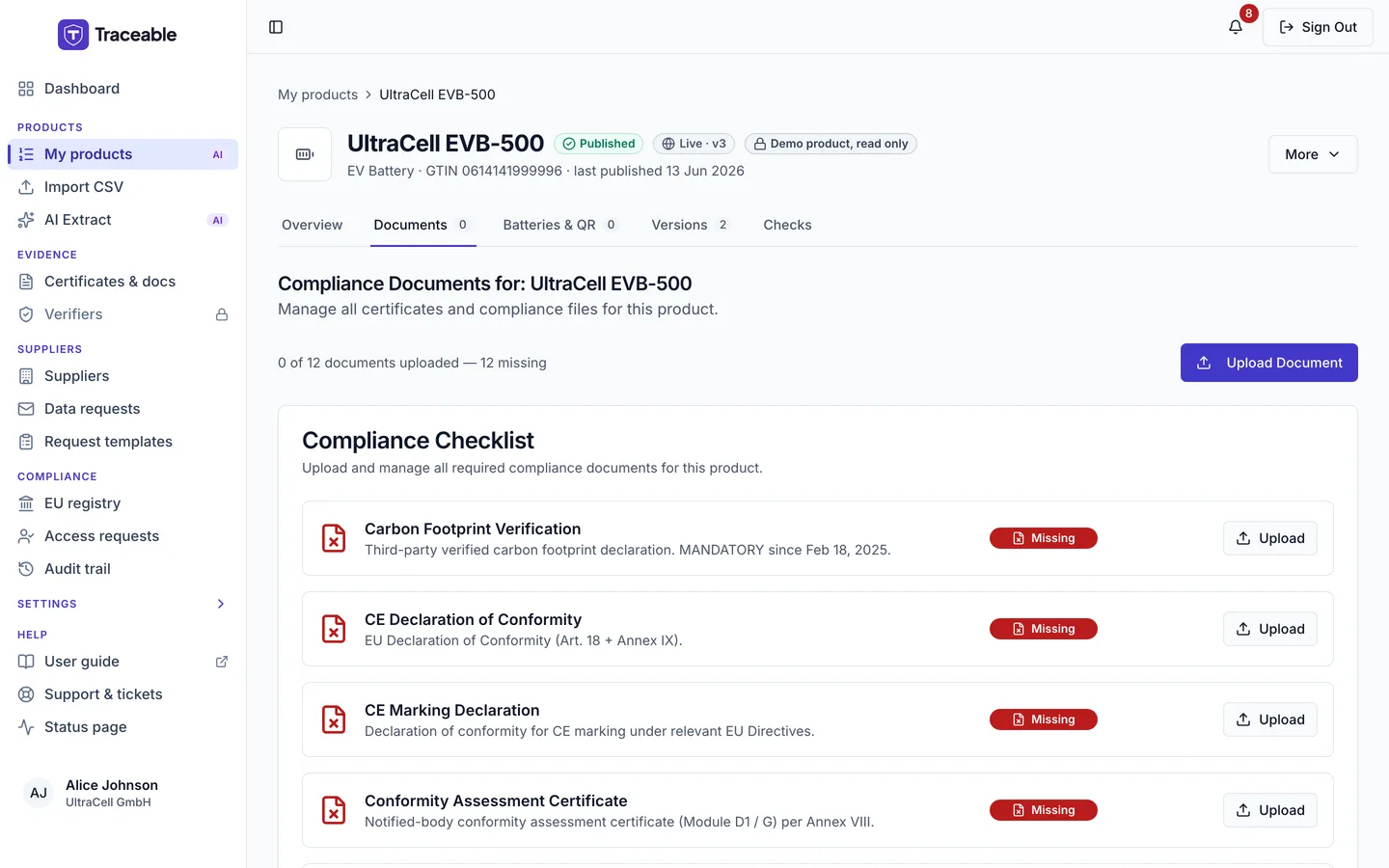
Documents attached to a product. The page is a Compliance Checklist with one row per required certificate type.
What documents belong here
Product-level documents are those that reference or evidence this specific product by model number, batch, or product identifier. Examples include:
- Test reports: electrochemical performance tests, safety tests (UN 38.3), cycle life results for this battery model
- Product-specific declarations: declarations of conformity referencing this model number
- Datasheets: manufacturer or supplier datasheets for this specific model
- Certifications: CE certificates, IEC certifications, or third-party lab certificates that name this product
- Safety data sheets: SDS/MSDS documents specific to the chemistry used in this model
- Substance declarations: RoHS, REACH, or cobalt/lithium sourcing declarations for this product
Documents that apply company-wide (e.g. ISO 9001 quality management certificate, company-level declarations) should be uploaded in the global library, Certificates & docs, rather than here.
Uploading a document
- Open the product's Documents page.
- Select Upload Document (top right), or Upload on the row of a missing certificate.
- In the dialog ("Upload Document", or "Upload: <certificate type>"), choose the File. Accepted: PDF, PNG, JPEG, DOCX, up to 10 MB.
- Choose a Document Type: Test Report, Declaration, Certificate, Data Sheet, Dismantling Guide or Other.
- Optionally choose a Certificate Type (optional) to link it to a requirement, and an Expiry Date (Optional).
- Select Upload.
The toast reads "Document Uploaded" and says it is queued for verification. Every uploaded file is checked for malware, and until that check has finished the file cannot be downloaded, not even by the person who uploaded it (see Downloading documents). An oversize file gives "File is too large. Maximum size is 10 MB (got N MB)." Uploading needs an Editor-or-above role. Viewers can see documents but cannot upload.
A Dismantling Guide is never listed on the public passport. Persons with a legitimate interest and authorities see only a listing card for it.
Viewing documents
Each checklist row shows the certificate type, its description, a status badge (Missing, Pending, Verified or Rejected) and, once a file is attached, "File: <name> | Expires: <date>". The header line reads "N of M documents uploaded - K missing".
When a member of Traceable platform support approved a document directly, instead of a verifier, its badge reads "Accepted by platform support" in place of "Verified". The row has the same buttons as a Verified row. The public passport shows the same words for that document.
Buttons by state:
| State | Buttons |
|---|---|
| Missing | Upload |
| Pending | Download, Verify (only if verification is enabled for your account) and AI BETA |
| Verified or Rejected | Download, Replace and a trash icon |
There is no row preview.
Downloading documents
Select Download on the row. It is hidden in a support session, and a file the malware scan found infected shows the label "Blocked by malware scan" instead.
A file can be downloaded only after its malware check has finished clean. If it has not, Download gives a "Download Failed" message with one of these reasons:
| Message | When |
|---|---|
| This file is still being checked for malware. Try again in a few minutes. | The check has not finished yet. This is the case for a file you have just uploaded. |
| This file could not be checked for malware yet, so it cannot be downloaded. Try again later, or upload it again if this keeps happening. | The check could not be completed. |
| This file has not been checked for malware, so it cannot be downloaded. | There is no check on record for the file, for example an older file attached to a form field. |
| Blocked by malware scan. | The check found the file infected. Here the row shows this as a label instead of a button. |
Removing a document
Select the trash icon on a Verified or Rejected row. The document is removed at once (toast: "Document Deleted") with no confirmation step. Pending documents have no delete button. If you need it again, re-upload the file.
Document retention behaviour is under review.
How documents are used in verification
To ask a verifier to review a document, select Verify on a Pending row. The dialog "Request Third-Party Verification" asks you to pick an Approved Verifier from your own roster (an empty roster shows "No verifiers on your roster yet" with Manage Verifiers) and Submit for Verification. The toast reads "Verification Requested".
It is strongly recommended to upload all relevant test reports and certifications before requesting verification. Incomplete documentation is a common cause of verification rejection or requests for additional information.