Batteries and QR
The Batteries & QR tab of the product page is where a model's individual batteries live. Each battery you add gets its own passport and its own QR code. The browser tab title reads "Batteries & QR: <product>".
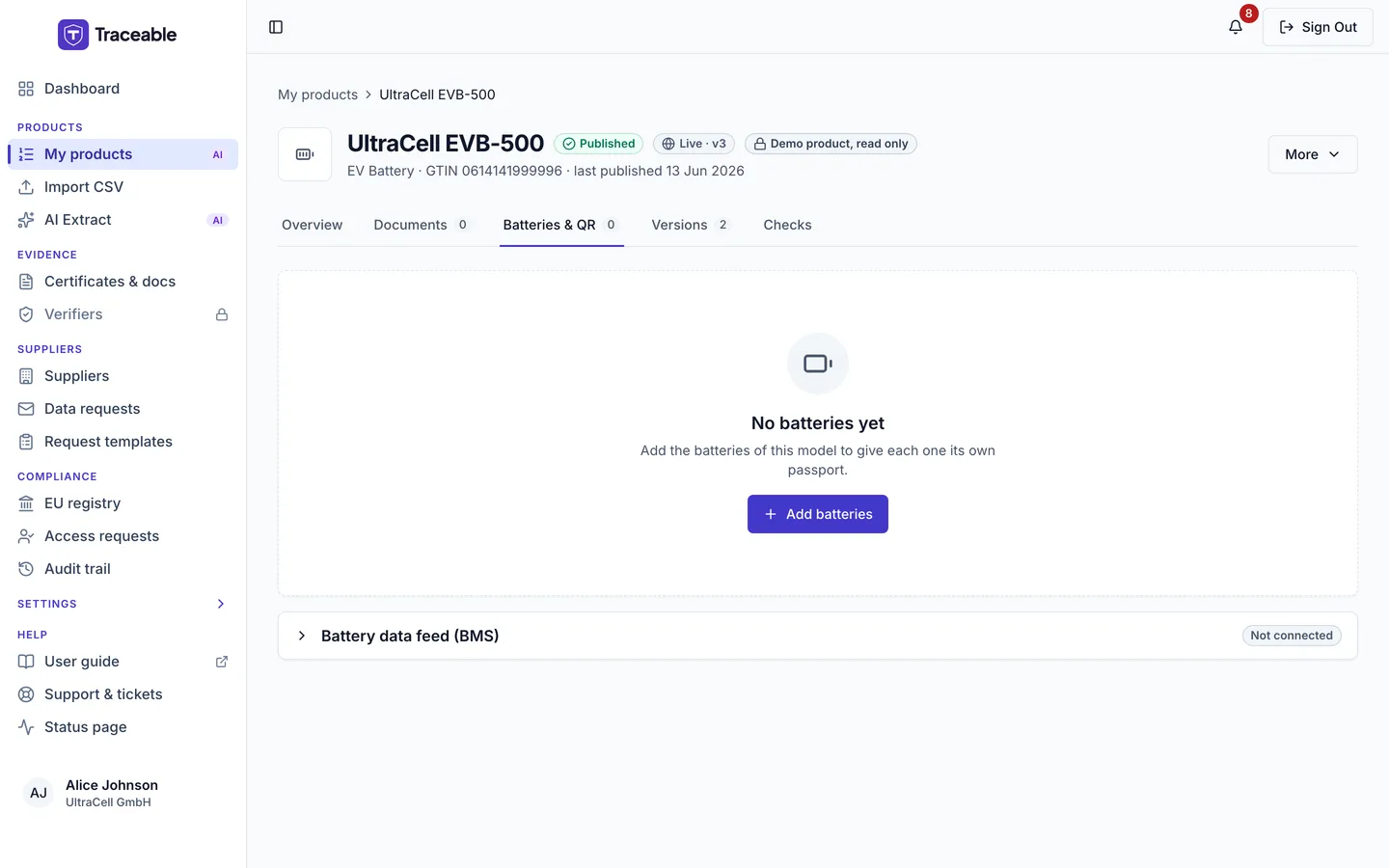
The Batteries & QR tab.
Use it when you print a code on each battery. For one code that identifies the whole model, see QR codes.
What you need
| To do this | You need |
|---|---|
| Add batteries | The model is published (Approved), and an Editor-or-above role. Not available in a support session. |
| Get a battery code | A valid GTIN on the product, so that a code can be built |
| Download label files and QR codes | The product published, a valid GTIN and the QR Code Engine module. Not available in a support session. |
If the model is not published, the tab says "Batteries can be added and printed only while this passport is published." If the product has no valid GTIN, it says "This product has no valid GTIN, so its batteries have no QR code. Add a GTIN to print battery codes."
With no batteries yet, the tab shows "No batteries yet" and "Add the batteries of this model to give each one its own passport." Before the model is published, it says "Batteries can be added once this passport is published."
The summary line
Once a model has batteries, the top of the tab shows how many there are and how many batches they sit in, for example "120 batteries in 3 batches". Under it, a plan line reads "N battery passports used by your company", or "N of L battery passports used on your plan" when your plan sets a limit.
Add batteries
Select Add batteries. A sheet opens with two tabs, One battery and A list. A list is the default.
One battery
Enter the Serial and, if you have one, the Batch (optional), then select Add battery. Both values take 1 to 20 characters from A-Z, a-z, 0-9, ".", "_" and "-", and must start with a letter or digit.
A list
Use a list for many batteries at once.
- Drop a CSV file on the sheet, or select Choose a file.
- Check the result of the browser check (see below).
- Select the button that names the count, for example "Add 120 batteries".
The rules for the file:
| Rule | Value |
|---|---|
| Rows per file | Up to 10,000 |
| File size | Up to 2 MB |
| Format | CSV. Excel workbooks are refused with "In Excel use File > Save As > CSV, then choose the .csv file." |
| Columns | One serial per row, and a batch if you have one. A header row is optional. |
| Header names | serial (also serial_number, serial number, serial_no, sn, ai21) and batch (also batch_id, batch number, lot, ai10). Without a header, column 1 is the serial and column 2 the batch. |
| Delimiter | Comma, semicolon or tab, detected from the first line |
The file is checked in your browser before anything is created. The sheet says "N batteries ready to add" and, if some rows are not valid, "N rows need fixing" with the reason for each. It lists the first 50, and Download rows to fix saves them all as a CSV with the columns line, serial, batch and problem. A serial that appears twice in the list is flagged on its second line.
Under the list the sheet says "Serials already on this product are skipped, never duplicated." and "This adds up to N battery passports to your plan", with the plan figures when your plan has a limit.
The platform sends the rows in calls of 1,000 and shows "Adding batteries: part 1 of 3" as it goes. Keep the sheet open until it finishes. If a part fails, the sheet says so and "Batteries in earlier parts were added; add the same list again to continue." Adding the same list again is safe, because a serial that is already on the product is skipped.
When it finishes, the sheet reports "N added, N already on this product, N not added." and offers Download rows to fix for the rows that were refused.
Find batteries
The list shows 100 batteries per page, with Previous and Next under it and the line "Showing 1 to 100 of N".
- Search serial or batch filters as you type.
- Filter & export opens a menu. Under Batch you can pick one batch, with the count for each. Under Registry you can pick All, Not yet registered, Registered, Registered in the test registry or Rejected by the registry. Clear filters removes them.
The table columns are Serial, Batch, Registry, Last BMS reading and a link to the battery's passport. The Registry column shows one of these words: Not prepared, Not yet registered, Registered, Registered in the test registry, Rejected by the registry, or Registry environment not recorded. A battery registered in the test registry is not shown as Registered. Last BMS reading shows the date, "No readings yet", or "Not available" when the readings cannot be read right now.
A battery that is in use and is missing data shows an amber badge under its serial: "In use: cycles not recorded", "In use: accidents not recorded" or "In use: cycles and accidents not recorded". See Batteries in use. If the platform cannot check which batteries are missing data, the tab shows the notice "We couldn't check which batteries are missing use data." with the line "Reload the page to try again. Until then, no battery on this page is marked." While that notice shows, no battery is marked, so a missing badge does not mean that nothing is missing.
Label files and QR codes
These need the QR Code Engine module, a published product and a valid GTIN.
The Filter & export menu has an Export and print section:
| Item | What you get |
|---|---|
| Label file for this page (CSV, N) | A CSV for the batteries on the current page |
| Model QR code | Opens the model's QR page, where you generate and download the code for the whole model |
| Batch QR code… | A dialog, "Batch QR code", to download the code for one batch as SVG or PNG. The code opens the batch's passport on your passport domain. |
To get a label file for several batteries, tick their rows. A bar appears with the count and Download label file. When you tick every row on the page and more batteries match your filters, a link such as "Select all 4,200" selects every matching battery, not only the visible ones. Clear drops the selection.
The label file is a CSV with the columns serial, batch and qr_link, one row per battery, for a label printer. One label file holds at most 10,000 batteries. For more, the tab says "One label file holds at most 10,000 batteries. Filter by batch to download it in parts."
One battery
Select a row to open that battery's sheet. The sheet title is the serial number. It shows:
- The battery's QR code, with Download SVG, Download PNG and Open passport.
- A Registry section with the status, UPI, registry link, product group, carrier code and code. A value the platform has not stored shows "Given when registered" for a battery that is a registry candidate, and "Not recorded" otherwise.
- A Battery data section with the rows described under Batteries in use, and the last reading.
- For a battery in use that is missing data, a warning box at the top of the sheet.
Batteries in use
On the mandated categories (EV, LMT, Other Industrial over 2 kWh and Stationary), a battery that is in use must show on its passport its charge cycles (attribute 85) and its accident information (attribute 100). The legal basis is Annex XIII 4(d) of Regulation (EU) 2023/1542. The platform counts a battery as in use when it has a serial number and either a recorded first use or at least one reading of its own from a battery management system (BMS). A reading for the model as a whole does not count. This is not a check that blocks publishing the model.
BMS ingestion is not switched on in the production platform at present, although the warning box described below points to the BMS API.
The warning box
The box sits at the top of the battery's sheet and cannot be dismissed. Its title is "Charge cycles not recorded", "Accidents not recorded" or "Charge cycles and accidents not recorded". It reads:
- "This battery is in use, so its passport must show its charge cycles (attribute 85) and its accident information (attribute 100)." followed by "Charge cycles are missing, so this passport is not complete.", "Accidents are missing, so this passport is not complete." or "Both are missing, so this passport is not complete."
- "Your battery management system (BMS) sends both through the BMS API, for serial <serial>. A battery list upload can't carry them."
The button How to send BMS data opens the BMS API documentation in a new tab. The box ends with "Annex XIII 4(d), Regulation (EU) 2023/1542". If the platform cannot check the battery, the sheet shows "We couldn't check this battery's use data." with "Close this panel and open it again. If it still fails, reload the page." and states nothing about the battery. The registry chip in the sheet, which is green for a registered battery, turns grey while data is missing or cannot be checked. Its words do not change.
The Battery data rows
| Row | What it shows |
|---|---|
| First use | The date of first use written in words, for example "3 Oct 2026", with a lock and "Can't be changed". Without a date it shows "Not recorded". |
| Charge cycles (85) | "Recorded", "Needed once in use", or "Can't check right now". A battery in use with no value shows an amber "Not recorded". |
| Accidents (100) | The same values as Charge cycles. |
| Last reading | The date and time of the last BMS reading, "No readings yet", or "Not available right now". |
The Charge cycles and Accidents rows do not appear for categories outside Article 77(1).
Record first use
Under First use, when no date is recorded, an Approver or Admin of your team sees the button Record first use. It appears only on a published passport (Approved, Withdrawn or Deprecated) and not in a support session. Anyone else who opens the sheet of a published passport sees "An Approver or Admin of your team can record this."
- Select Record first use. The dialog is titled "Record first use" and names the serial and the product.
- Enter the Date of first use. The help text reads "The day this battery was first used for its intended purpose in the EU. From <date>, when this model was placed on the market, to today." When the model has no date of placing on the market, it reads "The day this battery was first used for its intended purpose in the EU. It can't be later than today."
- Select Continue. A date that cannot be used gives one of these messages: "Enter the date of first use.", "Enter a valid date.", "The date of first use cannot be in the future." or "The date of first use cannot be before the product's date of placing on the market."
- The next step is headed "Record <date> as first use?". It says "You can't change or remove this date afterwards. Check it against your records before you record it." and "From this date, the battery counts as in use. Its passport then needs its charge cycles and accident information, which your BMS sends." Select Back to change the date, or Record first use to confirm. While it saves, the button reads "Recording…".
On success the toast reads "First use recorded for <serial>." and the sheet shows the date with the lock. If the first use was already recorded, the dialog says "This battery's first use is already recorded and cannot be changed." and offers Close. If the server refuses the date, the dialog shows the server's reason. If the request itself fails, it says "Could not record the battery's first use. Please try again."
The battery data feed
Below the list, a Battery data feed (BMS) card manages the webhook secrets a battery management system uses to send readings. Only team Admins can change it. It is not shown in a support session. Readings are accepted only once BMS ingestion is enabled for the platform; see BMS endpoints.