Import products
Import CSV works from a CSV file or an Excel workbook (.xlsx). The page has two tabs:
- Create new passports (the default) creates many products at once. Every row becomes a draft you can check; nothing is published.
- Update existing passports changes passports that already exist, matched by their DPP ID. Nothing is published either.
The page subtitle says: "From a CSV or Excel file. New rows become drafts; Update existing passports changes passports by their DPP ID. Nothing is published."
The import suits operators moving an existing product catalogue into Traceable, or adding a batch of similar products. After import, open each draft and complete any fields the file did not cover before you publish.
The first tab only creates new products. To change passports that already exist, use Update existing passports; see below. Your company needs the CSV Bulk Import module to open the page, and the Create New Products module to create. The Update existing passports tab needs the Edit Product Data module instead of Create New Products. You need the Editor, Approver or Admin role.
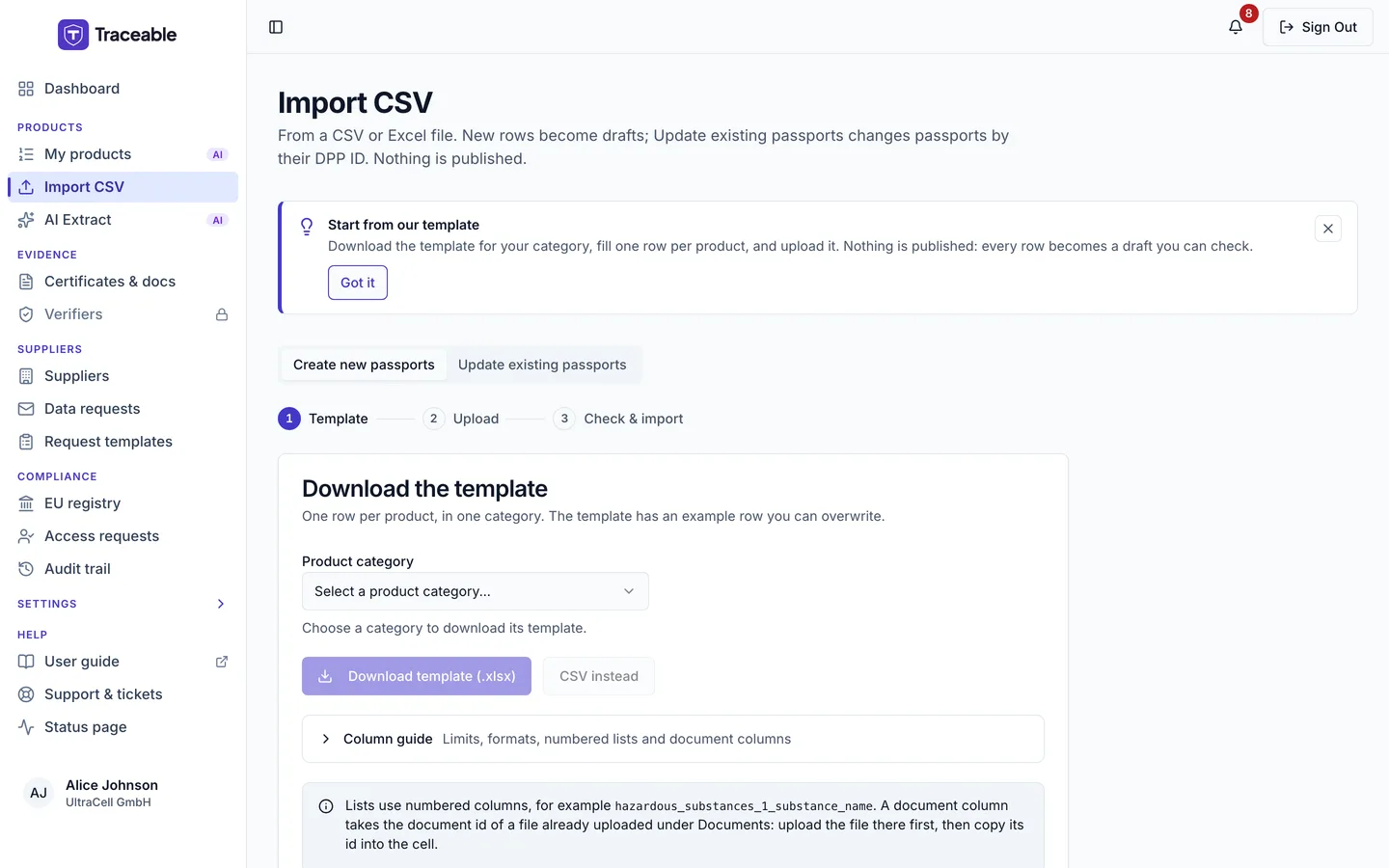
Import CSV.
The three steps
The Create new passports tab walks you through three labelled steps: Template, Upload and Check & import. It is a page with steps, not a dialog.
Step 1: Choose a category and download the template
- Open Products > Import CSV in the sidebar, or click Import CSV on the product list.
- In the card "Download the template", choose the Product category you are importing. The template columns depend on it. One file holds one category.
- Click Download template (.xlsx), or CSV instead for a CSV file.
- Click Next: Upload when you have the file ready. Cancel returns you to the product list.
The picker offers the battery categories your company can create. On production, SLI and Portable are not offered.
Open the template in a spreadsheet application such as Microsoft Excel, Google Sheets or LibreOffice Calc. The template has an example row you can overwrite.
The page also has a folded section, Column guide, headed "Limits, formats, numbered lists and document columns". It states the limits and rules that this page describes.
Template structure
Use the template you download for your category. Do not rebuild it. Keep its column headers.
The template starts with these columns, in this order: product_name, product_description, model_number, serial_number, batch_id and gtin. After them it adds the columns of that category's fields.
- Only
product_nameis required to import a row. It must be 2 to 200 characters. - Other fields that the category requires before publishing can be filled later in the wizard. The check shows how many each row leaves open.
gtin, if given, must be a valid GS1 GTIN (8, 12, 13 or 14 digits with a correct check digit). It must not already be used, and it must not repeat on another row in the same file.- Empty cells are filled from your default brand and its legal entity (see Brands and legal entities). The brand's role decides which fields. A Manufacturer brand fills the manufacturer details and the brand name. An Authorised representative brand fills the authorised representative details and the brand name. An Importer brand fills the brand name, and adds its legal entity as the first Importer entry of the economic operators list when the file gives that list nothing. Only fields that the category has are filled, and a value in your file is never replaced. The check shows the filled fields in the row's note as "From company profile:" followed by their names.
- Each column is a field of that category's template, so a column the category does not have is rejected on any row where it holds a value. Leaving a required field empty does not stop a row from importing.
- Fields with a fixed list of choices accept the wording shown in the template. Values that match an option except for letter case are standardised, and the check lists them.
- The old
batch_or_serial_numbercolumn is retired. A file that contains it is refused. Download the template again and useserial_numberandbatch_id. - In Excel, keep the GTIN and date columns formatted as text so a GTIN keeps its leading zero and a date stays as typed. Enter dates as
YYYY-MM-DD.
A cell whose value cannot be read for its field is an error on that row, and that row is not imported. Examples are a number in the wrong format, a date that is not YYYY-MM-DD, or a choice that is not one of the field's options. Empty cells never cause an error.
Lists, documents and "none present" declarations
The template can carry three kinds of field that a single cell cannot hold.
Lists. A repeating list, such as hazardous substances, has numbered columns, one for each part of each entry. For example hazardous_substances_1_substance_name is the substance name of the first entry and hazardous_substances_2_substance_name that of the second. The template shows two entries; a file may carry up to 20 entries per list. A list whose first part is plain text can instead go in the list's own column, with entries separated by semicolons; each entry fills the first part of the entry.
Documents. A document column, for example the CE declaration, takes the document id of a file already uploaded under Documents. The import never uploads a file. To find the id, open Certificates & docs in the Evidence group: each file shows "Document id" under its name. Copy the id into the cell. A row is refused if the id is not a document of your company that can be used, if the file has not passed its malware scan, if its document was rejected, or if its file type does not fit the field. A file that is still waiting for its scan is refused too, so use a document that has finished scanning. The row's note then reads "<Field name>: this is not the id of a document of your company that can be used here. Upload the file under Documents, then copy its document id into this cell." Dropping more than one file on the page is refused with "Drop one CSV or Excel file. Documents are not uploaded here: upload them under Documents and put each document id in its column."
"None present" declarations. Where nothing is present, do not write "None" in a list. Tick the declaration column instead:
| Column | Declaration |
|---|---|
hazardous_substances_none_declared | The manufacturer declares no hazardous substance (CLP) other than mercury, cadmium or lead is present. |
critical_raw_materials_none_present_declared | The manufacturer declares no critical raw material is present. |
A ticked declaration next to entries in the same list is refused, and so is a placeholder entry such as "None".
The critical raw materials column was renamed. The old column critical_raw_materials_none_declared, which declared that none is present above 0.1 % w/w, is retired. A row that holds a value in it is refused as an unknown field (see Common validation messages). Download the template again. A product that had the old declaration ticked has to make the new declaration again.
Import limits
| Limit | Value |
|---|---|
| Maximum rows per file | 100 data rows |
| Maximum file size | 5 MB for CSV, 3 MB for an Excel workbook (.xlsx) |
| Accepted files | .csv and .xlsx (first sheet only) |
| CSV encoding | UTF-8 |
Legacy .xls files and password-protected workbooks are refused. Only the first sheet of a workbook is read.
If your catalogue exceeds 100 products, split it into several files and import them in batches. A file over the cap is refused up front with a message telling you to split it. There is no limit on how many imports you run in total, but only one import can run at a time.
Save a CSV as CSV UTF-8 (Comma delimited). In Excel, use File, then Save As, then that format.
What the template cannot carry
Some required fields still have no column in the template. After you choose a file, the check names how many such fields your category has and lists them under "Template fields this file leaves open". Fill them in the product wizard after import.
Step 2: Upload the file
- Drop your file on the card, or choose it. The card reads "Drop your CSV or Excel file here", and its hint says "One file: .csv up to 5 MB or .xlsx up to 3 MB, with up to 100 rows."
- Click Check the file. The check writes nothing: you see every row before you import. The page says "Checking the file. Keep this page open." while it runs.
Back returns to the template step.
Step 3: Check and import
The check shows three tiles:
- Valid: correctly formatted, so the import can create each as a draft.
- Of those, no required field open: every required field has a value in the file. Publishing runs further checks.
- To fix: not imported until fixed.
Under them, a table lists every row with the columns Row, Passport, Result and Notes. Use Show rows to switch between All, To fix and Fields open. The notes say, for a valid row, how much of the required fields the file fills, for example "Fills 80% of required fields, 3 left open", and for a row to fix, its first problem.
A note on the page says: "Valid means correctly formatted, not compliance-complete."
Rows to fix are listed in a panel with a Download error report button and a Show errors for row box. Rows that import with required fields still open are listed with a Download open-fields report button.
If you want to fix errors first, click Back, edit your file and upload it again. If the errors are in rows you are happy to skip, go on: rows to fix are excluded and valid rows are imported.
Click the import button, which reads for example "Import 12 as drafts" or "Import 1 as a draft". It is disabled when no row is valid. While it runs the page says "Importing. Keep this page open."
A valid row can still be refused at import, for example when your company already has a product with the same name.
After a successful import
Imported products are saved as drafts. The toast reads, for example, "12 drafts created".
The Import result card shows the rows in the file, the rows created as drafts and the rows rejected. It lists the drafts created, with a link to each, and any rows that were refused with the reason. Use Open my drafts to see them in the product list. Use Download error report to keep the list of refused rows. The card also has Import another file and View all products buttons.
Review each imported draft to:
- Complete sections that could not be filled from the file (see above).
- Verify that the imported values are accurate.
- Upload any supporting documents under Evidence > Certificates & docs.
- Send data requests to suppliers for fields requiring upstream data.
Once a product is ready, proceed to Publish a DPP.
Update existing passports
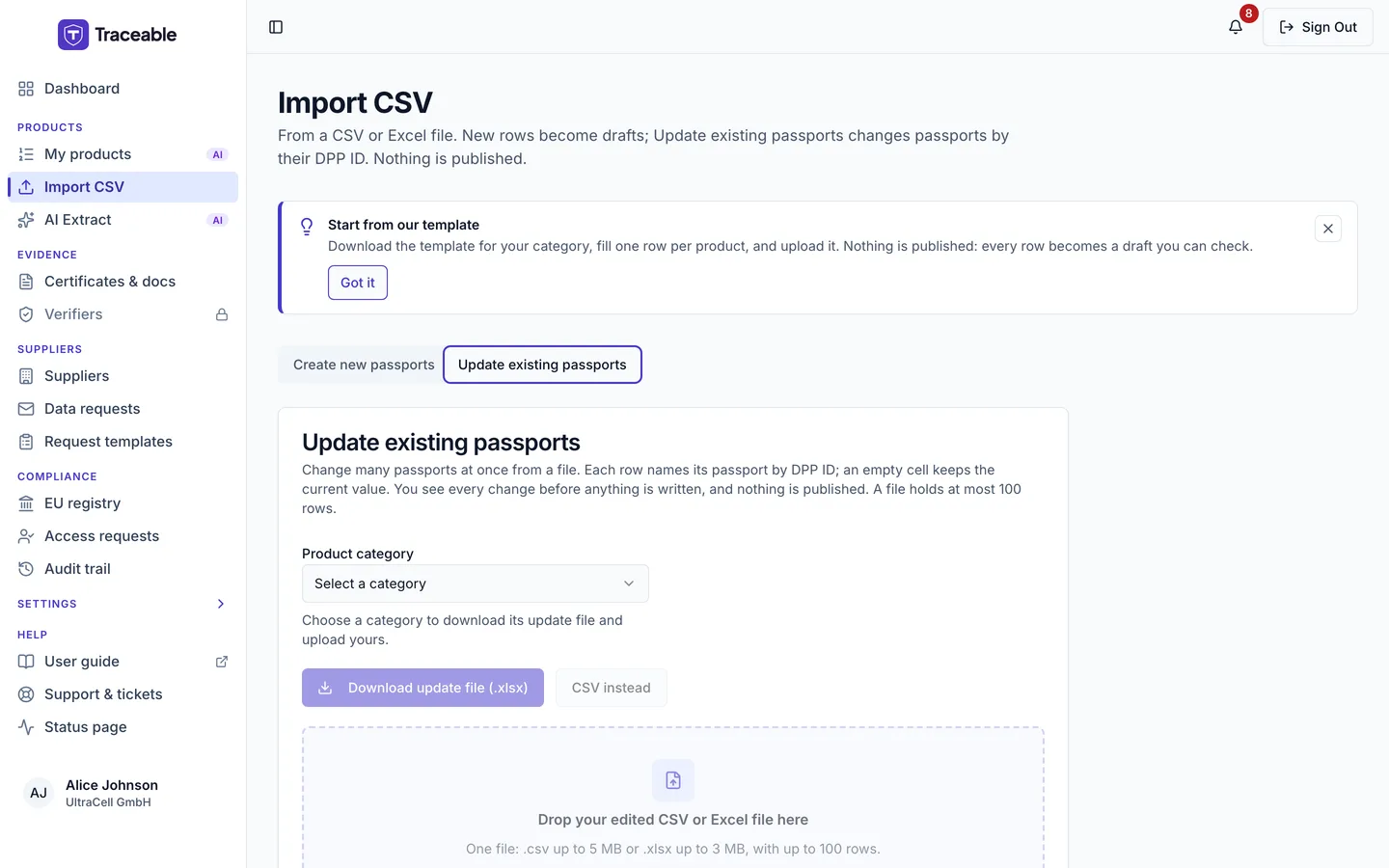
The Update existing passports tab.
The Update existing passports tab changes many passports at once from a file. Its card says: "Change many passports at once from a file. Each row names its passport by DPP ID; an empty cell keeps the current value. You see every change before anything is written, and nothing is published. A file holds at most 100 rows."
- Choose the Product category. The update file holds one row per passport in this category.
- Click Download update file (.xlsx), or CSV instead. The file has one row for each Draft, Submitted or published passport of your company in the category, most recently updated first, up to 100. Each row has a
dpp_idcolumn and the stored values. If your company has no passports in the category, the download is refused. - Edit the values in the file. Keep the
dpp_idcolumn. - Drop the edited file on the card ("Drop your edited CSV or Excel file here"). The limits are the same as for creating: a
.csvup to 5 MB or an.xlsxup to 3 MB, with up to 100 rows. - Click Preview changes. Nothing is written yet.
- Check the preview, then click the update button, which reads for example "Update 4 passports".
The preview
The preview heading reads "Preview: nothing is written yet". Three tiles count the rows: Will change, No change (the file matches what is stored) and Not updatable (not updated until fixed). Show rows filters the table by All, Will change and Not updatable.
The table has the columns Row, Passport, Status and Changes or reason. Each change shows the field, the stored value struck through, an arrow and the new value. A row that cannot be updated gives its reason instead.
After you update, the heading reads "Update result", and the tiles read Updated and Not updated. The change is made exactly as previewed.
The rules
- The DPP ID is the only way a row finds its passport. A row with no matching passport of your company is refused: "A file update never creates a passport; use Create new passports for new products."
- An empty cell keeps the current value. A file can never clear a value; clear it on the product page or in the editor.
- A list in the file replaces the stored list as a whole. The preview shows both. A list left empty is kept.
- The GTIN and the serial number never change. A row with a different value is refused.
- A file never changes a passport's status, version or category. A passport in another category than the one you chose is refused.
- Each passport may be updated once per file.
- Running the same file again changes nothing.
Published passports
A file never publishes. A Draft or Submitted passport is written directly. A published (Approved) passport goes through an edit window:
- The row says "Published: opens an edit window. Publish the new version from the passport." when the file opens a new window, and "Published: uses your open edit window. Publish the new version from the passport." when you already hold one.
- Opening a window needs the Approver role. Without it the row says "This passport is published. Updating it opens an edit window, which needs the Approver role."
- If someone else holds the window, the row says "Another user has an edit window open on this published passport. Ask them to publish or cancel it, then update again."
- A passport in any other status is refused:
A passport with the status "<status>" cannot be updated from a file.
After the update, open the passport and publish the new version. See Versions and edit windows.
Common validation messages
The check shows a message for each problem row. Use Download error report to keep the full list.
| Message | Cause | Resolution |
|---|---|---|
product_name is required (min 2 characters) | The name cell is empty or too short | Enter a name of at least 2 characters |
product_name must be 200 characters or less | The name is too long | Shorten it and move detail to product_description |
gtin must be a valid GS1 GTIN: 8, 12, 13 or 14 digits with a correct check digit | The GTIN has the wrong length or check digit | Correct the GTIN, or leave the cell empty |
gtin duplicates row N in this file; only one product per GTIN is allowed | Two rows share a GTIN | Keep the GTIN on one row only |
Row has N columns; expected M (matching the header row). The row was not imported. | A row has more or fewer cells than the header | Check the row for a stray comma or a missing cell |
Unknown field 'x' is not part of this category's schema. | A column the chosen category does not have holds a value | Remove the column, or choose the category that has it |
<file> must include a "product_name" column. | The header has no product_name column | Download the template again and keep its headers |
<file> has N data rows; the maximum per import is 100. Split the file and import in batches. | The file has more than 100 data rows | Split the file |
The file at row N contains a character that suggests it was saved with the wrong text encoding. Please re-save the file as UTF-8 and try again. | A CSV was saved in a non-UTF-8 encoding | Save as CSV UTF-8 (Comma delimited) |
This looks like a legacy .xls file or a password-protected workbook. | The workbook is .xls or has a password | Save as .xlsx without a password, or as CSV UTF-8 |