Brands and legal entities
Your company can sell batteries under more than one brand, and through more than one company. Traceable keeps these two things apart. A legal entity is who you are in law. A brand is what your customers see.
Only team admins can add or change legal entities and brands. Everyone else sees both lists in view only.
What a legal entity is
A legal entity is a company that places your products on the market. It is the business on the trade register, with its registered legal name and address.
Each legal entity holds:
- the registered legal name and address
- the country
- a passport contact email, which is shown on the passport
- a website
- an identifier, if you want one: EORI, VAT, LEI or trade register number (NTR)
One legal entity is your default. Your first legal entity becomes the default. When you add a brand you choose its legal entity yourself. It is filled in for you only if you have just one.
What a brand is
A brand is the name and look that customers see on the passport. It sets the logo, the accent colour and the "Powered by Traceable" badge.
Each brand belongs to one legal entity. Each brand also has an operator role, which says how its legal entity is involved:
- Manufacturer. Your own brand. The legal entity makes the battery, or has it designed or made, and sells it under its own name or trade mark.
- Importer. Another maker's brand that the legal entity brings into the EU. You enter the maker's details on each product.
- Authorised representative. The legal entity is established in the EU and holds the manufacturer's written mandate. To publish a passport, it also needs the manufacturer's written authorisation.
- Distributor. Shown, but you can't choose it. A distributor sells batteries that someone else placed on the market, so Traceable doesn't create passport brands for distributors. If you sell batteries under your own name or trade mark, choose Manufacturer.
One brand is your default. Your first brand becomes the default. A new product starts on the default brand unless you choose another.
Add a legal entity
- Go to Settings > Company profile.
- Find the Legal entities card, under Company Details.
- Select Add legal entity.
- Enter the Registered legal name, as on the trade register. Use a trading name only if it is registered.
- Enter the Street and number, Postcode and City, choose the Country, and add a Region if you want to.
- Optionally enter the Passport contact email. It is shown on the passport, so never use a sign-in address.
- Optionally enter the Website and the GLN.
- Choose the identifier type and enter the Identifier, or choose None. Each identifier is the legal entity's own. Don't enter a personal ID, such as a national ID or passport number. If your VAT number is also your personal tax number, as it can be for a sole trader, choose None.
- If you already have a legal entity, the sheet offers Make this the default legal entity. It reads: "The default can't be archived, and details it leaves empty come from your company profile. Brands and products stay where they are." Your first legal entity becomes the default without this choice.
- Select Add legal entity. Before you save, the sheet states: "Saving confirms this is the registered legal name and address."
Changing a legal name here does not change the account name under Company Details.
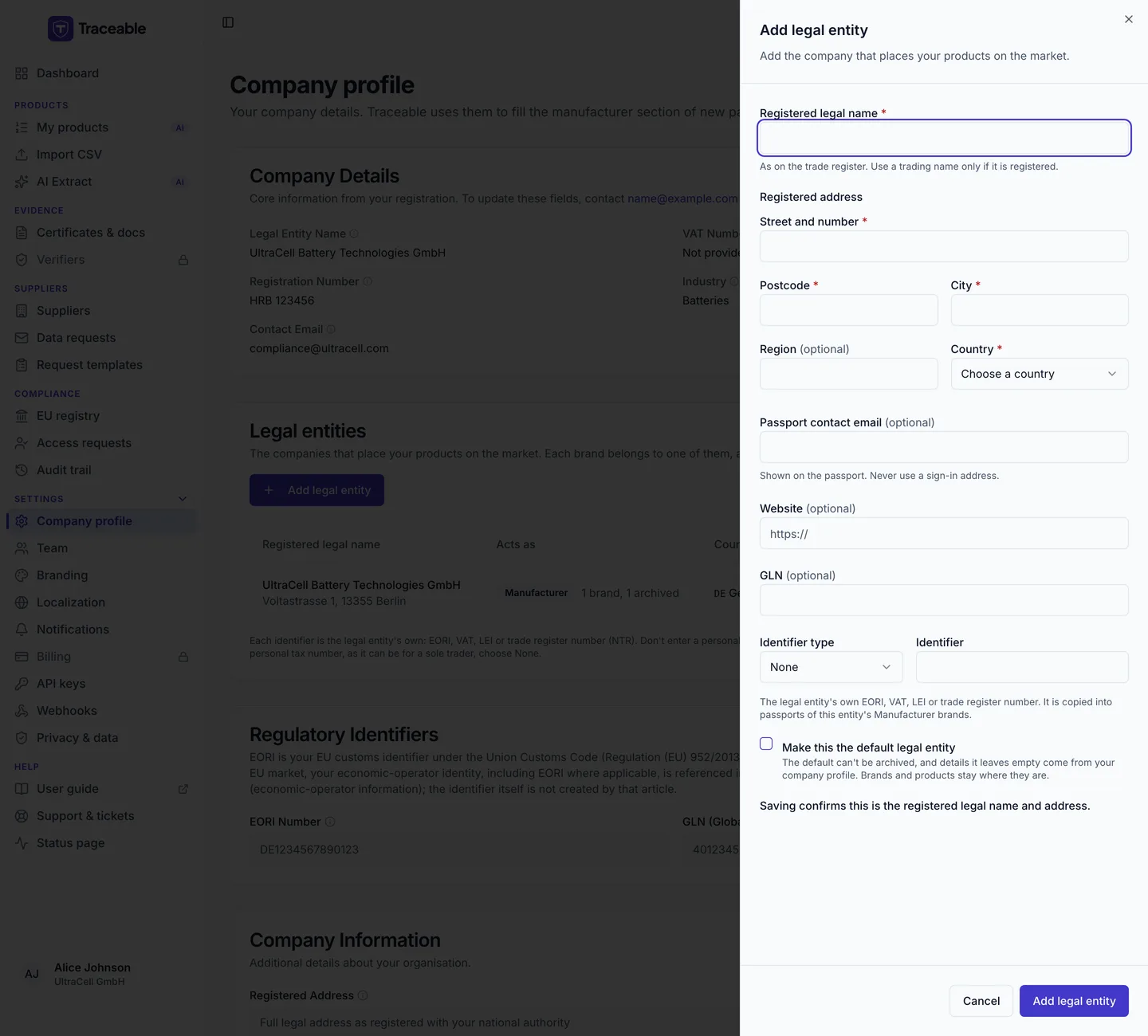
The Add legal entity sheet.
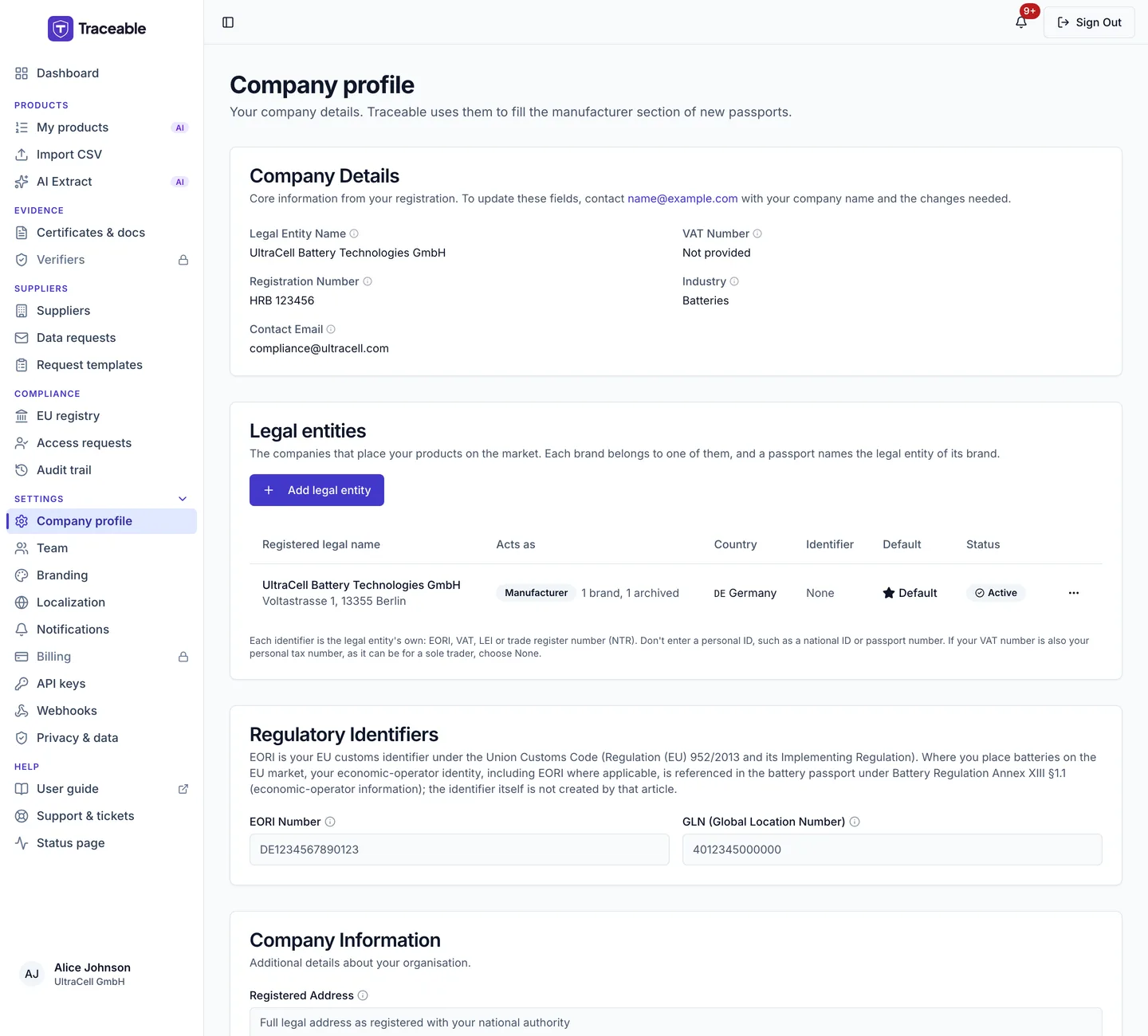
The Legal entities card.
Add a brand
You need at least one active legal entity first.
- Go to Settings > Branding.
- Select New brand.
- Enter the Brand name. It is shown on passports as the brand. It can't match another active brand.
- Choose the Operator role for this brand.
- Choose the Legal entity. This is the economic operator for this brand.
- Upload a Logo: PNG, JPEG or WebP, up to 5 MB.
- Choose an accent colour, or leave it empty for no accent.
- Select Create brand.
Some details lock once the brand is in use:
- Once any product uses the brand, you can't change its legal entity, or an operator role that is already set. If the brand has no role yet, the first role you can set is Manufacturer, because products created before the role was set may name the legal entity as their manufacturer. To use another legal entity or role, create a new brand and move the products to it.
- Once a passport showing the brand is published, you can't change its name or logos.
- The accent colour and the "Powered by" setting stay editable.
Changing a brand's colour, tagline or footer changes every passport of that brand, published ones and older versions included. The legal details on a passport change only through a new version.
Choose the brand for a product
In the product wizard, the Product Identity step has a Brand and legal entity block, after Product Category.
- Choose a brand under Brand. The list groups brands under their legal entity and shows each brand's role.
- On a new product, the default brand is already chosen.
- Archived brands and Distributor brands are not listed.
- If you have only one active brand, the wizard shows it as text. There is nothing to choose.
- A read-only panel under the list shows the brand's legal entity, role, address and identifier.
The brand fills in operator details for you, and a line under the list says which fields it filled:
- A Manufacturer brand fills the manufacturer section from its legal entity.
- An Authorised representative brand fills the authorised representative fields.
- An Importer brand adds its legal entity as the importer in the economic operators list.
On a new product, the brand fills empty fields only. It never overwrites something you typed.
For categories where a passport is voluntary, the one step of the wizard shows Brand name in the main grid, filled in by the brand, and not inside the collapsed Optional extra details.
If you change the brand on an existing product, a dialog lists the fields that change before anything is saved.
On a published product, the brand is locked while the passport is published. To change it, open an edit window from the product page with Re-open product for edits, which asks why. Then change the brand in the wizard, which asks for the reason for the change. The change goes live as a new version when you republish. Two reasons, a new operator and a remanufacture, are shown but can't be picked. They point you to a new product or the End of life page. Moving a product to another legal entity, or changing its role, needs a team admin. Moving it to another brand of the same legal entity needs an approver or an admin.
What the public passport shows
The brand's look. The passport uses its brand's logo, accent colour, tagline and footer.
The Economic operators section. Passports of battery templates that carry an economic operators list, such as EV, LMT, industrial and stationary batteries, have an Economic operators section. It lists the operators named on the product, such as the importer, with the name, address, contact email and website. The section appears only when at least one operator with a name is listed.
The footer. The data notice in the footer of a public passport has a Data controller (GDPR) block. The data controller is the company that issued the passport, labelled Passport issuer. Its address and email are shown only when the passport holds them for that same company. Otherwise only its name is shown.
The issuer. The passport history says "Product passport issued by" and then the issuer's name. The issuer is always the operator that placed the battery on the market:
- For a Manufacturer or Importer brand, the issuer is the brand's legal entity.
- For an Authorised representative brand, the issuer is the manufacturer named on the product. The representative acts for that manufacturer and does not place the battery on the market itself.
- If you authorise another operator to act for you, that operator is listed under Economic operators. The issuer does not change.
The issuer name is taken from the legal entity when you publish. The other details are copied to a product when you create it or move it to a brand, so editing a legal entity does not change existing products. A published passport keeps the details it was published with.
Who sees the EORI number
The EORI number is left out of the public passport and of the PDF and machine-readable data that the public receives. Authorities with access see it.
A Manufacturer brand stores its legal entity's identifier in the manufacturer section, which authorities see and the public does not. An Importer brand copies the identifier into the economic operators list only if it is an EORI.
A VAT, LEI or trade register number is never listed as an EORI.