Branding
The Branding page lists your brands. Each brand has its own look on the passports and PDF exports of the products that use it. The page heading reads "Branding" and the line under it reads "How your passports and PDFs look to the public. Each brand has its own look." Customers, supply chain partners and market surveillance authorities see the result when they scan the QR code on your battery product or open its PDF. Branding has no effect on the Traceable Operator Portal itself.
Navigate to Settings → Branding. The page needs the Company Branding module. Only a team Admin can change brands. Other team members see the list and the editor as view only: the page reads "View only. Only team admins can change brands."
For what a brand's operator role and legal entity mean, and how they reach the passport, see Brands and legal entities.
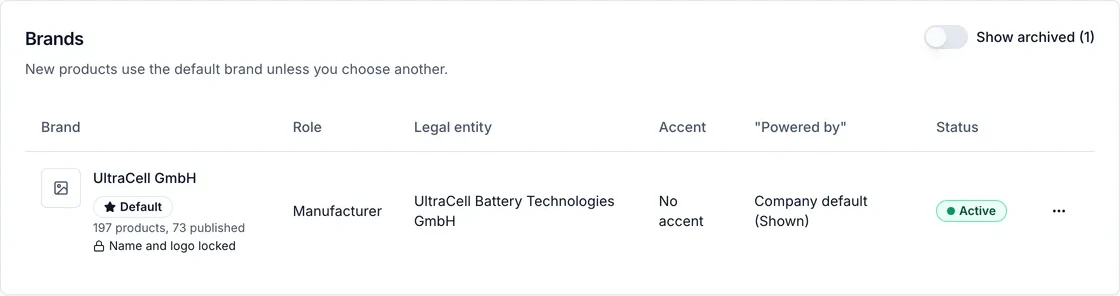
The brand list.
The brand list
Two notes sit above the list. The first reads "Changing a brand's colour, tagline or footer changes every passport of that brand, published ones and older versions included. The legal details on a passport change only through a new version." The second reads "GTIN ownership is checked per company for now: every brand and legal entity uses your company's GS1 prefixes."
The Brands card reads "New products use the default brand unless you choose another." The default brand is listed first, then the others by name. The list has these columns:
| Column | Shows |
|---|---|
| Brand | The logo, the name, a Default marker on the default brand, and a line about its products. |
| Role | The operator role, or "Not set" for a brand without one. |
| Legal entity | The legal name of the brand's legal entity. |
| Accent | A swatch with the hex value, or "No accent". |
| "Powered by" | The brand's badge setting in words, for example "Company default (Shown)", "Own setting: hidden" or Own setting: shown as "...". |
| Status | Active or Archived. |
The product line reads "No products yet", or the number of products and how many are published, for example "8 products, 6 published". A brand whose name and logos can no longer change shows "Name and logo locked". On a narrow screen each brand is a card with the same details.
Team admins also get an Actions menu on each row. Without it the columns are the same and nothing can be changed.
Row actions
| Action | What it does |
|---|---|
| Edit branding | Opens the brand editor. See The brand editor. |
| Edit details | Opens the Edit brand details sheet. See Edit details. |
| Make default | Makes the brand the default. Disabled with "Already the default." on the default brand. The toast reads "New products use it unless you choose another. No existing product moves." |
| Archive | Opens a confirmation. See Archive and unarchive. |
| Unarchive | Shown instead of the other actions on an archived brand. |
Archive and unarchive
Archived brands are hidden. When there is at least one, a switch labelled Show archived (N) appears above the list. An archived brand's product line reads, for example, "2 products keep it. Archived 12 Oct 2026".
Archive opens a dialog titled "Archive (brand name)?". It says how many products use the brand, split into published ones and ones that can still be published, and lists up to five of the latter by name. Products keep an archived brand and their passports keep its logo and colour. You cannot choose the brand for new products. Confirm with Archive brand, and use Unarchive on the row to bring it back at any time. The default brand cannot be archived: make another brand the default first. If an active brand has taken the name, unarchiving is refused until you rename that brand.
An archived brand opens in the editor as view only, with "Unarchive this brand to change its branding."
No brands yet
If the company has no brand, the card reads "No brands yet" and "Your passports use your company branding until you add a brand." Admins see a New brand button there. If the list cannot be loaded, the page reads "Brands could not be loaded. Your passports keep their current look. Try again in a moment." with a Try again button.
"Powered by Traceable", company default
Above the list, a card titled "Powered by Traceable", company default sets the badge for every brand that does not have its own setting. It reads "Used by N of your M active brands."
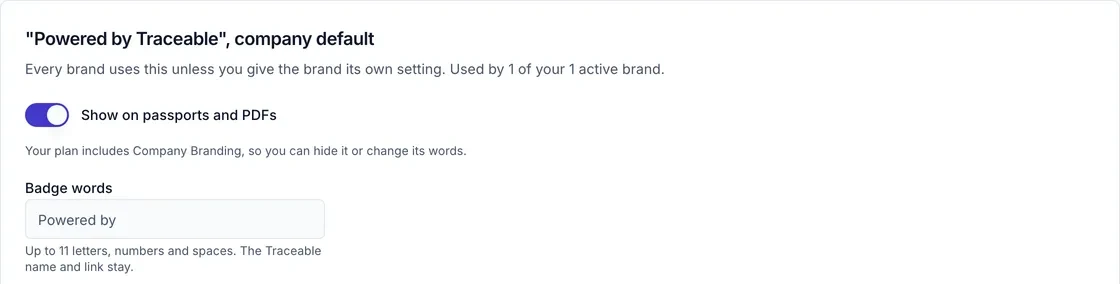
The company default card.
Traceable decides, for each company, what you can change, so the controls depend on your company:
- If your company may hide the badge, a switch labelled Show on passports and PDFs appears.
- If your company may change its words, a Badge words field of up to 11 characters appears, with the hint "Up to 11 letters, numbers and spaces. The Traceable name and link stay."
- If neither is allowed, the card reads "Traceable shows this badge on every passport and PDF as set, so there is nothing to change here."
- If Traceable has switched the badge off for your company, the card reads "Traceable has switched this badge off for your passports and PDFs, so there is nothing to change here."
Click Save default. It stays disabled until you change something. A toast reads "Company default saved". Changing the default changes every passport of the brands that use it, published ones and older versions included. The card names those brands and the ones that keep their own setting.
New brand
Click New brand. The sheet reads "Name it, say who places it on the market, and give it a logo and colour. You can set the tagline, layout, font and footer once it exists." It has these fields:
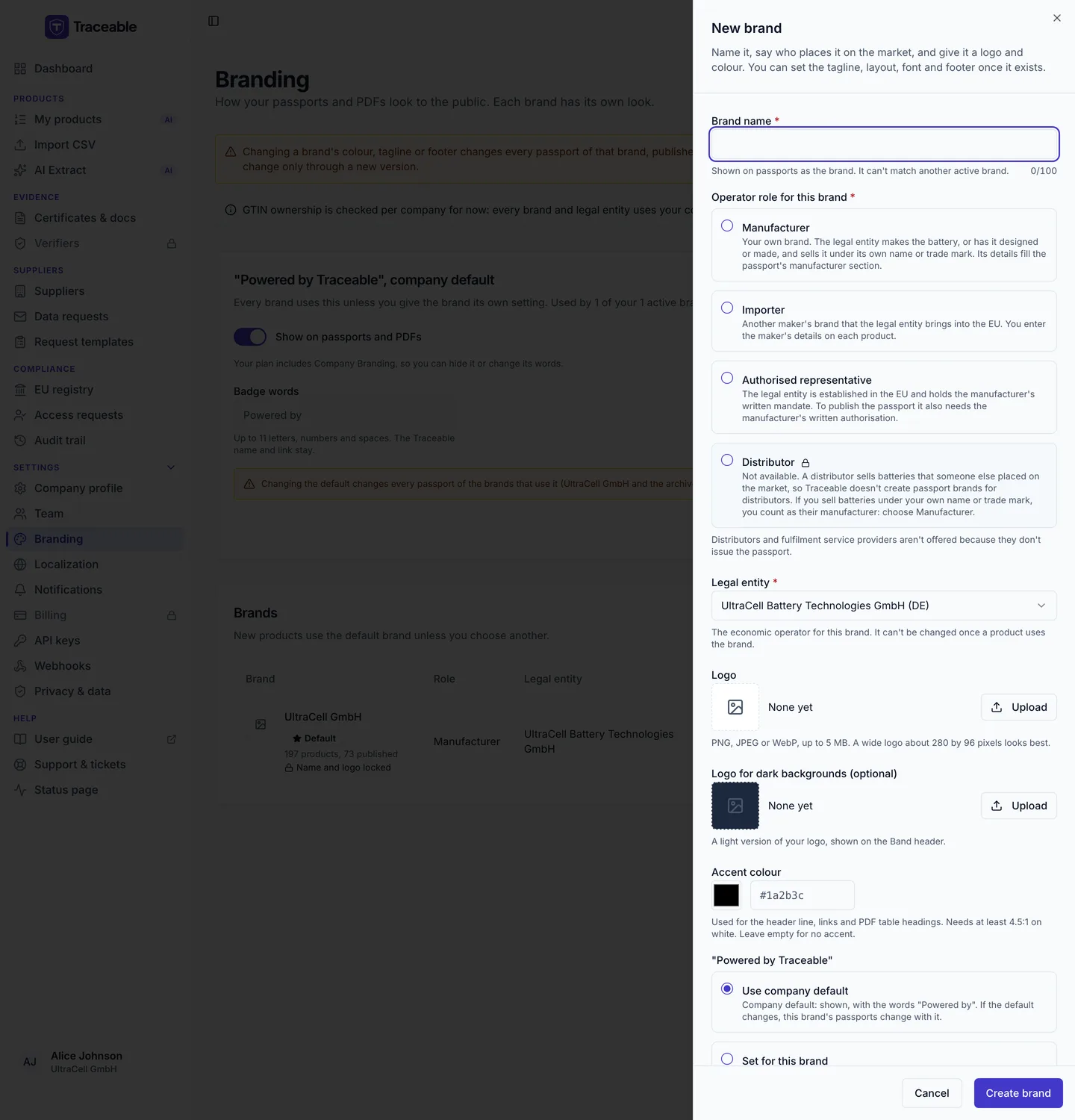
The New brand sheet.
- Brand name: required, 1 to 100 characters, with a counter. The hint reads "Shown on passports as the brand. It can't match another active brand." Names ignore capitals and spaces at the ends. A name cannot include the CE mark or a regulation number.
- Operator role for this brand and Legal entity: both required. See Brands and legal entities.
- Logo: optional. The hint reads "PNG, JPEG or WebP, up to 5 MB. A wide logo about 280 by 96 pixels looks best." A file of another type is refused with "Use a PNG, JPEG or WebP file." and a larger one with "Use a file of 5 MB or less."
- Logo for dark backgrounds (optional): "A light version of your logo, shown on the Band header."
- Accent colour: see Accent colour.
"Powered by Traceable": Use company default or Set for this brand. See Powered by Traceable on a brand.- Make this the default brand: shown only when you already have a default brand. Your first brand becomes the default automatically.
A note on the sheet reads "Once a passport of this brand is published, its name and logos can't be changed, because published passports show them."
Click Create brand. The footer shows "Creating brand" and then "Uploading logo". The toast reads "Brand created" and "(name) can now be chosen on products." The brand is created before its logos are uploaded. If a logo cannot be added, the brand still exists and the toast tells you to open the brand's branding editor to add it.
Edit details
Edit details opens a sheet with the brand name, operator role, legal entity, logos, accent colour and "Powered by Traceable" choice. Values that can no longer change show as read-only text with the reason.
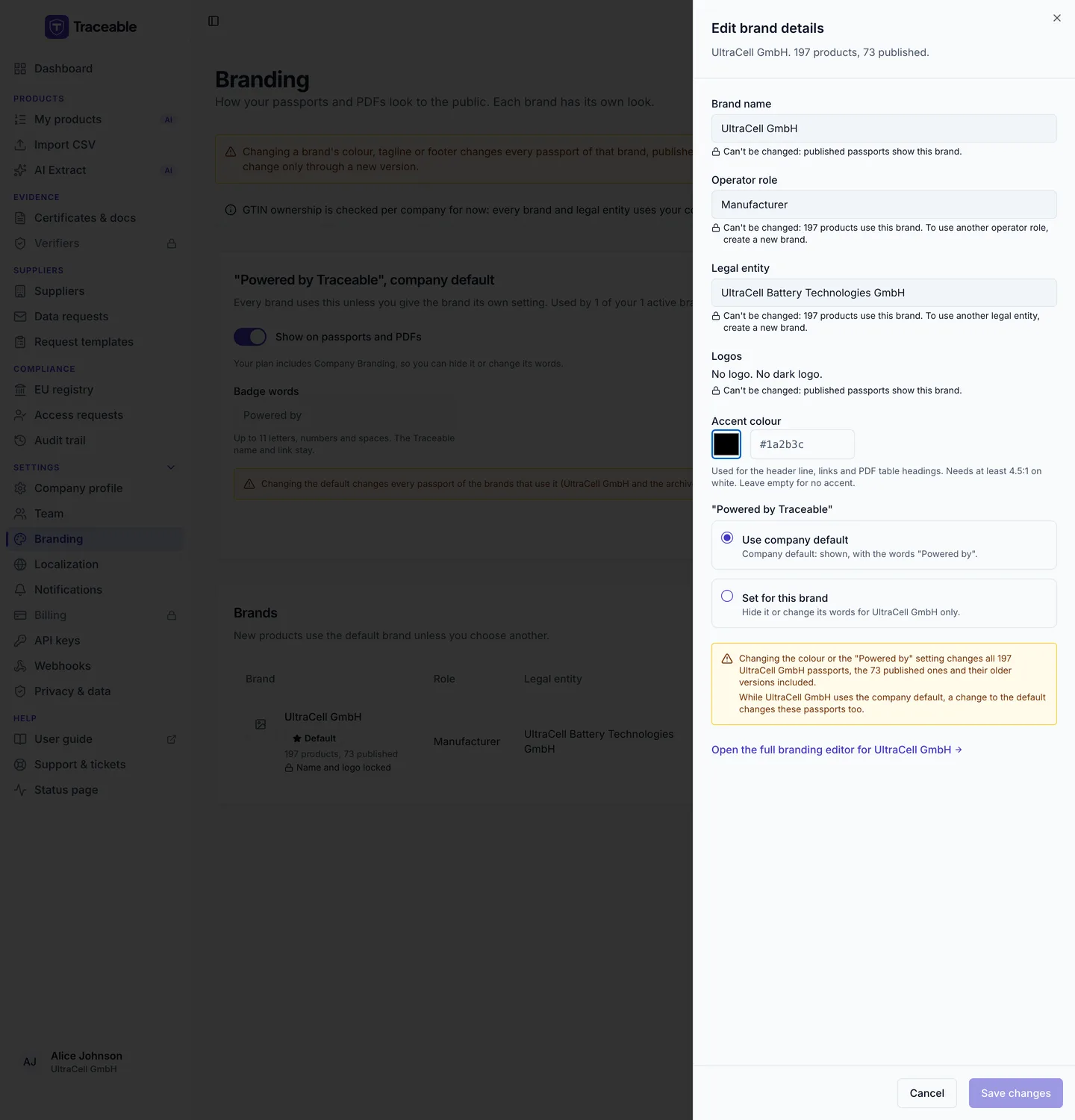
The Edit brand details sheet.
- Brand name and both logos are locked once a passport showing the brand is published: "Can't be changed: published passports show this brand."
- Operator role and Legal entity are locked once a product uses the brand. See Brands and legal entities.
- Logos are shown only as "Logo set" or "No logo", and "Dark logo set." or "No dark logo." Change them in the full editor, which the sheet links to.
- Accent colour and the
"Powered by Traceable"choice stay editable, with a note that changing them changes all passports of the brand.
Click Save changes. The toast reads "Brand saved".
The brand editor
Edit branding opens the editor for one brand. A breadcrumb leads back to Branding, the heading is the brand name, and the line under it gives the role, legal entity and product counts, for example "Manufacturer brand of (legal name). 8 products, 6 published." With more than one brand, a Brand selector switches between brands. It does not open while you have unsaved changes, and says "Save or discard your changes before you switch brand."
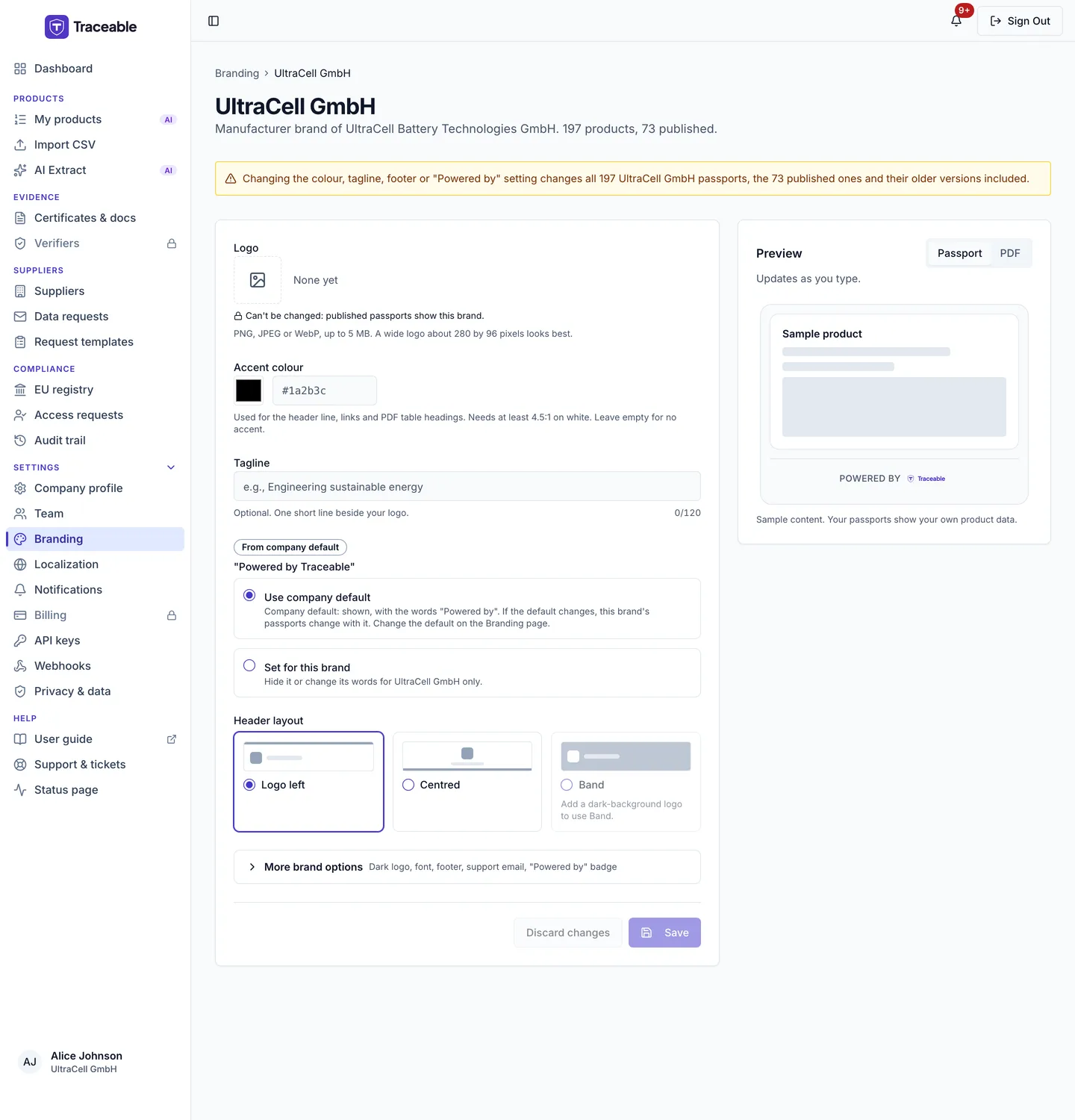
The brand editor.
The form is on the left. A Preview panel on the right has Passport and PDF tabs. It shows the header and footer of the passport and the first page of the PDF export, uses sample content, and reads "Updates as you type. Not saved yet." until you save.
Logo
You upload your logo as a file. There is no box for a web address. The hint reads "PNG, JPEG or WebP, up to 5 MB. A wide logo about 280 by 96 pixels looks best." The page shows the file name, its size in pixels and its type. Upload or Replace sets the file and Remove logo removes it. After an upload the page says "Logo uploaded. Select Save to show it on your passports." The logo is not applied until you save.
If the brand still has a logo set from an earlier web address field, the page shows "Your logo is set as a web address (...). Most web addresses cannot be shown on a passport, so upload the logo file instead, or remove it."
Accent colour
A colour picker and a hex field, for example #1a2b3c. The hint reads "Used for the header line, links and PDF table headings. Needs at least 4.5:1 on white. Leave empty for no accent."
A badge gives the contrast against white, for example "5.2:1 on white, passes" or "3.1:1 on white, too light". A colour that is too light cannot be saved. The page says "This colour is too light to read on white" with the ratio, and offers a button whose text starts "Use the nearest readable shade".
Tagline
Up to 120 characters, with a counter. The hint reads "Optional. One short line beside your logo."
Powered by Traceable on a brand
A chip reads "From company default" or "Set for this brand". Under "Powered by Traceable" choose:
- Use company default, which states the current default, for example
Company default: shown, with the words "Powered by".If the default changes, this brand's passports change with it. Change the default on the Branding page. - Set for this brand, which lets you hide the badge or change its words for this brand only, depending on what Traceable allows your company. The controls are Show on passports and PDFs and Badge words (up to 11 characters; "Leave empty to use" the default words).
If Traceable allows neither, or has switched the badge off, the editor shows the same sentences as the company default card.
Header layout
Three cards: Logo left, Centred and Band. Band needs a logo for dark backgrounds. Until you add one, the card reads "Add a dark-background logo to use Band." Removing the dark logo switches a Band header back to Logo left.
More brand options
The More brand options section is folded. It holds:
- Logo for dark backgrounds: a PNG, JPEG or WebP file of up to 5 MB. The hint reads "A light version of your logo, shown on the Band header. PNG, JPEG or WebP, up to 5 MB." Remove dark logo removes it.
- Font: Inter (default), Device font or Serif.
- Footer text: up to 500 characters, shown at the bottom of your passports. The hint reads "Shown at the bottom of your passports. Do not state compliance or certification here: the passport shows its regulatory status from its own verified data."
- Footer links: up to 5 links, each with a name of up to 30 characters and a web address that starts with
https://and is up to 300 characters long. Add link adds a row. Errors read "Give the link a name." and "Use a full web address that starts with https://." - Support email: an email address, for example
care@example.com. Otherwise the page reads "Enter an email address such as care@example.com."
The tagline, the footer text and the footer link names cannot make a claim. If they do, the page shows "This can't say the product was checked, tested, approved or certified, or name a regulation. The passport shows its regulatory status from its own verified data."
What is locked
- Once a passport showing the brand is published, both logos are locked. The upload and remove buttons are replaced by "Can't be changed: published passports show this brand."
- An archived brand is view only: "Unarchive this brand to change its branding."
- Without the Admin team role, Save does not save and the page reads "View only. Only team admins can change brands."
Above the form, a note says how many passports a change affects: "Changing the colour, tagline, footer or "Powered by" setting changes all 8 (brand name) passports, the 6 published ones and their older versions included."
Saving
Click Save. It is disabled until you change something, and when it is disabled for a reason the page says so, for example "Fix the accent colour to save." Click Discard changes to go back to the saved values. While you have unsaved edits a badge reads "Unsaved changes".
A toast says "Branding saved" and "Your passports and PDFs show the new branding within a few minutes." If a value is not accepted, a "Save failed" toast shows the first error and the field shows its message. A save without the Admin role is refused with "Only team admins can update branding."
Contact details are not part of Branding. The contact email and website published on your passports are set under Settings → Company profile, in the Passport details card. See Company profile.
What Is Not Customisable
Branding changes how the header, footer and PDF look. The following elements of the public DPP viewer are fixed:
| Element | Reason |
|---|---|
| Core DPP data layout | The structure of data fields (chemistry, capacity, compliance status, recycled content, etc.) follows the EU Battery Regulation 2023/1542 data schema. It cannot be rearranged or omitted. |
| Regulatory status | The passport shows its regulatory status from its own verified data. Your footer text and tagline cannot state compliance or certification. |
| Traceable QR code format | QR codes are generated in a standardised format compliant with the Battery Regulation's product passport identifier requirements. |
| Operator Portal UI | Branding settings apply exclusively to the public viewer and the PDF export. The Operator Portal used by your team retains Traceable's standard interface. |