Notifications
Traceable keeps you informed of events that need attention or action. You see them in the portal, and you choose which categories also reach you by email.
Settings → Notifications holds your email preferences. The notifications themselves are listed on a separate Notifications page. Open it from the bell icon in the top bar, or from the "notifications page" link on Settings → Notifications.
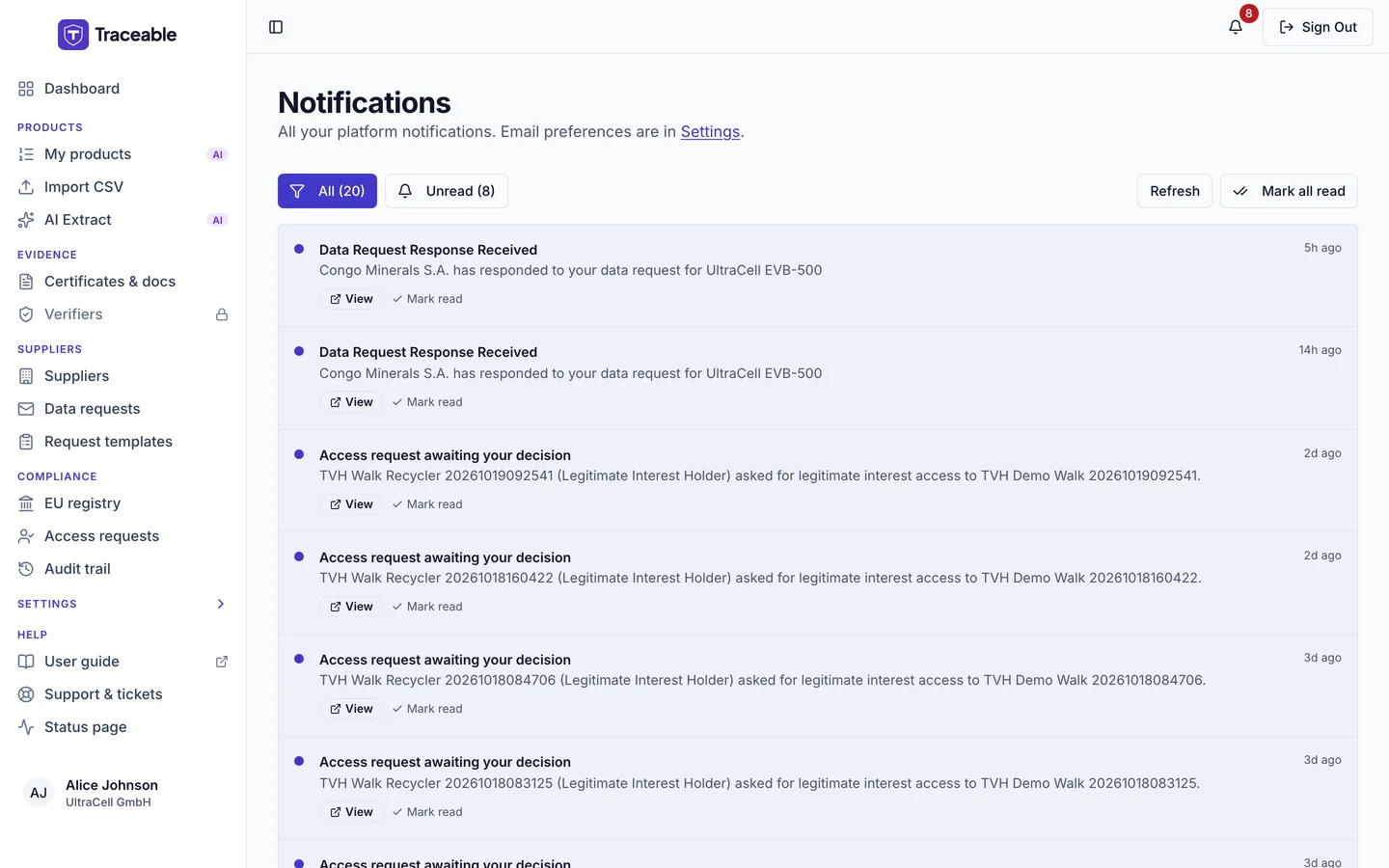
Notifications.
Email preferences
The Email Preferences card has three categories. Each has its own switch.
| Category | What it covers |
|---|---|
| Product Alerts | Product approvals, compliance alerts, certificate expiry reminders |
| Supply Chain | Supplier invitations, data requests, supplier updates, verification status |
| Tips & Announcements | Getting started guides, feature updates, platform tips |
A fixed Security & Login row sits below them. The card says that security and login emails (OTP codes, password resets, team and admin invitations) are always enabled and cannot be turned off.
There is no threshold control. You cannot set how far in advance an alert arrives.
What the switches control today
The descriptions on the card are general. This is what each switch controls at present:
| Switch | Emails it controls |
|---|---|
| Product Alerts | A product is submitted, approved, rejected, deprecated or withdrawn, a certificate is expiring, a reminder before a product's edit window closes, and a QR code is generated |
| Supply Chain | A data request is created, fulfilled or rejected, a supplier is invited, and a verification is approved or rejected |
| Tips & Announcements | Getting-started tips, and the welcome email for a new company |
Team and admin invitations no longer have a switch of their own. They are listed under Security & Login and no switch controls them.
Emails that no switch controls
These emails are sent whatever your switches say, including after Unsubscribe from all:
- A user is invited, by a team Admin or by a Traceable administrator.
- The sign-in code.
- The access request emails: the notice to your team Admins that a request awaits a decision, the emails to the requester, and the requester's email check. See Access requests.
- An API key is created, or API keys are revoked.
- A GS1 prefix request is decided.
- A resolver domain is removed.
- An alert threshold is breached.
- Your trial has ended. This is a notice about your own subscription, and it is always sent.
An email that is in neither list still stops after Unsubscribe from all.
Changing your preferences
- Navigate to Settings → Notifications.
- Switch each category on or off.
- Click Save Preferences.
A green "Saved" appears. If saving fails, the card says "Couldn't save. Try again."
Unsubscribe from all switches every category off. It does not expire.
Notifications in the portal
The bell icon in the top bar shows the latest notifications. The Notifications page lists all of them. On that page you can:
- Filter with All and Unread.
- Click Refresh.
- Click Mark all read, or Mark read on a single item.
When there is nothing to show, the page reads "No notifications yet". Email is controlled by the preferences above.
Managing email without signing in
Every email that a switch controls, sent to a Traceable account, ends with two links:
- Manage email preferences opens a page, without signing in, with the same three switches and a Save Preferences button. It shows your address in part, for example "ab***@example.com".
- Unsubscribe from all switches every category off straight away and shows "Unsubscribed". A link on that page, Manage individual preferences instead, takes you back to the switches.
Mail apps such as Gmail and Outlook also show their own Unsubscribe button on these emails. Using it has the same effect as Unsubscribe from all. It does not stop the emails listed under "Emails that no switch controls".
The links belong to your mailbox, so do not forward these emails. A damaged or unknown link shows a "not found" page. Sign-in codes and password resets cannot be switched off.
If you are not receiving emails
- Check your spam or junk folder and mark Traceable emails as not spam.
- Verify that the switch for the relevant category is on in Settings → Notifications.
- Confirm that your sign-in email address is correct. See Company profile.
Page tips
Settings → Notifications also has a Page tips card with a Show page tips again button.