Privacy & data
The Privacy & data page puts you in control of how Traceable processes your data. It covers where your data is processed, AI data processing consent, data export, account deletion, and links to the Privacy Policy and Subprocessors. Navigate to Settings → Privacy & data to manage these settings. The page does not need a module, because a person's data rights do not depend on the plan.
Email preferences are not on this page. They are under Settings → Notifications. See Notifications.
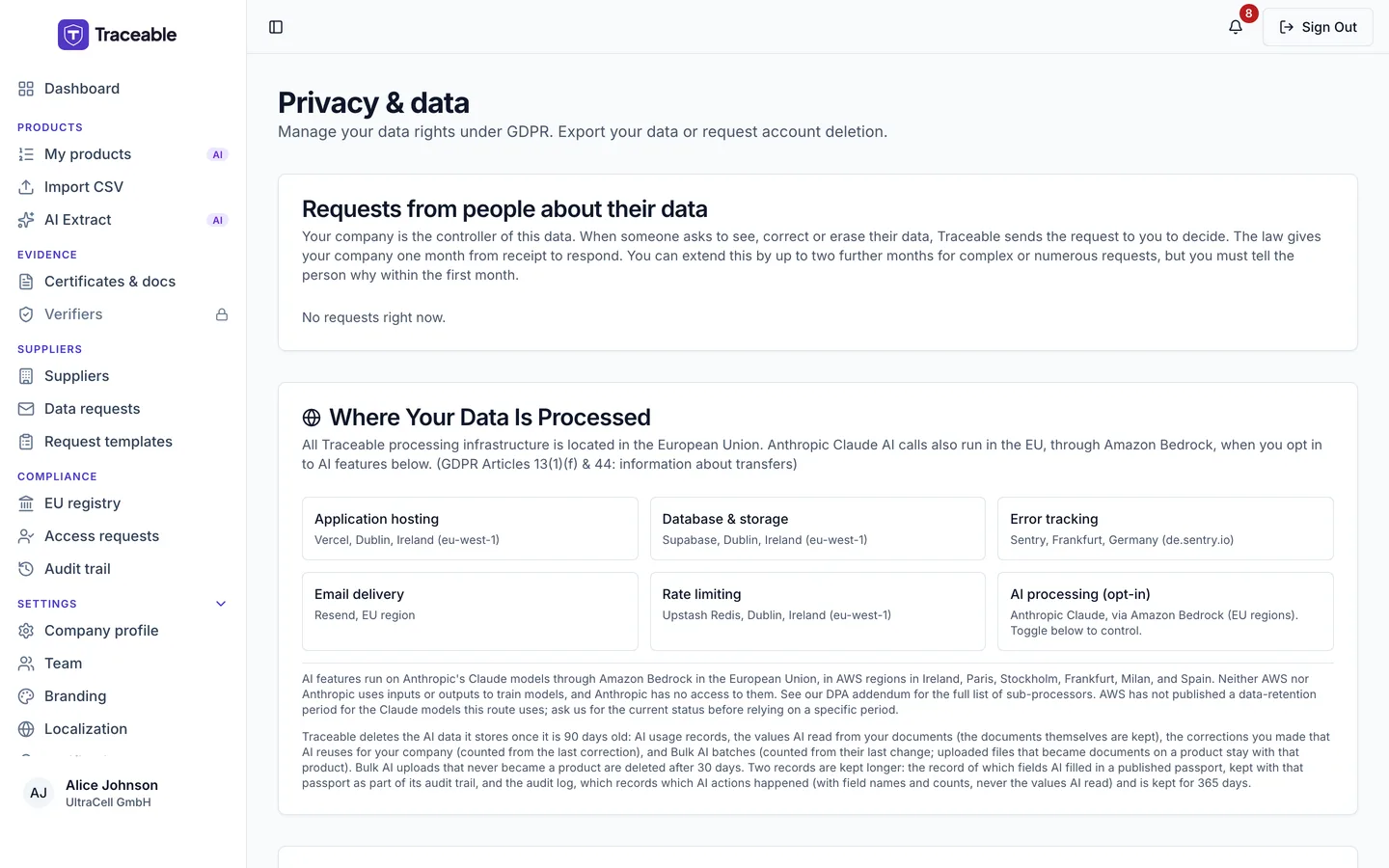
Privacy and data.
The Where Your Data Is Processed card lists the hosting regions for the services Traceable uses.
AI Data Processing
What It Means
Traceable's Document AI feature uses Anthropic's Claude models, run through Amazon Bedrock in the European Union, to analyse compliance documents you upload, for example to extract battery chemistry data from a manufacturer's test report, identify missing fields in a Declaration of Conformity, or summarise a supplier's technical file. This involves sending the content of uploaded documents to Amazon Bedrock for processing.
Neither AWS nor Anthropic uses inputs or outputs to train models, and Anthropic has no access to them. Because third-party processing is involved, explicit consent is required before this feature activates.
Giving Consent
Consent can be given in two ways:
- On first use: the first time you use an AI feature, a dialog titled AI Data Processing Consent is displayed. It says "Please review and accept before using AI-powered features." It has the buttons Decline and Accept and Continue. You must click Accept and Continue to proceed. This records your own consent. The modal can appear in the product wizard, My products, a product's Documents page and AI Extract.
- On the settings page: navigate to Settings → Privacy & data. In the AI Data Processing card, switch the consent toggle on. The card reads "AI features enabled" when it is on. There is no confirmation dialog. The change saves at once, and a toast says "AI Consent Granted" and "AI-powered features are now enabled."
Consent is recorded per user. Each user grants or revokes their own AI-processing consent. It is not given or withdrawn on behalf of the whole account.
Revoking AI Consent
To revoke consent:
- Navigate to Settings → Privacy & data.
- In the AI Data Processing card, switch the consent toggle off.
There is no confirmation dialog. A toast says "AI Consent Revoked" and "AI-powered features have been disabled. You can re-enable them at any time."
Revocation takes effect immediately:
- Document AI features are disabled for your user (other users' consent is unaffected).
- No further documents are sent to Amazon Bedrock for processing on your behalf.
- Documents that were already processed are not retroactively deleted. The extracted data already stored in your DPPs is not affected. Only future processing is stopped. The values AI read from your documents are deleted once they are 90 days old (see How Long AI Data Is Kept).
To re-activate Document AI later, return to Settings → Privacy & data and switch the consent toggle back on.
How Long AI Data Is Kept
Traceable deletes the AI data it stores once it is 90 days old. That covers AI usage records, the values AI read from your documents (the documents themselves are kept), the corrections you made that AI reuses for your company (counted from the last correction), and Bulk AI batches (counted from their last change; uploaded files that became documents on a product stay with that product). Bulk AI uploads that never became a product are deleted after 30 days.
Two records are kept longer: the record of which fields AI filled in a published passport, which stays with that passport as part of its audit trail, and the audit log, which records which AI actions happened (with field names and counts, never the values AI read) and is kept for one year.
Data Export (GDPR Article 20)
Under Article 20 of the General Data Protection Regulation (GDPR), you have the right to receive a copy of the personal and organisational data Traceable holds about you in a portable, machine-readable format.
Requesting a Data Export
- On the Privacy & data page, find the Export My Data card.
- Click Download My Data. The button reads "Preparing Export..." while it runs.
- Traceable assembles your export and your browser downloads a JSON file named
traceable-data-export-YYYY-MM-DD.json. A toast says "Data Exported" and "Your data has been downloaded as a JSON file."
There is no confirmation dialog. No email link is sent, and there is no waiting period.
What the Export Contains
The export is a structured JSON file. It contains these categories:
- user: your id, email, name, role, avatar, last sign-in, and created and updated dates.
- company: legal and display name, VAT number, registration number, operator type, address, industry, status, created date, current subscription plan, status and start, and your branding and localization settings.
- products: your products, including their form data, with only a count of documents and traceability records.
- auditLog: audit events where you are the actor.
- notifications, emailPreferences, deletionRequests, aiConsent, supportTickets and digitalSignatures.
- apiKeys: metadata only (id, prefix, name, dates, status).
- dataRequests and changeLogs.
The export does not include documents as files or file references, verifiable credentials, the team member list or invitation history.
Products, audit events and notifications are capped at 10,000 records each, and the file carries a truncation warning if one is capped. Support tickets, digital signatures, data requests and change logs are also capped at 10,000 records, without a warning.
The export is limited to your own company's records.
How You Receive the Export
The export downloads directly in your browser as soon as it is generated. Nothing is emailed, and there is no expiring link. If the download does not start, or is interrupted, return to the Privacy & data page and request the export again.
Cookies
Under the ePrivacy Directive (Article 5(3)), cookies that are strictly necessary for a service the user has requested may be set without consent, while non-essential cookies require prior consent.
The platform sets the cookies below. There is no chat widget in the platform.
When you sign in (every portal)
| Cookie | What it does | How long it lasts |
|---|---|---|
sb-<ref>-auth-token | Keeps your sign-in session. It may be split into several parts | Up to 400 days; the session itself is refreshed and limited on the server |
td_session_mfa | Proves that this session passed the email code step | 400 days |
traceable_last_seen | Tracks idle time for the 30-minute idle timeout, which the server enforces | 60 days, renewed on each request |
pending_otp_email | Carries your email from the password step to the code step | 10 minutes |
td_email_link_proof | Proves that you opened an invitation or reset link | 15 minutes |
sidebar_state | Remembers whether the sidebar is open | 7 days |
traceable_locale | Remembers your language | 1 year |
Cookies set only in the operator portal:
| Cookie | What it does | How long it lasts |
|---|---|---|
company_stepup | Records a recent extra check before a sensitive action | 5 minutes |
onboarding_dismissed | Hides the onboarding checklist | 1 year |
Public passport visitors (not signed in)
| Cookie | What it does | How long it lasts |
|---|---|---|
traceable_locale | Remembers the language, only if the visitor changes it | 1 year |
poli_access_token | Gives the full passport view, only after a legitimate-interest access grant | 30 days |
Traceable staff tools set two more cookies that operators never receive.
Google Tag Manager does not load on production. Vercel Speed Insights is mounted, and Traceable's code sets no cookie for it.
Email Preferences
Email preferences are under Settings → Notifications, not on this page. They have three categories, a fixed Security & Login row, a Save Preferences button and Unsubscribe from all. See Notifications.
Account deletion and the Privacy Policy
The Delete My Account card is on this page. Its text reads "Request permanent deletion of your account and all associated data. Erasure requests are given a deadline of one month from receipt. This action cannot be undone." See Company profile for the steps and what happens next. The Privacy Policy card has the buttons View Privacy Policy and View Subprocessors.
How an erasure request is decided
Traceable acts for its customers as a processor. An erasure request is therefore not decided by Traceable alone.
- Deadline. The deadline is one month from receipt, extendable by up to two further months where the law allows. If a request is complex, the person is told why within the first month.
- Routing. The request is routed to the customer that holds the person's data. If several customers hold it, the request goes to each of them.
- Decision. The Admins of each of those customers instruct the erasure or decline it. Traceable carries out the erasure only after a customer's Admin has instructed it.
- Hold. If any of the customers declines, with a reason, the erasure is held. Nothing is erased while a customer that holds the data keeps it.
When an erasure is held, an in-app notice is sent. It is a notification in the portal, not an email.
- The Admins of the company that instructed the erasure get a notice titled "An erasure you instructed is on hold". It reads: "Another company that holds this person's data has declined to erase it and keeps the data. Its stated reason:" followed by the reason in quotation marks, then "Traceable cannot carry out the erasure while that company keeps the data. You can still end your own relationship with this person's organisation." The other company is not named.
- The person who asked gets a notice, where their account has a privacy page to link to, titled "Your erasure request is on hold". It reads: "A company that holds your data has declined to erase it and keeps it:" followed by each company name and its reason in quotation marks, in the form Company ("reason"), then "Traceable cannot erase your data while a company keeps it. You can contact that company about its decision."
Requests from people about their data
Team Admins see a card titled Requests from people about their data at the top of this page. Other team members do not see it.
The card reads: "Your company is the controller of this data. When someone asks to see, correct or erase their data, Traceable sends the request to you to decide. The law gives your company one month from receipt to respond. You can extend this by up to two further months for complex or numerous requests, but you must tell the person why within the first month."
When there are none, it reads "No requests right now." Otherwise it lists each request with these columns: Person, Request, Deadline, Status and Actions.
| Column | Values |
|---|---|
| Request | Access to data, Correct data, Erase data |
| Status | Needs your decision, Erasure instructed, Declined, Withdrawn, Completed |
For a request that needs your decision, the actions are:
- Instruct erasure, for an erasure request. The dialog is titled "Instruct Traceable to erase this person's data?" and reads "As the controller, you are telling Traceable to erase this person's account and personal data. This cannot be undone once Traceable carries it out." It has an optional Note (optional) field.
- Mark as handled, for the other request types. The dialog is titled "Mark this request as handled?" and reads "Confirm you have answered this person's request yourself. Traceable keeps a record that you did."
- Decline. The dialog is titled "Decline this request?" and reads "Tell us why you are declining. The person's request stays on record with your reason." The Reason (required) field must be filled in before you can confirm.
A request about you cannot be answered by you. Its row reads "This request is about you, so another Admin of your company must answer it. If you are the only Admin, contact Traceable support."