Team management
The Team Management page lets you invite colleagues, assign roles, and manage access to your Traceable Operator Portal. Navigate to Settings → Team to manage your team. The page needs the Team Management module. Only Admins can invite, change roles or remove members. Other roles see the list, with "Admins only" in the Actions column.
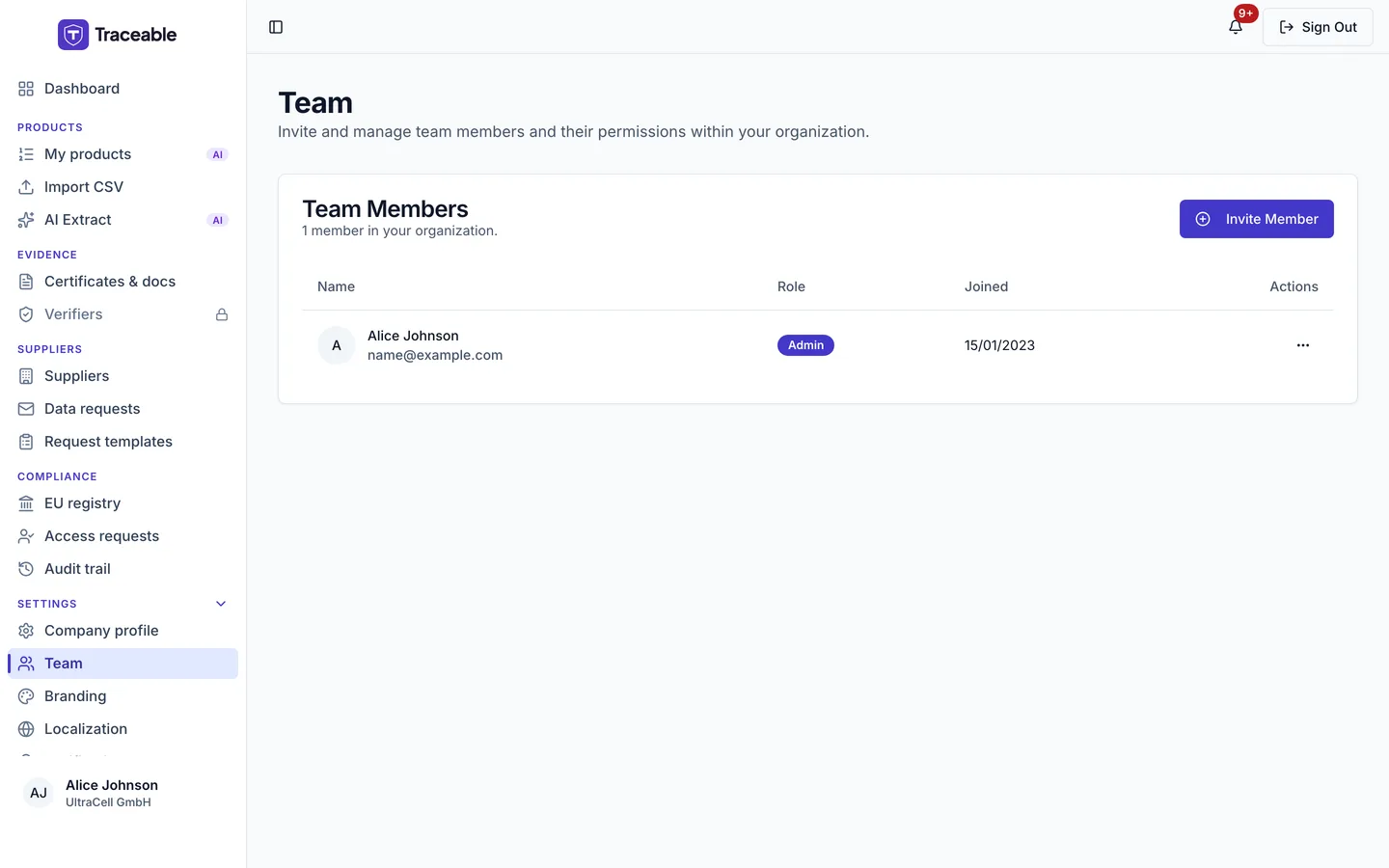
Team and roles.
Roles
Traceable uses a four-tier role system. Every user on your account holds exactly one role, and access is enforced across all portal sections accordingly.
Two capability lines matter most in practice:
- Who can write content (create or edit products, upload documents, send supplier data requests): Admin, Approver, and Editor. Viewer cannot.
- Who can publish: Admin and Approver only. Editor can build a DPP but cannot sign or publish it.
Admin
Full access to all platform features, including:
- Create, edit, publish, and archive products and DPPs.
- Manage suppliers and verifier relationships.
- Manage team members: invite, change roles, remove.
- Change account settings and company profile.
- Manage API keys. Minting, rotating, and revoking API keys is Admin-only; no other role can do it.
- Submit an account deletion request.
All accounts sign in with an email verification code after entering the password.
Approver
Everything an Editor can do, plus the authority to sign and publish:
- Create, edit, and archive products and DPPs.
- Sign and publish DPPs. This is the capability that distinguishes Approver from Editor.
- Manage supplier data requests and supply chain relationships.
- Assign verification tasks and review verifier responses.
- Cannot manage API keys, change account settings, or delete the account.
Editor
Content access without publishing authority:
- Create and edit products and DPPs, and upload documents.
- Send supplier data requests and manage supply chain records.
- Cannot sign or publish a DPP. Completed DPPs must be published by an Admin or Approver.
- Cannot manage API keys, team members, or account settings.
Viewer
Read-only access across all products and documents:
- View all published and draft DPPs and their associated documents.
- View supplier and verifier relationships and their statuses.
- Cannot create, edit, or delete any data.
- Can open the Team page, which shows a read-only list.
If your role cannot be determined for any reason, Traceable treats you as a Viewer rather than granting broader access. A new invitee defaults to Editor in the invite dialog, which you can change before sending.
Inviting a Team Member
- Navigate to Settings → Team.
- Click Invite Member. The Invite New Team Member dialog opens: "The user will receive an email with instructions to join your company portal."
- Enter their Full Name (required) and Email Address.
- Pick a Role: Admin (Full Control), Approver (Can sign/publish DPPs), Editor (Can create/edit DPPs) or Viewer (Read-only access). It defaults to Editor.
- Click Send Invitation. A toast says "Invitation Sent".
The invitee receives an email with instructions to join your company portal (or a login link if they are already registered).
The new team member appears in your team list straight away, with their assigned role. The table columns are Name, Role, Joined and Actions.
The invitation is refused in these cases:
- The invitee's email domain does not match your company contact-email domain: "Invitations are restricted to your company domain (@domain). To invite a user from another domain, contact support."
- You invite yourself: "You cannot invite yourself."
- The person is already on your team: "This user is already a member of your team."
- The email is already registered with another organization: "This email is already registered with another organization."
- You have sent too many invitations. The limit is 20 invitations per company per hour: "Too many invitations sent. Please try again later."
You can only invite one person per invitation. To invite multiple people, submit separate invitations.
Withdrawing an invitation
The Team page has no pending-invitations list and no Resend or Cancel buttons. To withdraw someone you invited, use Remove Member (see below).
Changing a Team Member's Role
- In the Team list, locate the member whose role you want to change.
- In the Actions column, click the Options (three dots) button, then Edit Role.
- In the Change Role dialog, click the role you want. There is no Save button; clicking the role applies it.
The change signs the member out. Their sessions are revoked so a stale session cannot keep the old role.
You cannot change your own role ("You cannot change your own role.") or the company owner's role ("Cannot change the role of the company owner."). Demoting an Admin revokes the active API keys that Admin created. The dialog warns: "Demoting this Admin will revoke N active API keys they created."
Role changes are recorded in the account audit trail.
Removing a Team Member
- In the Team list, locate the member you want to remove.
- In the Actions column, click Options, then Remove Member.
- In the Remove Team Member dialog, click Remove. (Cancel closes the dialog.) A toast says "Member Removed".
Removal is immediate. The user loses access to your Traceable account as soon as the action is confirmed. Their active sessions are terminated. The user is unlinked from the company and their user record is kept. The company owner cannot be removed. Removing an Admin also revokes the API keys that Admin created.
Their past actions are retained in the audit trail with their email address, attributed to them as the actor. Removing a user does not erase their audit history. This is required for regulatory traceability.
Preventing a Locked-Out Account
The Last Admin Rule
You cannot remove the last Admin user from an account, and you cannot change the role of the last Admin away from Admin. If you attempt to do so, Traceable will display "Cannot remove the last admin. Assign another admin first." and block the action.
Before removing the final Admin (for example, if that person is leaving the organisation), you must:
- Invite a replacement and have them accept the invitation.
- Assign the replacement the Admin role.
- Only then remove or downgrade the departing Admin.
This rule prevents accounts from being left without an administrator who can manage settings, API keys, and team membership.
Admin Offboarding Checklist
When an Admin user leaves your organisation:
- Invite a replacement Admin and confirm they have accepted the invitation and can log in.
- Transfer any in-progress DPP drafts or supplier requests to another team member.
- Remove the departing Admin from the team.
- Removing or demoting the Admin revokes the API keys they created. Generate new keys under a remaining Admin if integrations need them.
The invitation dialog
Invite Member opens Invite New Team Member. The person receives an email with instructions to join your company portal.
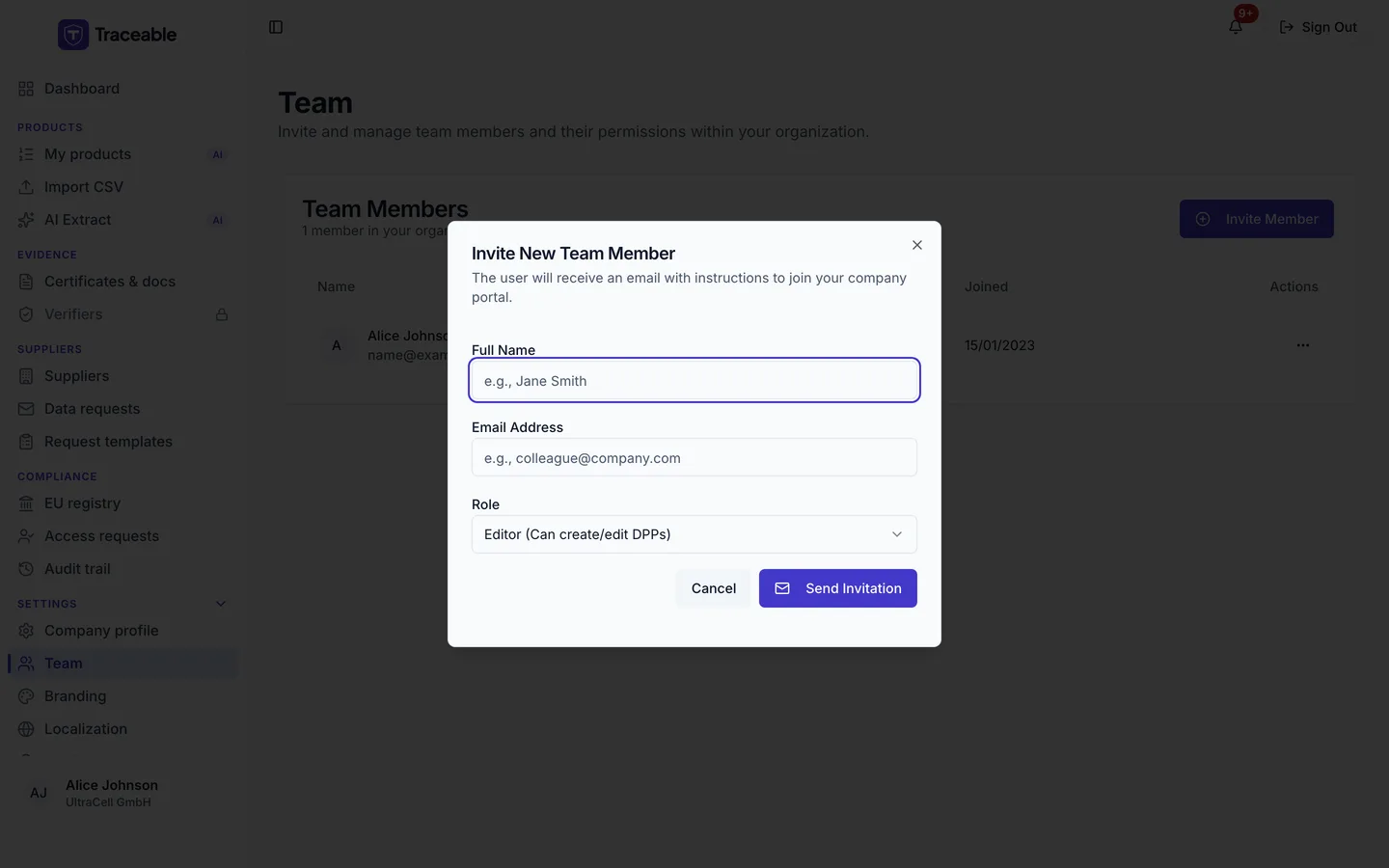
The role is chosen at invitation time and can be changed afterwards from the team list.