API keys
API keys let external systems work with your Traceable account programmatically. They authenticate the Integration API, which lets ERP, PLM, and other software author Digital Product Passports without using the portal.
You manage keys in Settings → API keys.
Minting, rotating, and revoking API keys requires the Admin team role. Approver, Editor, and Viewer cannot manage keys, even though Approver and Editor can otherwise create and edit DPPs. See Team Management for the full role breakdown.
The Integration API is live on production as of 29 June 2026. Create a key here, store its key and signing secret, and point your integration at it. Full technical reference: Integration API.
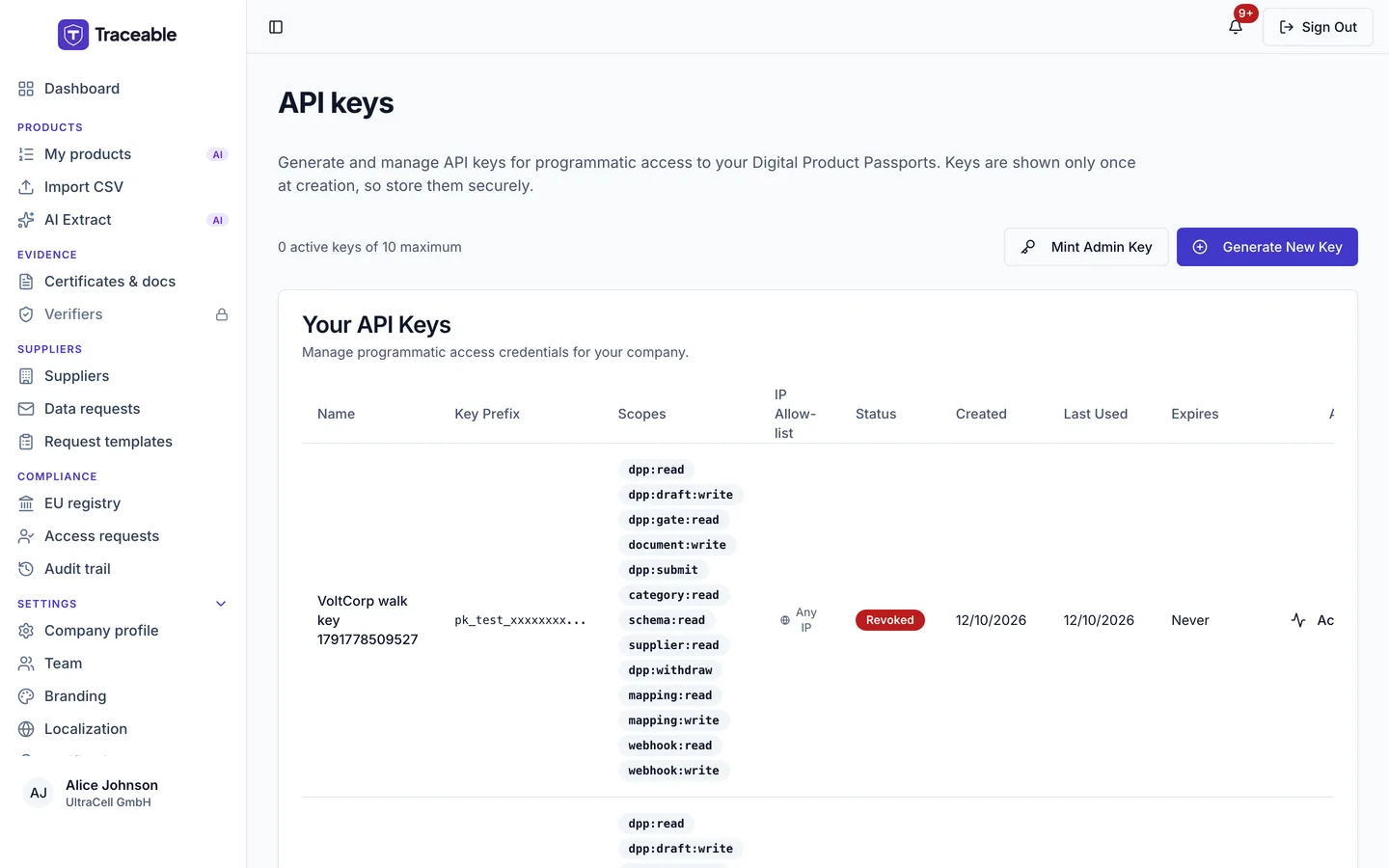
API keys.
What API keys are used for
An Integration API key lets a connected system:
-
Create Digital Product Passport drafts from your product data
-
Update draft fields as data becomes available
-
Upload evidence documents (test reports, certificates, declarations)
-
Check the publish gate to see what data is still missing
-
Submit a completed draft to your review queue
-
Take a published passport offline (withdraw it), with the withdraw scope
The API never publishes. A submitted passport always goes to a human reviewer in the portal, who publishes it. See Regulatory boundary.
Scopes
Each key carries one or more scopes. A scope grants a specific capability, and a key can only do what its scopes allow. You choose the scopes when you create the key.
The scope picker offers 13 scopes. All are ticked by default, so untick the ones the integration does not need.
| Scope | Grants |
|---|---|
dpp:read | Read DPPs |
dpp:draft:write | Write draft DPPs |
dpp:gate:read | Read gate data |
document:write | Upload documents |
dpp:submit | Submit DPPs |
webhook:read | Read webhook endpoints and deliveries |
webhook:write | Manage webhook endpoints |
category:read, schema:read, supplier:read | Read-only discovery of categories, schemas and suppliers (shown by raw id in the picker) |
dpp:withdraw | Take a published passport offline |
mapping:read, mapping:write | Read and manage field mappings (shown by raw id in the picker) |
For the full list, see Scopes.
Grant only the scopes an integration needs. There is no publish scope (publication is always a human action) and no AI scope. The dpp:withdraw scope lets a key take a published passport offline, so grant it with care.
Creating an API key
- Navigate to Settings → API keys.
- Click Generate New Key. The Generate API Key dialog opens.
- Enter a Key Name of 3 to 100 characters that identifies the system the key is for (for example
odoo-prod,sap-erp,plm-integration). - Choose an Expiration: Never expires, 30 days, 90 days or 1 year.
- Tick the scopes the integration requires.
- Optionally tick Sandbox key.
- Click Generate Key.
- Copy both the key and the signing secret immediately. The dialog says "Copy both values now. They will not be shown again". Click Done when you have stored them. After that they cannot be retrieved.
You can hold up to 10 active keys per company. The page shows "N active keys of 10 maximum". At the limit, you see "Maximum 10 active API keys per company. Revoke an existing key first."
The signing secret
Every key is issued with a signing secret in addition to the key itself. The signing secret is used to sign write requests (a security measure that proves the request was not tampered with in transit).
- The signing secret is shown once, when the key is created or rotated.
- The portal shows it once and cannot show it again.
- Store it in your secrets manager immediately.
- If it is lost, rotate the signing secret to generate a new one.
For how the signing secret is used, see Integration API: Authentication.
Storing keys securely
An API key and its signing secret are credentials equivalent to a password. Treat them with the same care.
Do:
- Store them in a secrets manager (AWS Secrets Manager, HashiCorp Vault, Azure Key Vault) or in environment variables on the systems that need them.
- Use one key per integration so that revoking one does not affect others.
- Rotate keys periodically or whenever someone with access leaves your organisation.
Do not:
- Commit keys or signing secrets to source control, even private repositories.
- Share them over email, chat, or any unencrypted channel.
- Put a key or secret in a URL, query string, log line, or error report.
Viewing key activity
Each key has an Activity button on its row in Settings → API keys. It opens the API key activity page and its API Call Log card, which lists the last requests made with that key, most recent first. You can filter by Status and Method, switch on Diff to see field-level changes, and click Export CSV. Each entry shows:
- The method and endpoint called
- The response status and response time
- The scope used and the request identifier
- Field-level changes for write operations
Use the activity view to confirm an integration is behaving as expected and to investigate unexpected usage.
If a key shows activity you do not recognise, revoke it immediately and investigate.
Rotating a key
Do this periodically, or whenever you suspect a key or signing secret may have been exposed.
Rotate the signing secret. Click Rotate on the key row. The Rotate Signing Secret dialog opens. The previous secret stops working immediately. Copy the new secret and update your integration. The key itself does not change.
Replace the key itself. Generate a new key, then revoke the old one:
- Click Generate New Key with the same scopes (see Creating an API key).
- Update your integration to use the new key and its signing secret.
- Verify the integration works with the new key.
- Return to Settings → API keys, find the old key, and click Revoke.
Do not revoke the old key before confirming the new key works, or your integration will fail during the transition.
Revoking a key
To revoke a key immediately:
- Navigate to Settings → API keys.
- Find the key in the list.
- Click Revoke on the key row. The Revoke API Key? dialog opens.
- Click Revoke Key.
The dialog says "This action cannot be undone." Revocation is immediate and permanent. Any request made with a revoked key receives an HTTP 401 Unauthorized response. Revoked keys cannot be re-enabled.
Rate limits
API requests are subject to rate limiting. If an integration exceeds the limit, requests receive an HTTP 429 Too Many Requests response. The response carries a Retry-After header in seconds. Back off and retry after that delay. For the full developer reference, see the Integration API reference.