QR codes
A published product can have a QR code. The QR code is the physical link between a battery product and its Digital Product Passport: it is the mechanism by which downstream users, regulators, and market surveillance authorities access the DPP data from the product itself.
The QR code page of a product opens inside its product page, under the Batteries & QR tab. It is headed "QR code management" and has a Battery units link back to the tab.
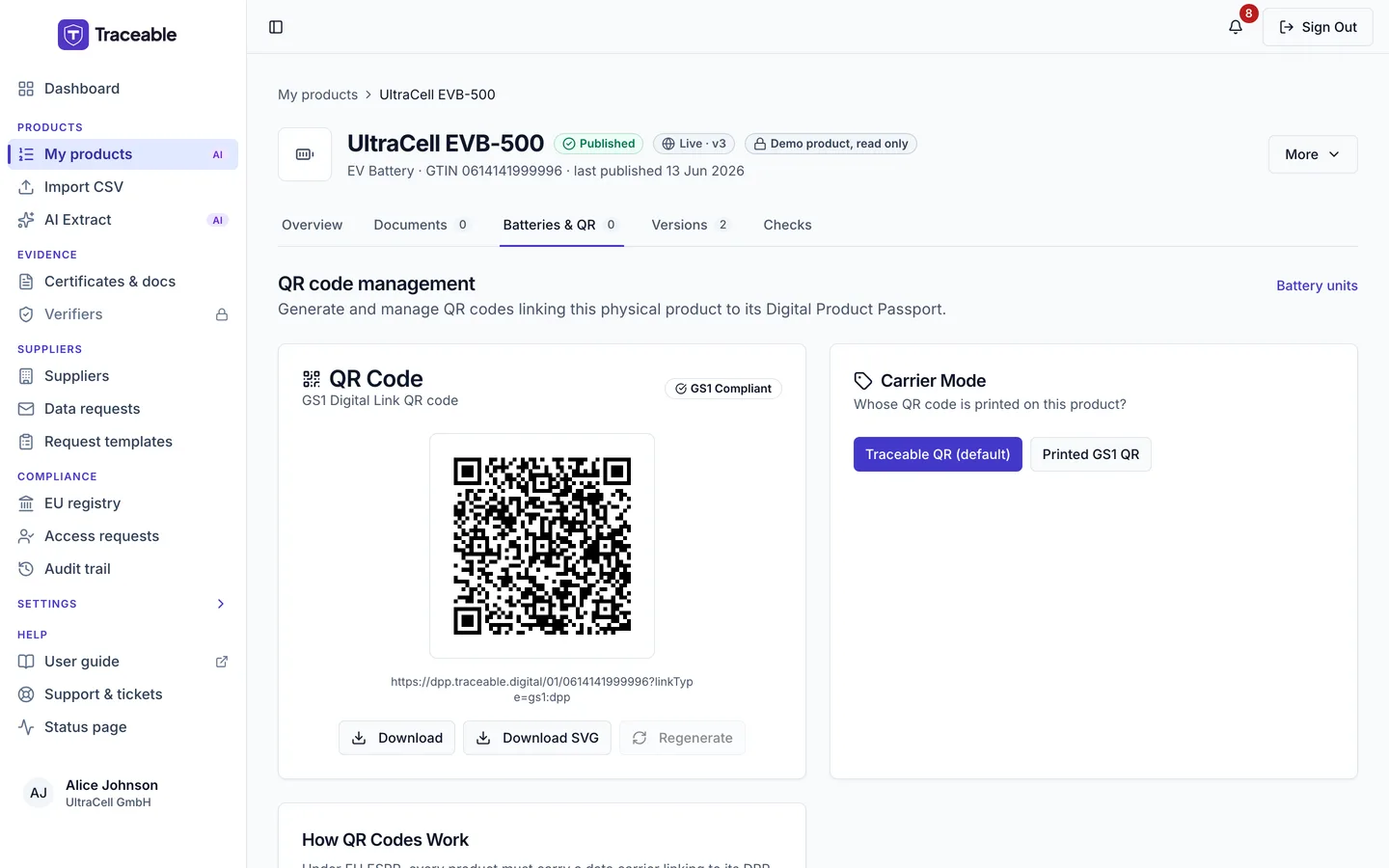
The QR code page for a product.
How QR Codes Are Generated
The QR code is created when you select Generate QR Code on the product's QR page. It is also created automatically the first time the product's public passport page is rendered. Generation needs the QR Code Engine module and an Editor-or-above role, and it is disabled while the publish checks still have gaps ("N compliance gaps must be resolved before a QR can be generated."). Regenerate replaces the active code.
With a GTIN the code encodes a GS1 Digital Link, /01/[GTIN]?linkType=gs1:dpp, at model level (it identifies the model, not one battery). Without a GTIN it encodes /dpp/[slug]. If your company uses a resolver domain with "Use in QR codes" turned on, the link uses that domain.
Republishing does not change the code. The stored code is regenerated if the expected link changes, for example when the domain changes.
Download Formats
Traceable provides QR codes in two formats:
SVG (Scalable Vector Graphic)
Use SVG for all print applications: packaging, product labels, datasheets, and certificates. SVG is resolution-independent: it can be scaled to any size without pixelation or quality loss. This is the format to send to your print supplier or packaging designer. The SVG has no fixed size.
PNG (Portable Network Graphic)
Use PNG for digital applications: websites, PDFs, email communications, and on-screen display. The PNG is 400 pixels wide, with error correction level H. For very large display formats, use SVG instead.
To download a QR code:
- Open My products and select the name of an Approved product.
- Open the Batteries & QR tab, then Filter & export, and choose Model QR code. The menu item needs the QR Code Engine module and a valid GTIN on the product. The Get QR code link in the toast after publishing opens the same page.
- Select Download SVG or Download (PNG).
Downloads are hidden in a support session.
Print guidance
The SVG carries a 4-module quiet zone around the code. Do not crop it. Print on a white or very light background: QR codes on dark or textured backgrounds reduce scan reliability.
What the QR Code Resolves To
Scanning the QR code opens the public DPP viewer, a structured webpage that displays the DPP data in a consumer- and regulator-friendly format. The viewer URL is accessible without login.
What the viewer shows depends on the data you publish and on your visibility settings. Use the Change visibility link on the Public passport card of the product page to control it; see DPP visibility. Dismantling Guide documents are never listed on the public passport.
Carrier Mode: when a QR code is already printed on the battery
Some products already carry a customer's own GS1 Digital Link QR code, printed on the battery before it reaches Traceable. For those, the product's QR page has a Carrier Mode card asking "Whose QR code is printed on this product?", with two options:
- Traceable QR (default): Traceable generates and manages the QR code from the product's GTIN, as described above.
- Printed GS1 QR: you paste the GS1 Digital Link that is physically printed on the product ("Save printed link"). The QR card then renders that printed link as the authoritative carrier, and the platform never overwrites it with a generated one. Products in this mode are badged External.
For external-carrier products, once a link is saved you can also select Download mapping CSV. The mapping CSV lists all your external products. This is what your customer's resolver operator uses to point each printed QR code at its Traceable passport destination.
Use carrier mode when your customer's labels are already in the field or on the production line; changing a printed QR code is exactly the kind of physical-world cost the mode exists to avoid.
Bulk QR Code Download
Bulk QR code download is not available. There is no QR Codes page in the sidebar; /company-portal/qr-codes redirects to the products list.
For several units of one product, use the Batteries & QR tab of its product page. It gives a code for a batch (Batch QR code…), a code for one battery (select its row), and a label file with the link of each battery for a label printer. A battery code needs a published product and a valid GTIN, and one label file holds at most 10,000 batteries. See Batteries and QR.
QR Code Scan Analytics
Scan analytics are not available in the operator portal.
What a scan shows
What a scan shows depends on the product's status:
- Approved: the passport.
- Withdrawn or Deprecated: the passport stays online, read-only, under a notice (see Publish a DPP).
- Withdrawn as counterfeit: the notice only.
- Revoked, Draft or Submitted: not served.
Replacing or reprinting a code
If a printed QR code was damaged or a new batch of packaging needs a different size, you do not need to create a new product. Download the existing code again, or select Regenerate.