Document AI
Document AI extracts structured DPP field data from your uploaded compliance documents. It is the AI Extract page in the Products group of the sidebar. AI features run on Anthropic's Claude models through Amazon Bedrock in the European Union. Neither AWS nor Anthropic uses inputs or outputs to train models, and Anthropic has no access to them. Instead of manually transcribing values from a test report or datasheet into DPP fields, you can let Document AI read the documents and propose values, which you then review and selectively accept or reject.
Document AI is a productivity tool, not an autonomous data entry system. Nothing is written to a product until you select Apply to Product. High-confidence values start accepted and the rest start rejected, so check every value before you apply. The platform is designed this way because AI extraction, while highly accurate on well-structured documents, can misread units, confuse similar model numbers, or misinterpret table layouts. Your review is the quality gate.
Document AI is assistive, not authoritative. Extracted values are proposals for your review before they are saved to a DPP. Nothing Document AI outputs is legal or regulatory compliance advice, and accepting an extracted value does not constitute a compliance determination or certify the source document against any regulation. Accountability for a published DPP under EU Battery Regulation 2023/1542 rests with the operator who publishes it. For binding regulatory questions, refer to the applicable regulation and, where appropriate, qualified counsel.
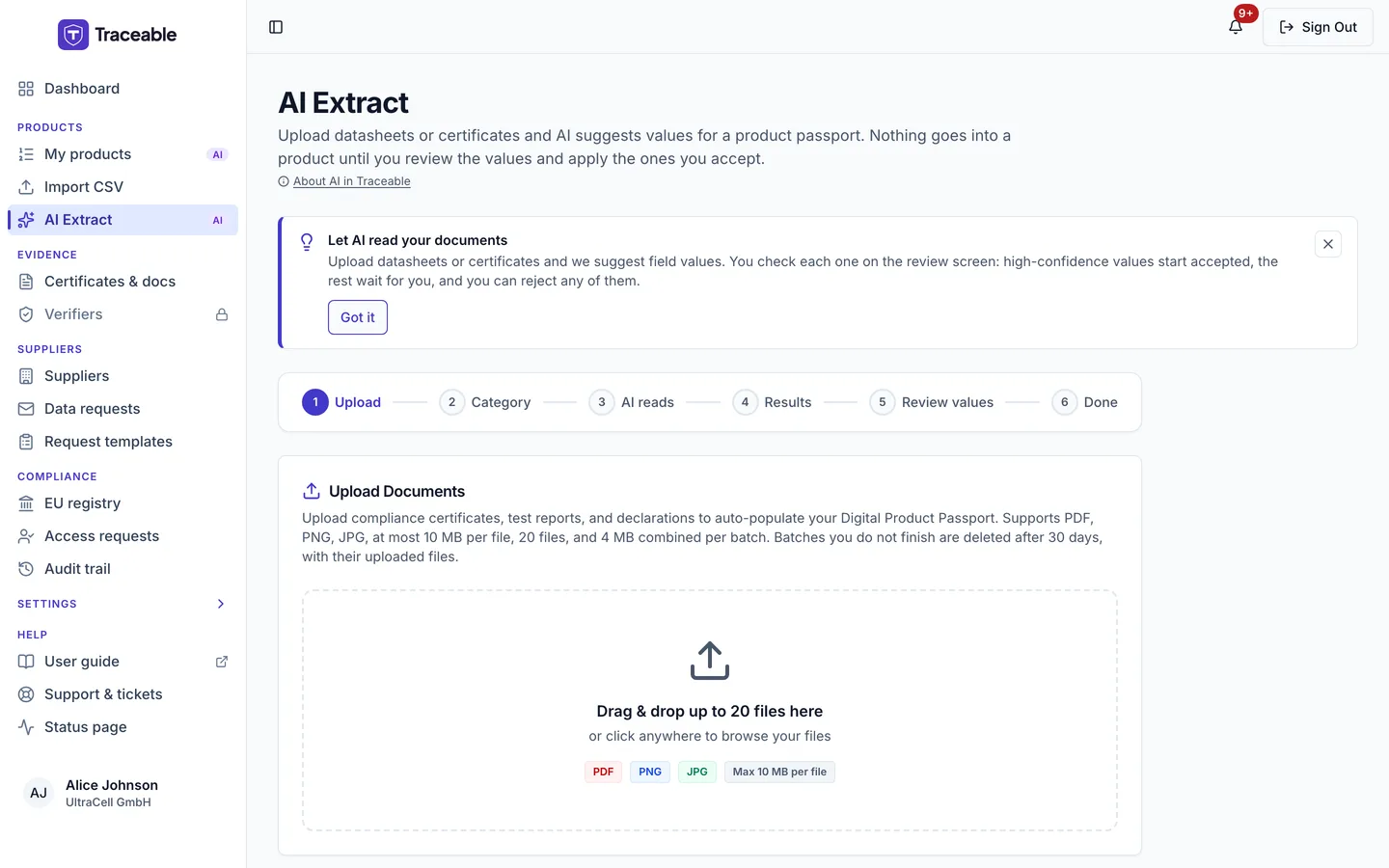
AI Extract.
The page heading is AI Extract, with the subtitle "Upload datasheets or certificates and AI suggests values for a product passport. Nothing goes into a product until you review the values and apply the ones you accept."
AI Consent Requirement
Before using Document AI for the first time, you must provide consent to AI processing. This is a one-time step per user account.
The first time you select Analyze with AI on the AI Extract page, the AI Data Processing Consent dialog appears. It opens:
"Traceable uses Anthropic Claude AI models, run through Amazon Bedrock in the EU, to power features including document analysis, compliance checking, product autofill, and sustainability scoring."
You must click Accept and Continue to proceed. Consent is recorded per user: your choice applies to your own account, not the whole company. If you click Decline, the dialog closes and the AI action does not run. You can grant or revoke consent later in Settings > Privacy & data, using the AI Data Processing switch ("AI features enabled" or "AI features disabled").
Consent covers the AI features the dialog lists. Documents you upload but do not process with AI are never sent to any AI service. The AI data Traceable stores is deleted once it is 90 days old; see How long AI data is kept.
From the document library
On Evidence > Certificates & docs, Process with AI opens AI Extract. There is no per-document AI button. AI-extracted documents carry an AI badge and a Review AI button that opens a read-only "AI Extraction" dialog listing the values the AI found.
How to open AI Extract
Open AI Extract in the Products group of the sidebar. There is no Bulk Processing tab: AI Extract is the bulk page.
AI Extract is available on the Bulk & Email Processing module. A company that held only the retired single-document module ("Single Document AI Extraction") also keeps access. If your plan does not include the module, the page shows "Module Not Available" with View Plans & Upgrade and Contact Support. You can also contact support@traceable.digital to enable it.
Running AI Extract needs the Editor role or higher. Otherwise you see "You do not have permission to run document AI."
Upload Limits
| Limit | Value |
|---|---|
| File types | PDF, PNG, JPG/JPEG |
| Maximum files per batch | 20 |
| Maximum size per file | 10 MB |
| Maximum combined size per batch | 4 MB |
File type is validated by inspecting the file content, not just the extension, so a renamed file of the wrong type is rejected. Empty files are rejected. Duplicate file names in one batch are refused. You can only have one unfinished batch at a time: "You already have a Bulk AI batch in progress. Finish, apply, or discard it before starting a new one."
The Workflow
The page shows six steps: Upload, Category, AI reads, Results, Review values, Done.
- Upload. Drag files in or click to browse (PDF, PNG or JPG), then select Continue.
- Category. Under "Confirm Product Category" choose one of the four categories AI Extract supports: EV Battery; LMT Battery (e-bikes, e-scooters); Stationary Battery (above 2 kWh); Other Industrial Battery (above 2 kWh). If your documents are for another category, choose "My documents are for another battery category". AI Extract is not offered for it and a Create Product Manually button appears. Select Analyze with AI (the consent dialog appears here the first time). Nothing is sent for analysis before you confirm the category.
- AI reads. "Processing Documents": each file is classified (Queued, Classifying..., Complete or Failed). Keep the page open.
- Results. "AI Analysis Complete": Industry (always Batteries), Confirmed Category, Documents Analysed, Batch Status, and for each document its detected type and a "Classified, N% confidence" note. Then choose Create New Product or, from the "Add to existing product..." list, Add to Existing, and continue to Review Field Mapping. Only products in Draft can be selected under "Add to existing product..."; published, submitted and retired products are not offered.
- Review values. "Field Mapping Review". The screen groups fields into sections taken from the product template and shows, per field, Field Name, Extracted Value, Confidence (High, Medium or Low with a percentage) and Source Document, plus Accept and Reject buttons and an edit control. Only High-confidence values start accepted; Medium and Low start rejected. A summary reads "N of M required fields found" and a "Still Need Manual Input" box lists the rest. If documents disagree on a field, a "1 field needs a decision" alert appears and Apply is blocked until you choose a value or enter your own. A "Document expiry dates" section lets you confirm an expiry date per document; a date you do not confirm is saved as no expiry. When you add to an existing product, the table also shows Current Value and a replace-existing-value checkbox. Select Apply to Product (N fields) to save.
- Done. "Processing Complete".
For each value, an Evidence link opens a panel showing the quoted text and the page number. If the quote cannot be matched to the page text, the panel says "This quote could not be matched to the text of page N."
The panel previews the batch file. A file that has not passed the malware check is not previewed. The panel shows "Document file is unavailable" with one of the refusal texts listed under Documents, for example "This file is still being checked for malware. Try again in a few minutes."
Bulk processing reads all documents of the batch together. If two documents give different values for the same field, the field is flagged as a conflict and you must resolve it before applying. Agreement between documents does not raise a value's confidence.
When you select Apply to Product, the batch's documents are added to the product's documents with the AI badge and Internal visibility. A verification task is created for each only if your company has the Verification module active and the product is a live (not test-mode) product.
AI Limits During a Run
Runs are subject to the same AI usage controls as other AI features. If your account reaches its monthly AI allowance (call count or cost) or hits a short-term rate limit, the run stops with a message rather than continuing to incur cost. Because the limit is checked at each AI step, a run can stop at the classification step or at the extraction step. If it stops, no product fields are changed by the incomplete step. Wait for the rate limit to clear, or contact support@traceable.digital if you have reached your monthly AI allowance.
Document Types That Work Well
Document AI performs best on documents that have a clear, structured layout with typed text. Ideal document types include:
- Technical datasheets from battery manufacturers, typically well-structured with clearly labelled specification tables.
- IEC and UN test reports from accredited laboratories, with named test parameters and tabulated results.
- Specification sheets for cells and packs, which usually include capacity, voltage, energy, mass, dimensions, and chemistry information in a consistent layout.
- Carbon footprint declarations following ISO 14067 or EU regulatory templates.
- CE certificates, typically short documents with clear identification fields.
Document Types That Do Not Work Well
Document AI will attempt to process any PDF or image, but results may be unreliable for:
- Handwritten forms, especially technical values and model numbers.
- Low-quality scans with significant skew, staining, or fading.
- Multi-language documents without clear section delineation, where the AI may mix field values from different language versions of the same document.
- Spreadsheets exported as images, which lose the structure that makes tabular data interpretable.
- Certificates with decorative backgrounds or security watermarks, where visual noise can interfere with reading.
If a document falls into one of these categories, enter the values manually in the DPP editor.
Always Review Before Accepting
This point is worth repeating explicitly:
Document AI output should always be reviewed before accepting, regardless of the confidence level shown.
High confidence means the AI identified a clear, unambiguous source for the value. It does not mean the value is correct in the context of your DPP: the document may contain values for a different product variant, an older product revision, or a different market specification. You are the subject matter expert; the AI is a reading assistant.
Extraction Failures
If a document fails, the Processing and Results screens show an error reason for that file:
| Message | Resolution |
|---|---|
| This PDF is password-protected. Remove the password and re-upload it. | Remove the password and upload again |
| This file could not be read as a PDF. It may be corrupt or not a standard PDF. | Re-export the PDF and upload again |
| This PDF has N pages, over the 600-page-per-file limit. | Split the document |
| File is NMB, over the 10MB limit. | Compress or split the file |
| This PDF took too long to validate and was skipped. | Upload it again in a new batch |
| This document took too long for the AI to process. Try again. | Run the batch again with Analyze with AI |
| The AI service is receiving too many requests right now. Try again in a few minutes. | Wait and try again |
| This document's content is too long for the AI model to process. | Split the document |
| The AI reply for this document was cut off before it finished. Try again. / The AI could not produce a usable reply for this document. Try again. | Try again |
There is no Reprocess button. To retry, run the batch again, or use Discard batch and start over.