Documents
The document library is where you upload the compliance documents that support your passports: certificates, test reports, declarations of conformity and similar files. Open it from Evidence > Certificates & docs in the sidebar. Each document is uploaded against a specific product. A new upload for the same certificate type on the same product becomes the next version automatically.
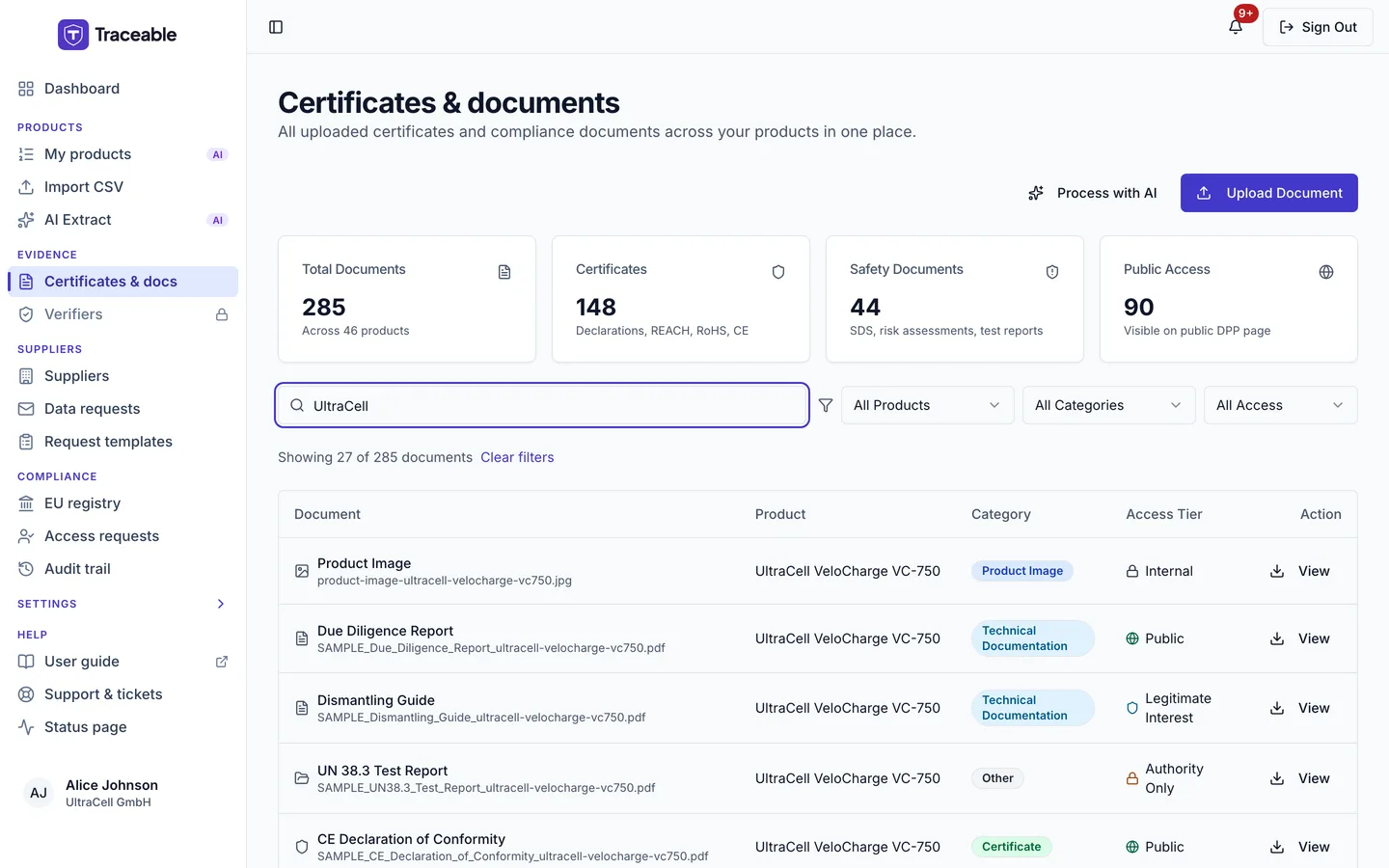
Certificates & documents.
Supported File Formats and Size Limits
Traceable accepts the following file types for document upload:
| Format | Extension | Best Used For |
|---|---|---|
.pdf | Declarations of conformity, test reports, certificates, audit reports | |
| JPEG | .jpg, .jpeg | Scanned documents, photographic evidence |
| PNG | .png | Screenshots, diagrams, scanned images |
| Word Document | .docx | Draft declarations, working documents |
Maximum file size: 10 MB per file. A larger file is refused with "File is too large. Maximum size is 10 MB (got N MB)."
For larger documents (common with multi-product test reports), consider splitting the document by test type or product range, or compressing the PDF before upload.
Uploaded files are checked for malware, and a file is served only once the check has found it clean. A file that failed the check cannot be opened from the library: its row shows "Blocked by malware scan" in place of View. On a product's Documents tab the same label replaces Download.
A file that has not passed the check yet is refused when you try to open it:
- On a product's Documents tab, Download shows a "Download Failed" message with one of these texts:
- "This file is still being checked for malware. Try again in a few minutes."
- "This file could not be checked for malware yet, so it cannot be downloaded. Try again later, or upload it again if this keeps happening."
- "This file has not been checked for malware, so it cannot be downloaded."
- "Blocked by malware scan."
- In the library, View shows the general "Download failed" message: "We could not get this file. Try again, and if it keeps failing, contact support."
So a file you uploaded a moment ago may not open straight away. The same check applies to registry evidence files (see EU registry readiness) and to the files of an AI Extract batch (see Document AI).
An uploaded document is shown on the public passport only once its check has found it clean. A newly uploaded file does not appear there until then. The portal does not show a separate status for a file that is still waiting for its check. Documents you upload but do not process with AI are never sent to an AI service.
Document status
On a product's Documents tab, a document that a verifier approved shows Verified. A document that Traceable platform support accepted, instead of a verifier, shows Accepted by platform support in place of Verified. The public passport shows the same words for that document.
Document Types
In the upload dialog, choose a Document Type: Test Report, Declaration, Certificate, Data Sheet, Dismantling Guide or Other.
| Document Type | Description |
|---|---|
| Test Report | Results of laboratory testing against an applicable standard (e.g., IEC 62133, UN 38.3, ECE R100). |
| Declaration | A formal declaration by the responsible operator that the product meets the requirements of applicable EU legislation. |
| Certificate | A third-party issued certificate (e.g., CE certificate, UN 38.3 certification from an accredited laboratory). |
| Data Sheet | Technical specification sheet, typically provided by the manufacturer, covering electrical and mechanical characteristics. |
| Dismantling Guide | Instructions for dismantling the battery. It is never listed on the public passport: persons with a legitimate interest and authorities see only a listing card for it. |
| Other | Any document that does not fit the above types. |
The library has its own Category filter (Product Image, Certificate, Technical Docs, Safety Data, Other). It is worked out from the field the document belongs to, so it does not match the Document Type you chose at upload.
Which Certificates Are Mandatory
For products in scope of the EU Battery Regulation, Traceable's publish gate checks that specific certificate types are present before a DPP can be published. A certificate rule blocks publishing only for the categories the passport is mandatory for: EV, LMT, Other Industrial (above 2 kWh) and Stationary. Two certificates are date-gated: their start date has not arrived, so the gate does not block publication on them yet.
| Certificate | Blocks publishing today? | Applies to |
|---|---|---|
| CE Declaration of Conformity | Yes | EV, LMT, Other Industrial (above 2 kWh), Stationary |
| Performance and durability test report (Art 10(1), Annex IV) | Yes | EV, LMT, Other Industrial (above 2 kWh), Stationary |
| IEC 62933-5-2 Safety Certification (any Annex V safety test report is accepted) | Yes | Stationary |
| Carbon Footprint Verification | Not yet (see below) | EV, LMT, Other Industrial (above 2 kWh), Stationary |
| Due Diligence Report | Not yet (see below) | EV, LMT, Other Industrial (both sizes), Stationary |
Other certificates, such as UN 38.3, REACH Declaration, CE Marking Declaration and the safety test reports for each category, are shown as Recommended and do not hold publishing back.
Carbon Footprint Verification: not required until the format is set. The platform treats it as not yet required for any category, following the Commission guidance of 28 July 2026 (points 17-18). The platform starts requiring the certificate on 18 February 2028 for EV, Other Industrial (above 2 kWh) and Stationary, and on 18 August 2028 for LMT.
Due Diligence Report: not required until August 2027. Article 48 is postponed to 18 August 2027 by Regulation (EU) 2025/1561.
The Commission's guidance marks the carbon-footprint declaration "not to be filled/displayed as of February 2027, format still to be specified in the upcoming implementing act" for all categories including EV. The suspension is dated, not permanent: the gate resumes automatically on each date above.
A certificate that is not yet required is not hidden. It appears in the compliance checklist with a note: "Not required until the format is set" (Carbon Footprint Verification) or "Not required until August 2027" (Due Diligence Report). A certificate that does not hold publishing back is labelled "Recommended", and one that does is labelled "Required to publish".
Voluntary-scope categories (Other Industrial at or below 2 kWh, SLI, Portable) are exempt from the Carbon Footprint Verification requirement. For these categories no certificate holds publishing back; missing ones are shown as Recommended. See Voluntary battery passports.
Uploading a Document
Single Upload
Only users with the Editor role or higher can upload. A Viewer sees "You do not have permission to upload documents."
- In the sidebar, open Evidence > Certificates & docs.
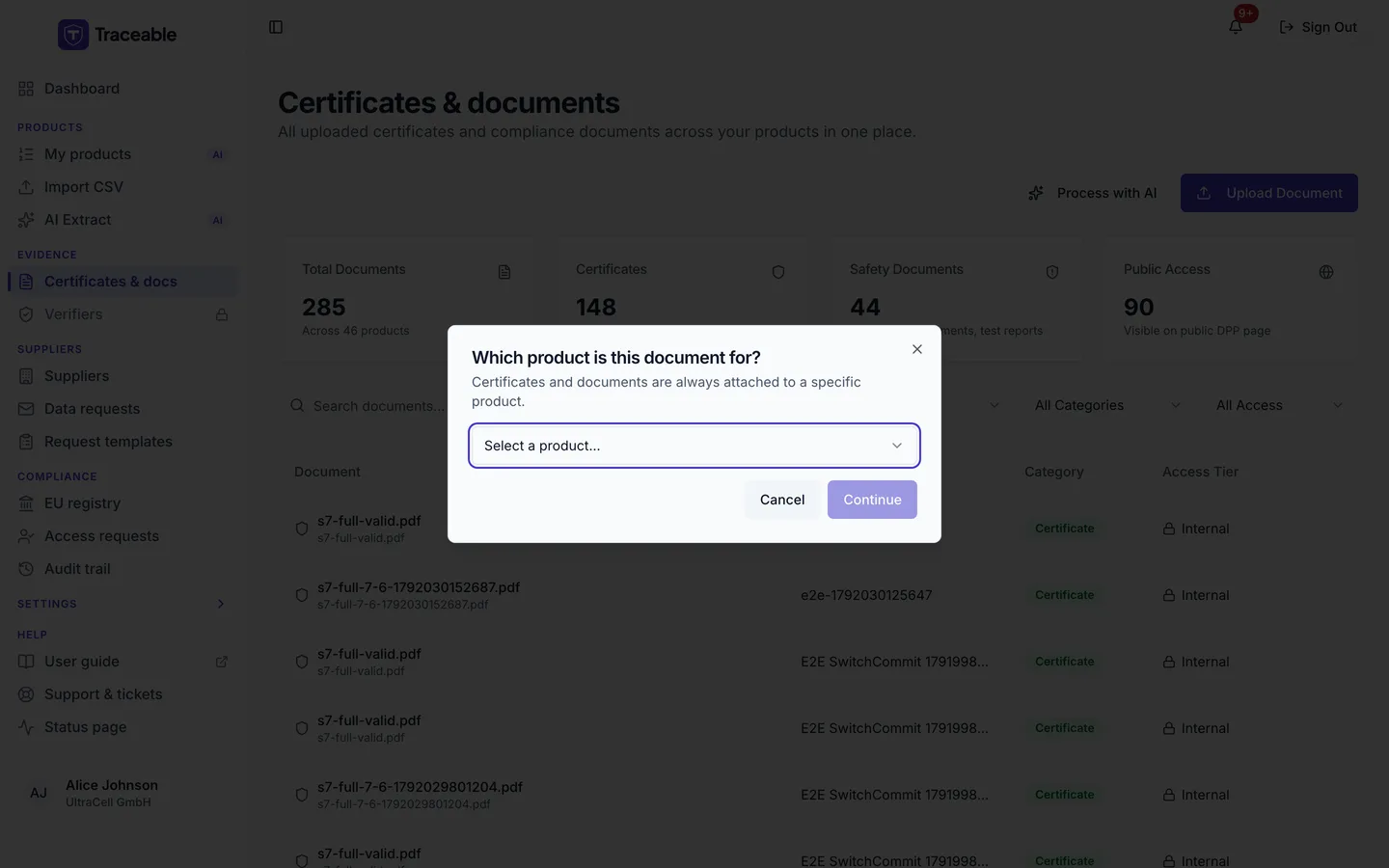
- Select Upload Document. If you have several products, a dialog titled Which product is this document for? asks you to pick one ("Certificates and documents are always attached to a specific product."). Select it and choose Continue. With one eligible product the dialog is skipped. The selector lists only the products that can take an upload: products that are not Approved, Deprecated or Withdrawn, and any of those with an open edit window (see Edit a product). If no product can take an upload, a notice reads "No product can take an upload" and "Every product is locked for edits. Open an edit window on My products, then try again." With no products at all, you see "No products yet" and "Create a product before uploading documents."
- In the Upload Document dialog, choose the File.
- Choose a Document Type (see above).
- Optionally choose a Certificate Type. The options are the certificate requirements that apply to that product. The default is "Not linked to a certificate requirement".
- Optionally pick an Expiry Date. Traceable alerts you when a document is approaching expiry.
- Select Upload. A toast reads "Document Uploaded" and offers an Extract data with Bulk AI link.
The stored name of the document is the file name. There are no fields for document name, document date, issuing organisation or reference number.
Documents and products
A document is always attached to one product when you upload it, and optionally linked to one of that product's certificate requirements through Certificate Type. You can also upload from a product's own page: in My products, select the product's name and open its Documents tab to see its Compliance Checklist (each certificate requirement with its status and an upload or Replace button).
Access tier
The library shows an Access Tier for each row (Public, Legitimate Interest, Authority Only, Internal) and an Access filter with the same values. For a document attached to a product field, the tier comes from the field's definition in the product template. Documents uploaded here and AI-extracted documents show Internal. There is no per-document access control and no document detail page. A Dismantling Guide is never shown on the public passport.
Document Versioning
There is no separate "upload new version" button. If you upload a document for the same product with the same Certificate Type as an earlier one, Traceable records it as the next version and links it to the earlier document. A document uploaded with no Certificate Type starts its own history. A product's checklist also offers Replace.
Reading several documents with AI
To read several documents at once, use AI Extract in the Products group: up to 20 files per batch. See Document AI.
Finding Documents
The search box ("Search documents...") matches the document name, the product name and the file name. The filters are Product, Category and Access. When a filter is active the page shows "Showing N of M documents" with a Clear filters link. Rows are not sortable.
Each row has these actions:
- View downloads the file through a signed link. If it fails you see "Download failed" with advice to try again and contact support if it keeps failing.
- Open opens an external URL.
- Review AI appears on AI-extracted rows and opens a read-only dialog titled "AI Extraction" with a Close button.
- A file that cannot be opened shows "Not available" or "Blocked by malware scan" in place of View.
- Under the name of each uploaded document the library shows "Document id:" followed by the file's id. A CSV import takes this id in a document column to point a product at the file. See Import products.
The upload dialog
Upload Document opens a dialog where the file is chosen and given a document type, an optional certificate type and an optional expiry date.