Manage suppliers
The Suppliers page lists the suppliers in your value chain and lets you invite new ones. You can send a supplier a data request from a product's Traceability page while the supplier is still Invited; that menu item is disabled once the supplier is Approved. See Send data requests.
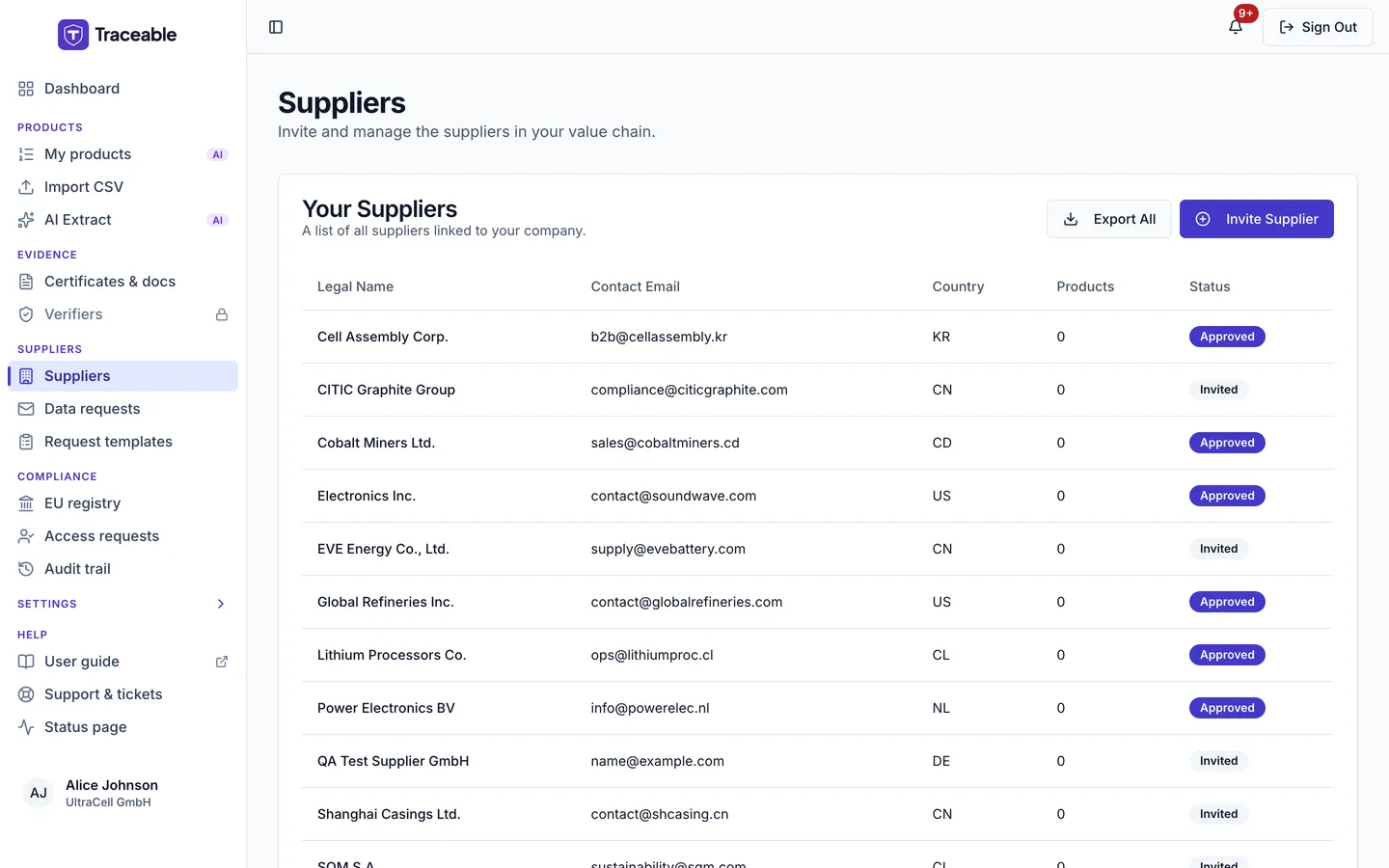
The supplier list.
Adding a supplier
Suppliers do not self-register on Traceable. They must be invited by an operator.
- Open Suppliers in the sidebar.
- Click Invite Supplier. A dialog headed Onboard New Supplier opens. It says "The supplier will receive an email to join the portal."
- Enter the supplier's details. All six fields are required:
- Supplier Legal Name
- Contact Email
- Country (ISO): a two-letter code, for example DE.
- VAT Number
- Company Reg. Number
- Primary Address
- Click Send Invitation.
The Invite Supplier button appears only if your company has the Invite Upstream Suppliers module. Only team members with the Editor role or above can send invitations. Anyone else sees the error "You do not have permission to invite suppliers."
A confirmation toast reads "Invitation Sent". If something goes wrong, the toast reads "Invitation Failed".
The invitation email is headed "You've been invited to Traceable". It says your company has invited the supplier to provide material and compliance data through Traceable. The email carries the link the supplier needs. For a supplier with no password yet, its button reads "Set password and sign in". For a supplier who already has a Traceable account, its button reads "Sign in to Traceable" and opens the sign-in page. This is the built-in default text, and Traceable administrators can edit the live template. If the live template has no sign-in link, the built-in text is sent instead, so the link is never missing.
The supplier appears in your list immediately with status Invited. If a supplier with the same contact email already exists on Traceable, that existing record is linked instead of a duplicate being created.
Supplier status
| Status | Meaning |
|---|---|
| Invited | The invitation has been sent and the supplier has not yet completed a first sign-in. |
| Approved | The supplier has completed a first sign-in. |
| Suspended | Shown when Traceable has suspended the supplier. |
| Revoked | Shown when Traceable has revoked the supplier. |
Operators cannot change a supplier's status. Traceable administrators set Suspended and Revoked.
Supplier record
Click a supplier row to open its record. The record is read-only for operators. It shows:
- Company Information: VAT Number, Registration Number, Country, Primary Address, and Brand Names if any.
- Contact Information: Contact Email, Phone Number, Entity Type, Last Active, and Compliance Score when a value exists.
- A Data requests table with Product, Fields, Status, Date Sent and View.
- A Linked Products table with Product, Material, Type and View.
The supplier maintains its own details in the Supplier Portal.
The list
The list shows all suppliers linked to your company, with the columns Legal Name, Contact Email, Country, Products and Status. Click a row to open the supplier record.
Export All downloads a CSV with Legal Entity Name, Contact Email, Country, VAT Number, Status and Compliance Score. The file is named suppliers-export-<date>.csv. The button is hidden in a support session.
With no suppliers, the table says "No suppliers invited yet."
Supplier scoring
The supplier record shows a Compliance Score percentage when one exists. Supplier scoring is not active yet. See Supplier Scoreboard.
The onboarding dialog
Invite Supplier opens Onboard New Supplier. The supplier receives an email inviting them to join the portal, and the details entered here create their profile.
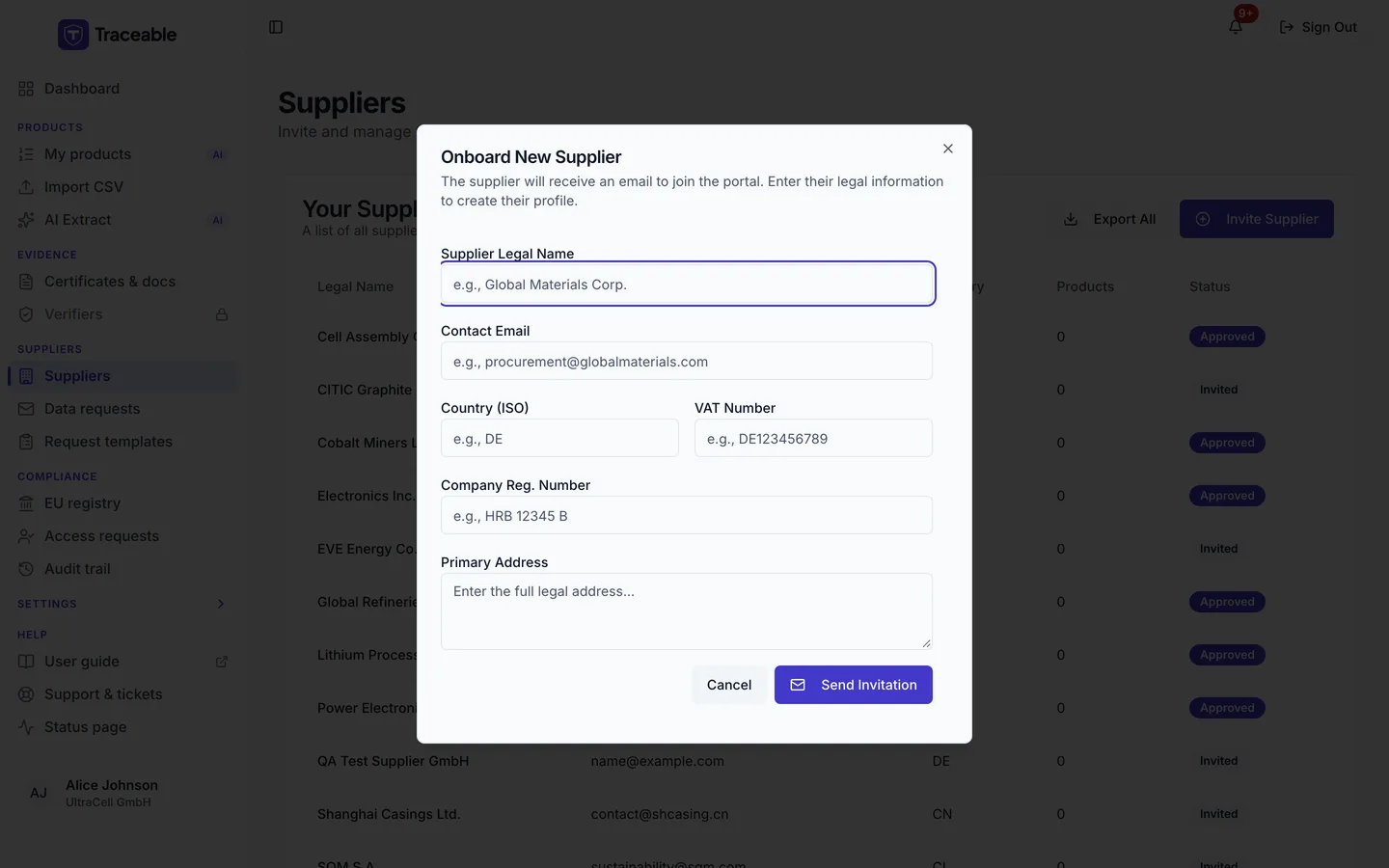
All six fields are required to send the invitation.