Request templates
Request templates let you author reusable, versioned questionnaires. You define a field set once, publish it, and keep a clean version history. At this release the template library is a place to create, publish and deprecate templates. The data request dialog does not offer templates yet. See Using a template in a data request.
Open Request templates in the Suppliers group of the sidebar. If your company does not have the View Supply Chain module, you see an upgrade prompt instead of the template library.
Creating, publishing and discarding or deprecating templates needs the Editor role or above. A Viewer can see the library, but a Viewer who tries to create, publish, discard or deprecate a template sees the error "You do not have permission to edit request templates." The page header shows two counters, Your templates and Published. If the list cannot load, you see "Could not load templates right now. Refresh to try again; no changes were made."
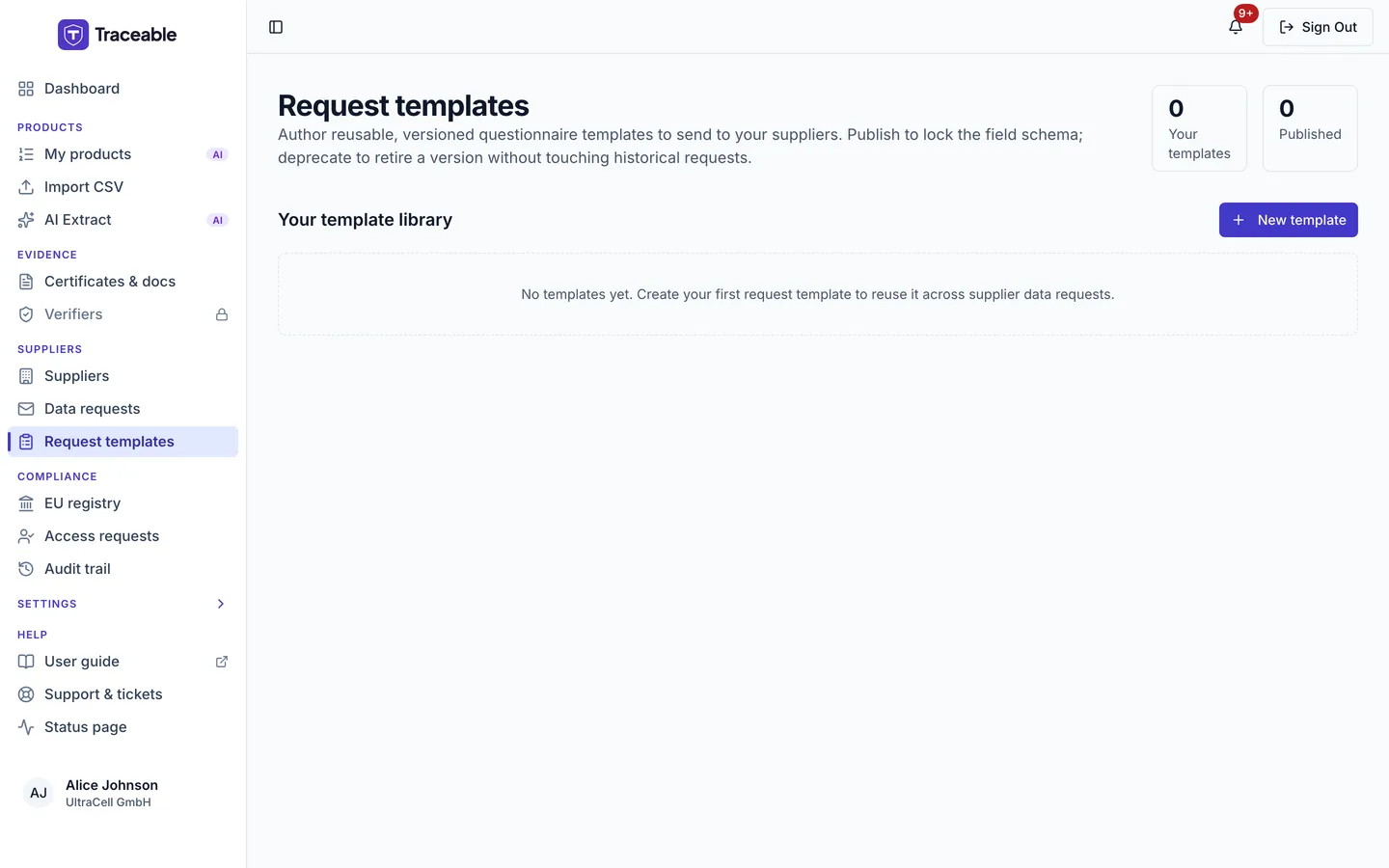
Request templates.
What a request template is
A request template is a named, versioned questionnaire: a defined list of fields. Each template records:
- A version label: a human-readable name, for example "Battery Reg Annex XIII - Due Diligence v1".
- A regulation code: an
UPPER_SNAKE_CASEcode that groups related versions together, for exampleBATTERY_REG_ANNEX_XIII. Each new template gets the next version number for its regulation code, counting every existing template with that code on the platform, including platform-provided ones. - A default SLA: the default number of days you expect a supplier to take to respond (1 to 365, defaulting to 30).
- A list of fields: each field has an id, a label, a type (text, textarea, number, boolean, date, select or file, as named in the type list), and a flag marking whether it is required.
The template lifecycle
Every template moves through three states: Draft, Active, Deprecated. The current state controls what you can do with the template.
| Status | Editable? | Meaning |
|---|---|---|
| Draft | No | Work in progress. A draft row offers Publish and Discard. |
| Active | No (field schema frozen) | Published; the field schema is frozen. When you publish a draft, the platform takes an immutable snapshot of the field schema. From here it can only be deprecated. |
| Deprecated | No | Retired. The template is kept for history. This state is terminal. To bring the questionnaire back, author a new version. |
The status of each template is shown as a badge in the template library table, alongside its regulation code and version (for example BATTERY_REG_ANNEX_XIII v2) and its field count.
Creating a template
-
Open Request templates in the Suppliers group of the sidebar.
-
Click New template.
-
Fill in the template details:
- Version label: the descriptive name for this version.
- Regulation code: an
UPPER_SNAKE_CASEcode. The new template takes the next version number for this code. - Default SLA (days): how many days suppliers are expected to take to respond (defaults to 30).
-
Add the fields the supplier should complete. For each field, enter:
- An id: alphanumeric, using only letters, digits,
_,., and-. - A label: the wording for this field.
- A type: text, textarea, number, boolean, date, select, or file.
- Tick the box to mark the field required.
Use Add field to add more rows. You need at least one field with both an id and a label.
- An id: alphanumeric, using only letters, digits,
-
Click Create draft.
The new template is created in Draft status and appears in Your template library. Creating it does not send anything to a supplier.
Editing a draft
A draft cannot be edited in the interface. A draft row offers Publish and Discard. If a draft is wrong, discard it and create a new template.
Once a template is published (Active), its field schema is frozen. To change a published template, author a new version instead (see Versioning below).
Publishing a template
Publishing moves a template from Draft to Active.
- In Your template library, find the draft you want to publish.
- Click Publish on that row.
When you publish, the platform snapshots the current field schema into an immutable record and marks the template Active. From this point the fields are locked. You cannot edit a published template back into a draft. Deprecate it and author a new version.
Discarding a draft
If a draft is no longer needed and was never published, click Discard on its row. Discarding retires the draft by moving it straight to Deprecated. It is kept for history rather than permanently deleted. The next template for that code takes the next version number.
Deprecating a template
Deprecating retires an Active template. Use this when a questionnaire version is superseded or no longer relevant.
- In Your template library, find the Active template you want to retire.
- Click Deprecate on that row.
After deprecation:
- The template moves to Deprecated.
- Deprecated is terminal. A retired template cannot be reactivated. To reintroduce the questionnaire, author a new version.
Versioning
Templates are versioned per regulation code. Each new template gets the next version number for its regulation code, counting every existing template with that code on the platform, including platform-provided ones.
Because an Active template's fields are frozen, the way to change a published questionnaire is to create a new template with the same regulation code and publish it as the next version. Older versions can be deprecated once the new version is live.
Global (platform-provided) templates
Alongside the templates you author, your library may include Global templates, marked with a Global badge. These are read-only to you:
- You cannot edit, publish, or deprecate a global template. Its Actions column shows Read-only.
- Only Active global templates appear in your library. Platform drafts and retired global templates are not shown.
Using a template in a data request
At this release a request template is a library item you create, publish and deprecate on this page. The data request dialog on the product Traceability page does not yet offer templates, so a published template is not selectable there. For how to send a request today, see Send data requests.