Send data requests
Data requests are sent to a supplier from a product's Traceability page, while the supplier is still Invited (the menu item is disabled once the supplier is Approved). You choose from a fixed list of four data items, and the supplier answers in the Supplier Portal.
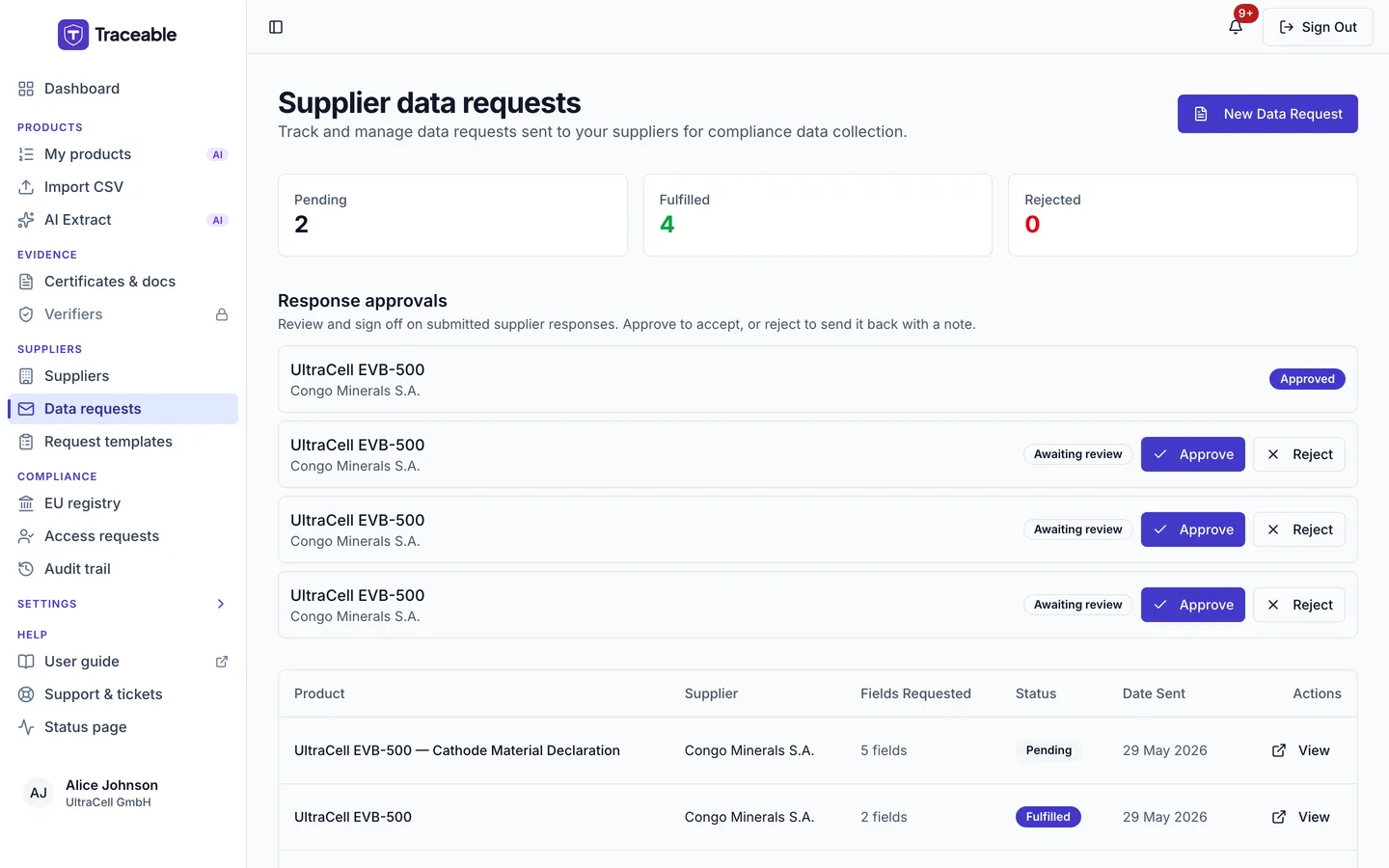
Data requests.
The Data requests page
Open Data requests in the Suppliers group of the sidebar. The page is headed Supplier data requests.
- Three summary tiles show the counts for Pending, Fulfilled and Rejected. They appear only when at least one request exists.
- The table has the columns Product, Supplier, Fields Requested, Status, Date Sent and Actions. View opens the product's Traceability page. The list is newest first and has no filters.
- With no requests, the page says "No data requests yet" and offers a Manage Suppliers button.
- The New Data Request button takes you to the My products list. Requests are created per product from the Traceability page, as described below.
Creating a data request
- Open My products, select the name of a product to open its page, and in the Suppliers and traceability card on the Overview tab select Open traceability.
- In the Bill of Materials (Table View), open the row menu on the material whose supplier you want to ask.
- Choose Invite Supplier. A request dialog opens, titled with "Request Data from" and the supplier's name.
The menu item is labelled Invite Supplier but it opens the data request dialog. It is disabled when the row has no supplier or when the supplier's status is Approved.
The supplier is the one on the Bill of Materials row you opened the menu from. The request is for the product whose Traceability page you are on.
In the dialog:
- Under Data Attributes Required, tick one or more of: Recycled Content %, Carbon Footprint Breakdown, Conflict Minerals Declaration (CMRT), RoHS Compliance Certificate. You must tick at least one. Otherwise you see "Select at least one field."
- The dialog also has a Note to Supplier box. At this release the note is not stored with the request or sent to the supplier, so put anything the supplier must know in your own email to them.
- Click Send Request. The button shows "Sending..." while it works.
A toast reads "Data Request Sent" with "Request sent to" and the supplier name. If it fails, the toast reads "Failed to send request".
You need the Editor role or above to send a request. Otherwise you see "You do not have permission to send data requests."
The request appears in your list with status Pending. The supplier is emailed that your company has requested data for the product, with the number of fields requested, and told to log in to the Supplier Portal to respond. This is the built-in default text, and Traceable administrators can edit the live template. If the supplier has a user account, they also get an in-app notification, "New Data Request".
Tracking request status
| Status | Meaning |
|---|---|
| Pending | The request has been sent and the supplier has not answered. |
| Fulfilled | The supplier has submitted a response. You are notified by email and in the app. |
| Rejected | The supplier declined the request and gave a reason. You are notified by email. |
A request moves from Pending to Fulfilled or from Pending to Rejected. Only the supplier makes that change.
Reviewing a response
When a supplier submits, the request shows Fulfilled and appears under Response approvals on the Data requests page. This section appears only when at least one Fulfilled response exists. It shows the 200 most recent. Each row has a badge (Awaiting review, Pending approval, Approved or Rejected). Rows that are not yet Approved have Approve and Reject buttons.
Team members with the Approver role or above can click Approve or Reject. Anyone else sees "You do not have permission to approve or reject responses."
Reject opens Reject response, which asks for an optional reason of up to 500 characters. Confirm with the Reject response button.
An approved response is locked. To change it, send a new request.
Approving a response records your decision and who made it. It does not copy the supplier's values into the product.