Verification tasks
Verification tasks are requests you send to third-party auditors or testing organisations (verifiers) to review and independently validate specific documents attached to a product's DPP. For DPPs that require third-party attestation (particularly EV and Industrial batteries under EU Battery Regulation 2023/1542) verification tasks are how you engage an independent reviewer and track their decision.
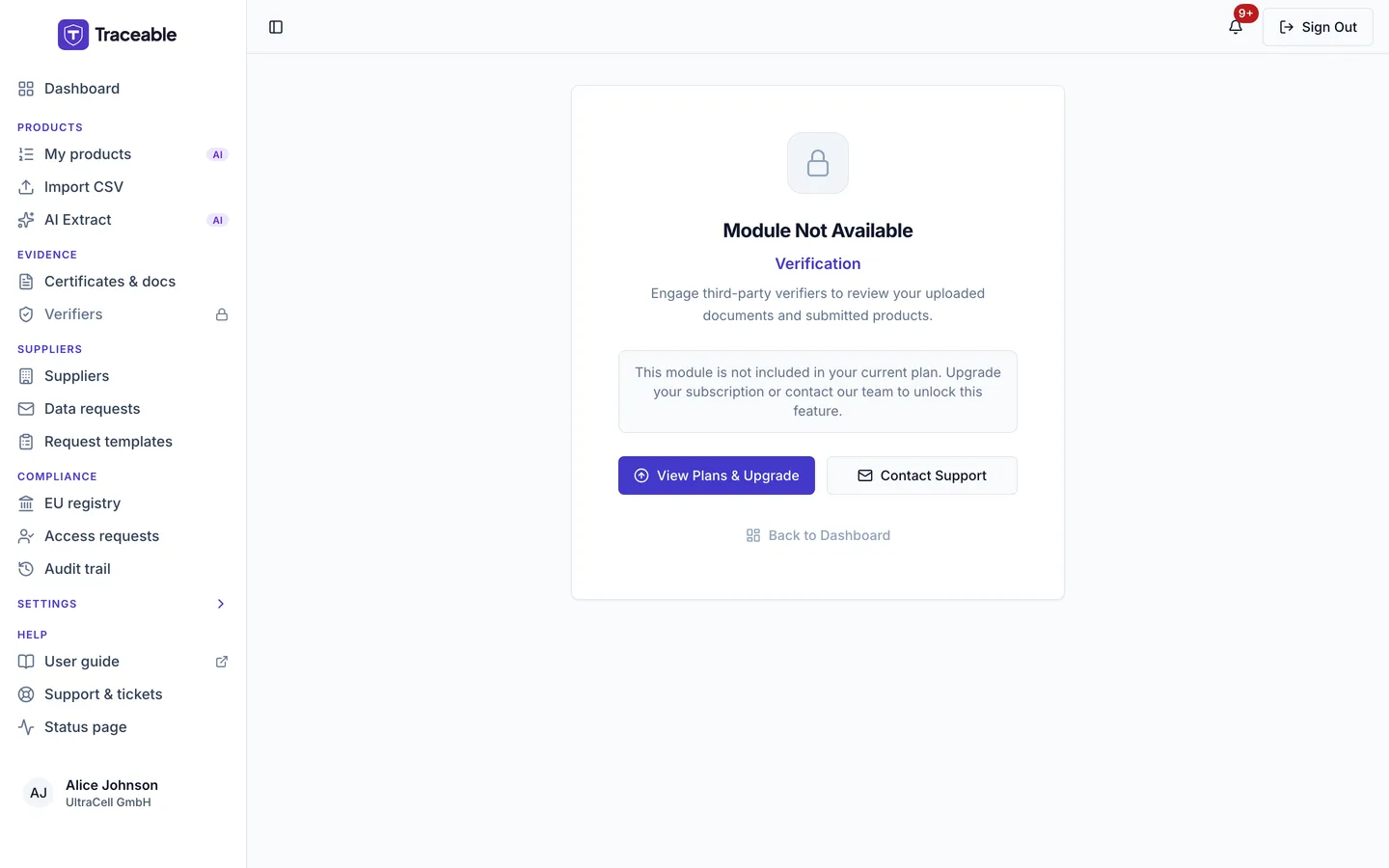
The Verifiers page.
What Verification Tasks Are
A verification task links a specific document to a specific verifier. The verifier receives access to that document and the associated DPP product data, reviews the evidence, and records an Approved or Rejected decision. Their decision and reason are recorded in the audit trail.
Verification tasks are not a substitute for a formal conformity assessment by a Notified Body where one is required by regulation. They are a platform-based coordination mechanism for the independent review workflows that support the claims in your DPP.
When You Need Verification Tasks
Third-party verification is particularly relevant for:
- Carbon footprint declarations: an independent check of the declared values adds assurance.
- State of health and performance data: independently verified test results strengthen the credibility of performance claims.
- Supply chain due diligence attestations: for EV batteries, independent review of the due diligence framework and its implementation.
- Recycled content claims: an independent check of the declared percentages adds assurance.
- Any DPP claims that your organisation does not generate internally: if the data comes from a supplier or third-party test laboratory, having an independent verifier cross-check the claim against the underlying evidence adds a layer of assurance.
Consult the applicable implementing acts for your battery category to determine exactly which claims require third-party verification and from which compliance date.
Your verifier roster
Verification requests are made from a product's Documents page. Your verifier roster is managed under Evidence > Verifiers in the sidebar.
The Verifiers page is headed "Verifiers", with the subtitle "Manage the third-party verifiers you engage. Only verifiers on this roster can be assigned to review your compliance documents."
- The Your Verifier Roster card lists each verifier's name, email, "Added" date and an Active or Revoked badge, with a Revoke button on each Active row.
- Add Verifier opens Add a Verifier. Choose a verifier from "Select a verifier...", then click Add to Roster (or Cancel). A toast reads "Verifier added".
- Revoke shows the toast "Verifier revoked". You can reverse it by adding the verifier again.
- If documents await verification and no Active verifier is on the roster, a red alert reads "Verification is stalled".
- Adding or revoking needs the Admin team role. Anyone else sees "Only team admins can manage the verifier roster."
The page and the Verify button need the Verification module. It starts off for every company and Traceable switches it on. If it is off, the sidebar item is locked and shows 'Requires "Verification" module. Upgrade to unlock.'
Creating a Verification Task
- Go to My products, select the product's name and open the Documents tab. The page is headed "Compliance Documents for:" followed by the product name.
- On the Compliance Checklist, find the document. It must show status Pending.
- Click Verify.
The Verify button only appears when your company has the Verification module. You need the Editor role or above. Otherwise you see "You do not have permission to request verification." Verification is not available for sandbox-mode products. You see "Document verification requests are not available for sandbox-mode products."
The Request Third-Party Verification dialog opens.
Select the verifier
In the dialog, choose a verifier from the Approved Verifier list. The list contains only the verifiers on your roster. If your roster is empty, the dialog says "No verifiers on your roster yet" and offers Manage Verifiers. Use it, or open Evidence > Verifiers, to add one first. You are responsible for choosing a verifier who is qualified for the claim.
Send the task
Click Submit for Verification. A "Verification Requested" message confirms the document has been sent to the selected verifier for review.
Tracking Task Status
The Compliance Checklist shows one of four statuses per document:
| Status | Meaning |
|---|---|
| Missing | Nothing has been uploaded. |
| Pending | The document is uploaded and a verifier has not yet decided. |
| Verified | A verifier approved it. |
| Rejected | A verifier rejected it. |
What to Do if a Document Is Rejected
A rejection means the verifier found that the submitted document could not confirm the claim. Rejection does not necessarily mean the data is wrong. The supporting documentation may be insufficient, the evidence ambiguous, or the presentation of the data may not align with the applicable standard.
Step 1: Read the verifier's reason
When a verifier rejects a document you receive an email and an in-app notification, "Document Rejected", with the reason. It links to the product's Documents page. The reason is also recorded in the audit trail.
Step 2: Address the Issues
Depending on the nature of the rejection:
- Missing or wrong documentation: upload the correct document to the product's document library
- Incorrect field value: correct the value in the DPP editor (see Edit a Product)
- Supplier data required: if the rejection is due to missing upstream evidence, send a data request to the relevant supplier (see Send Data Requests)
Step 3: Request re-verification
Upload the corrected document (use Replace on the rejected row), then click Verify on the new Pending document.
Related
- Product Documents: managing the documents that verification tasks are created from
- Verifier Portal Guide: what verifiers see when they receive a task